
Scan a business card into your contacts
Photograph a business card and AI fills in the contact. Call or WhatsApp them, save them to your phone, and download everyone you met as a spreadsheet.
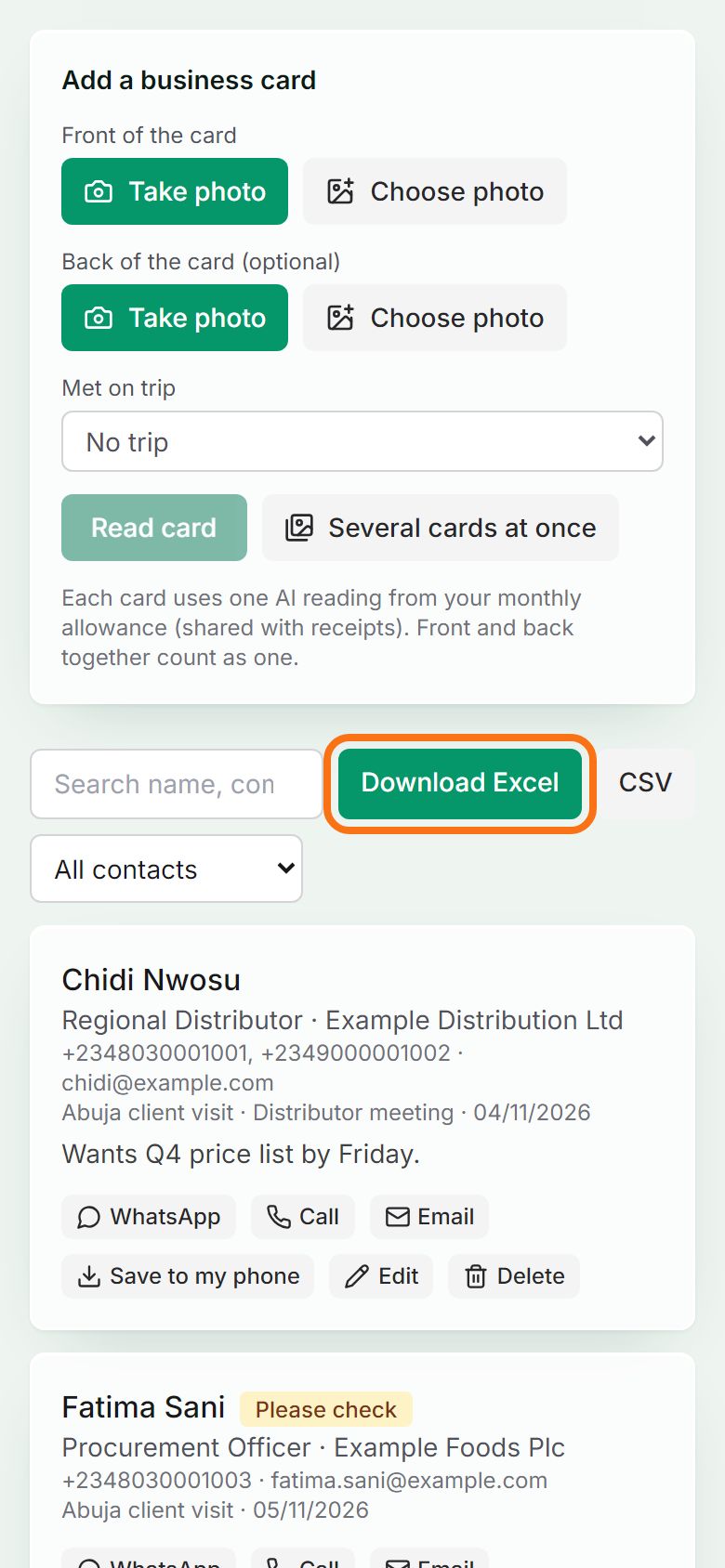
Pictures come from the sample workspace; the orange frame shows where to look or press.
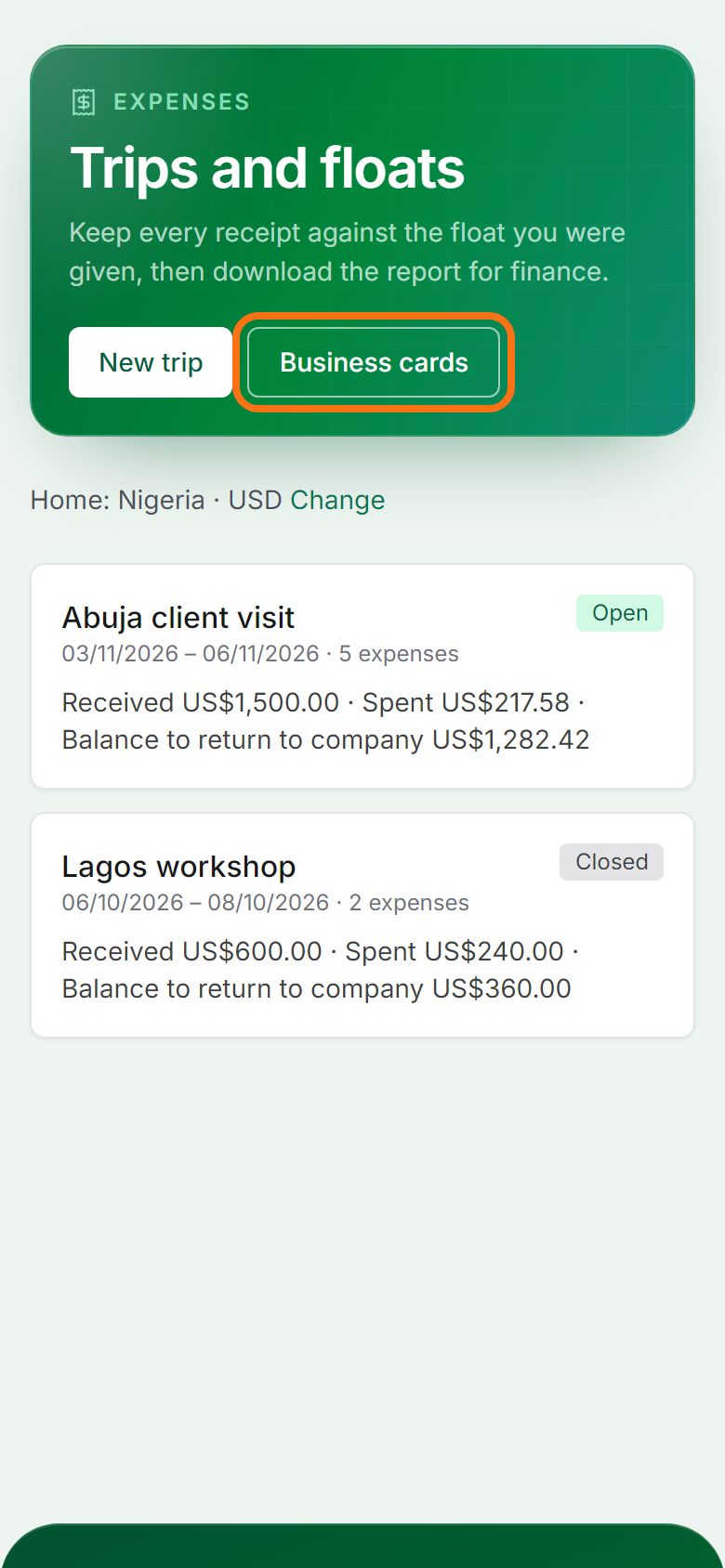
Step 1. Open Business cards
In Expenses, press Business cards. Business cards are on the Starter plan and above.
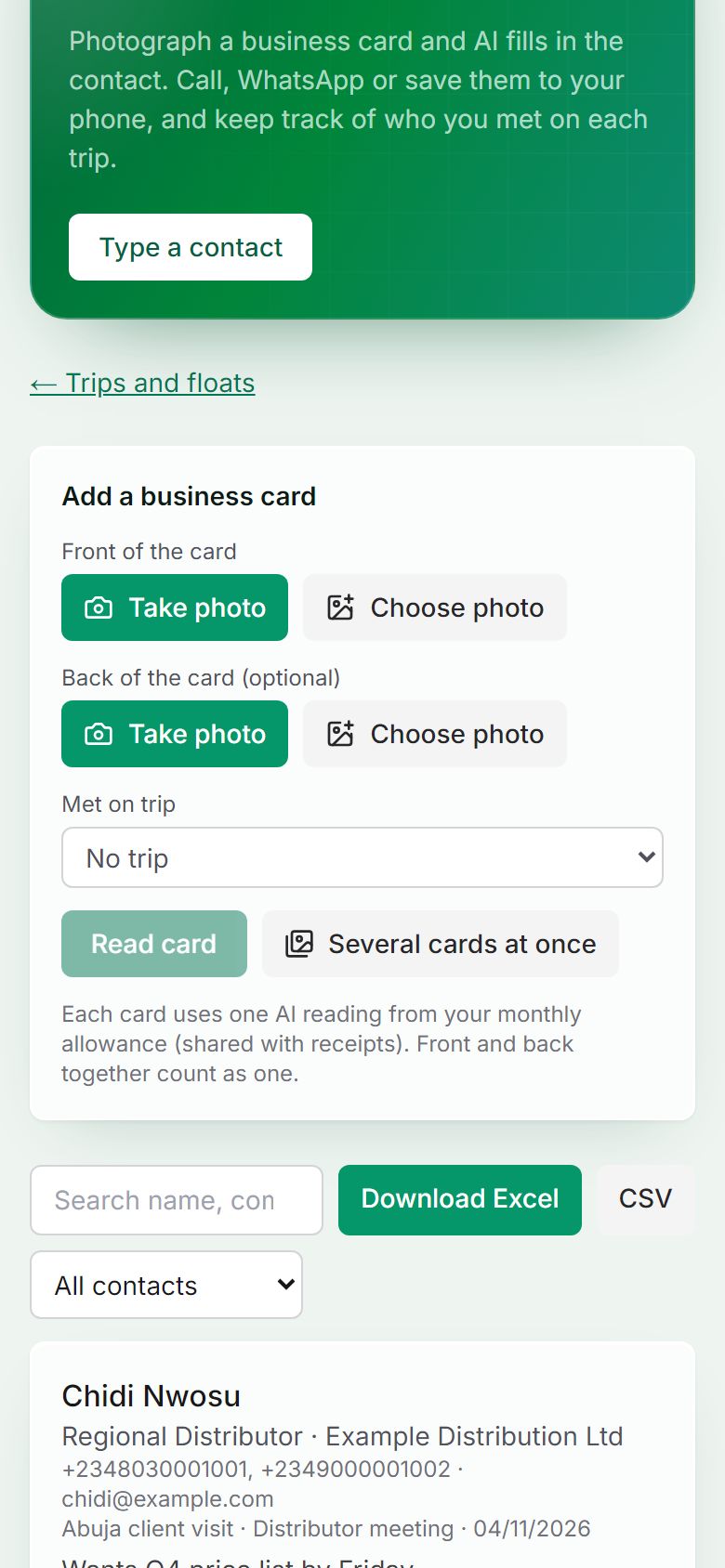
Step 2. Photograph the card
Press Take photo for the front, and for the back if it has details too, choose the trip you met them on, then press Read card. After an event, use Several cards at once to read a whole stack. Each card is one reading from your monthly allowance, shared with receipts. On Telegram, send the photo with the caption card.
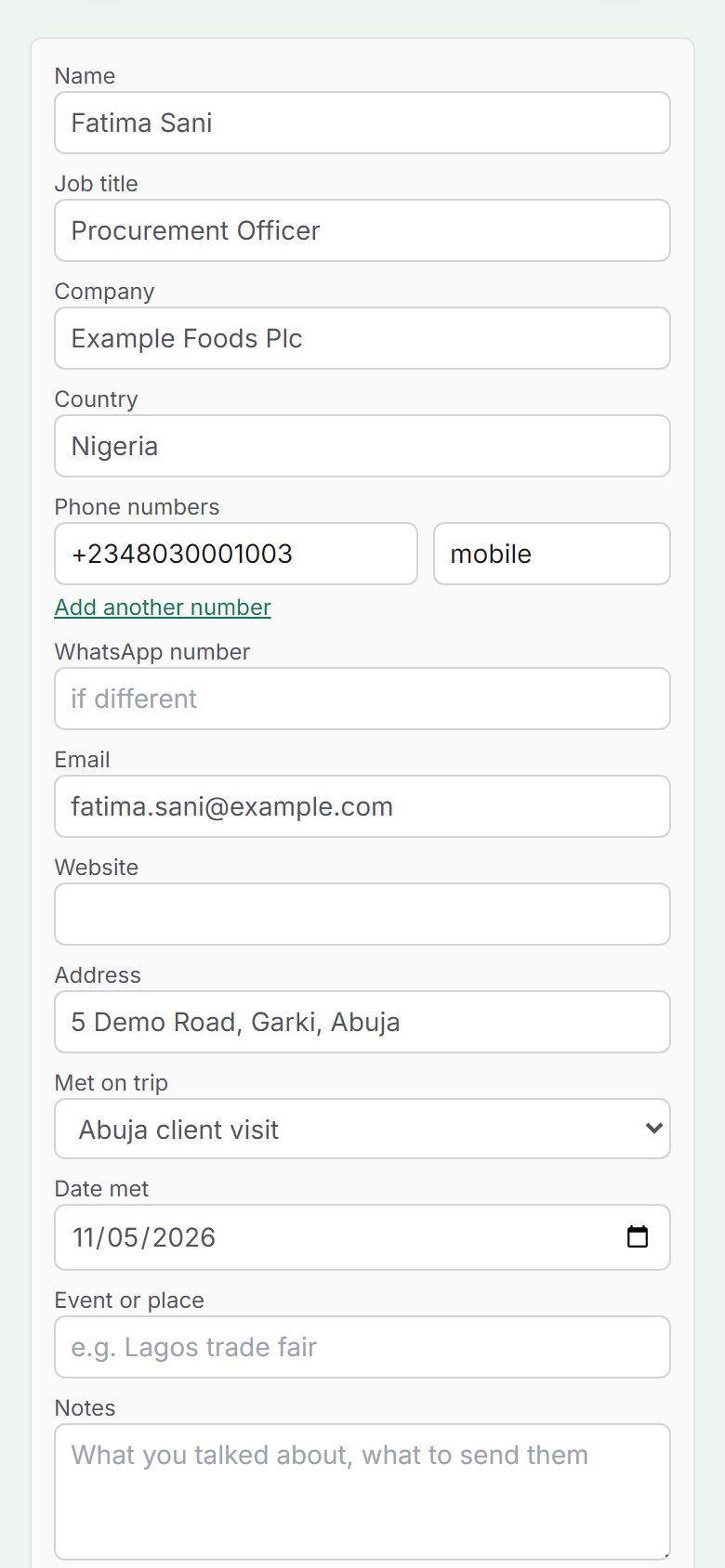
Step 3. Check the details and save
The card appears next to what was read: name, title, company, phone numbers, WhatsApp, email and address. Correct anything marked Please check, add a note on what you talked about, and press Save contact. If you already have the same person, you can merge them.
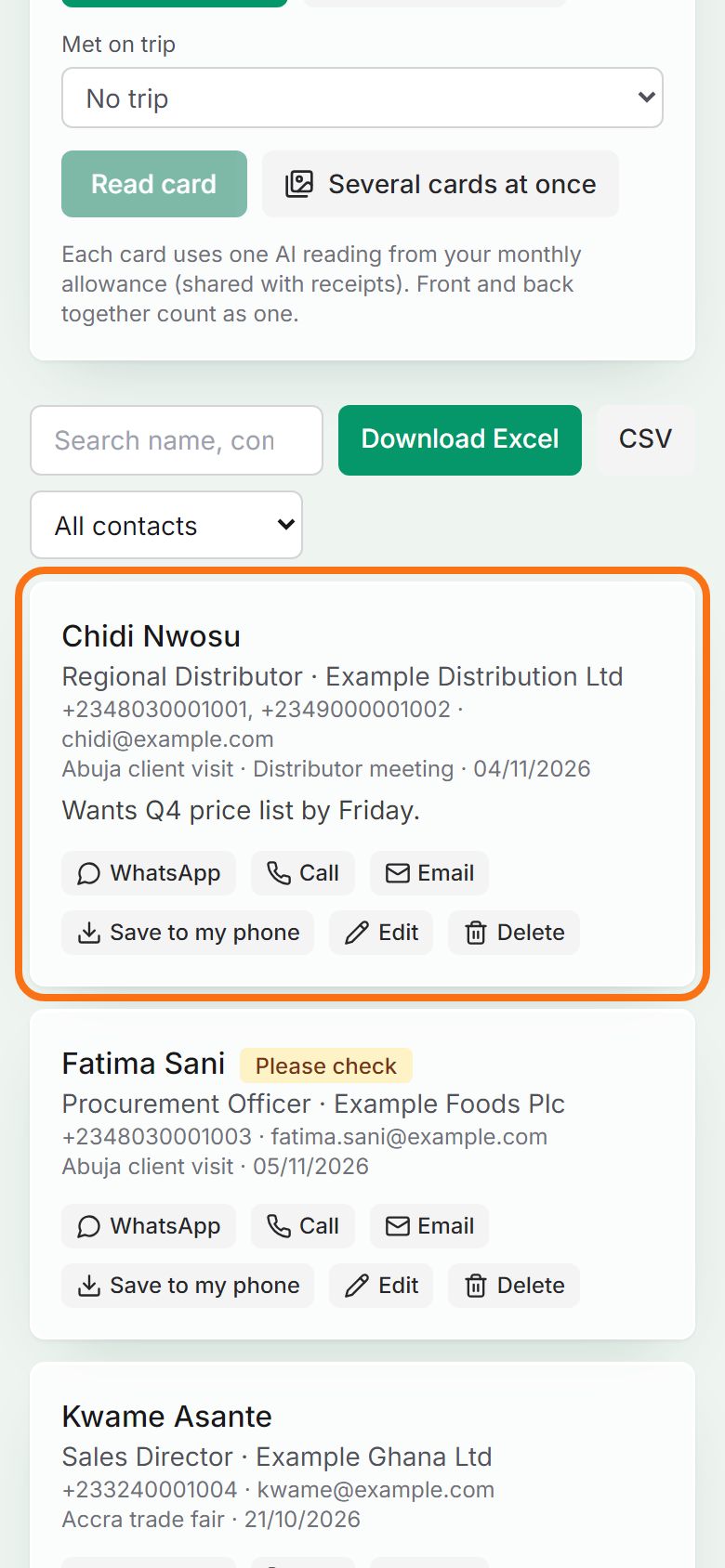
Step 4. Call, WhatsApp or save to your phone
Each contact has WhatsApp, Call and Email buttons. Save to my phone adds them to your phone’s contacts. Search by name, company or part of a number.
Step 5. Download them as a spreadsheet
Press Download Excel (or CSV) for one row per person. Pick a trip first to download only the people you met on it; the trip’s Excel report also has a Contacts sheet.


Still stuck? Ask the chat at the bottom of the page, or email support@quantum-notemaster.com.
Next guide: Add expenses from your bank’s SMS alerts