Record or upload audio and get a transcript
Record a meeting in the app or upload a recording from your phone or computer; the transcript arrives with each speaker labelled.
Pictures come from the sample workspace; the orange frame shows where to look or press.
Step 1. Open Transcribe
In the menu, choose Transcribe. The “Record or Upload audio” card is at the top of the page.
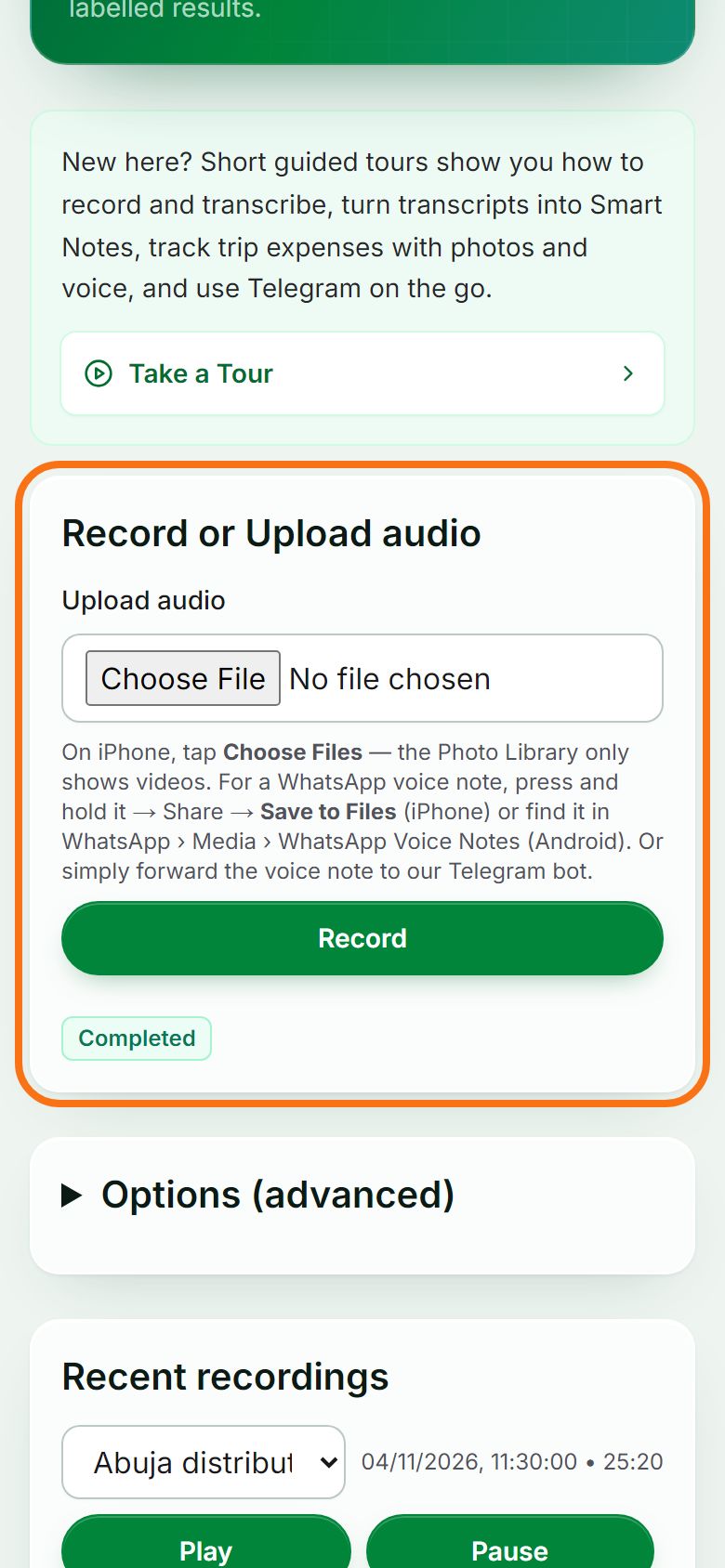
Step 2. Record in the app
Press Record and allow the microphone when your browser asks. Press Stop when you finish. You are asked how many people spoke, then transcription starts by itself.
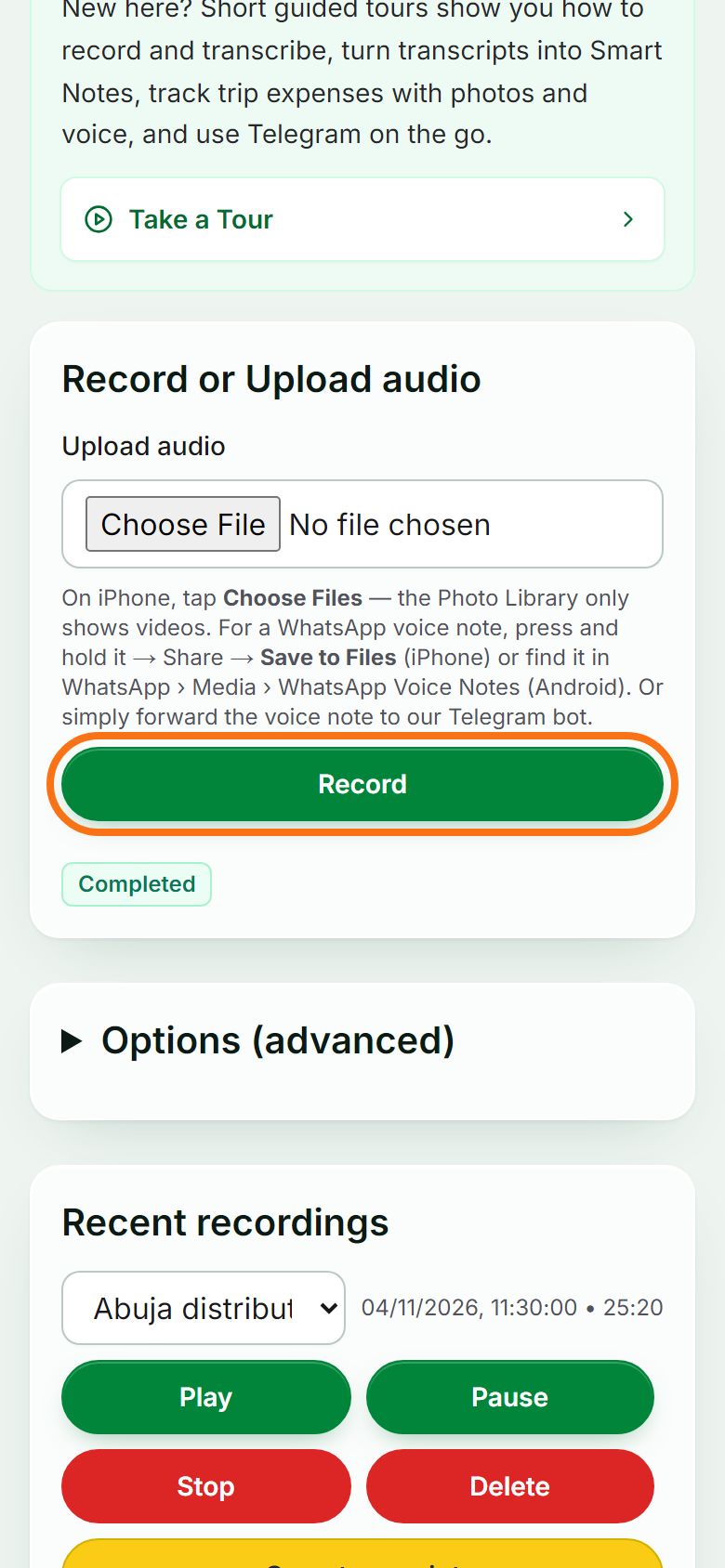
Step 3. Or upload a recording
Under Upload audio, press Choose File and pick the recording: a WhatsApp voice note, a phone recording, or a Zoom, Teams or Google Meet recording you downloaded. On iPhone, tap Choose Files (the Photo Library only shows videos).
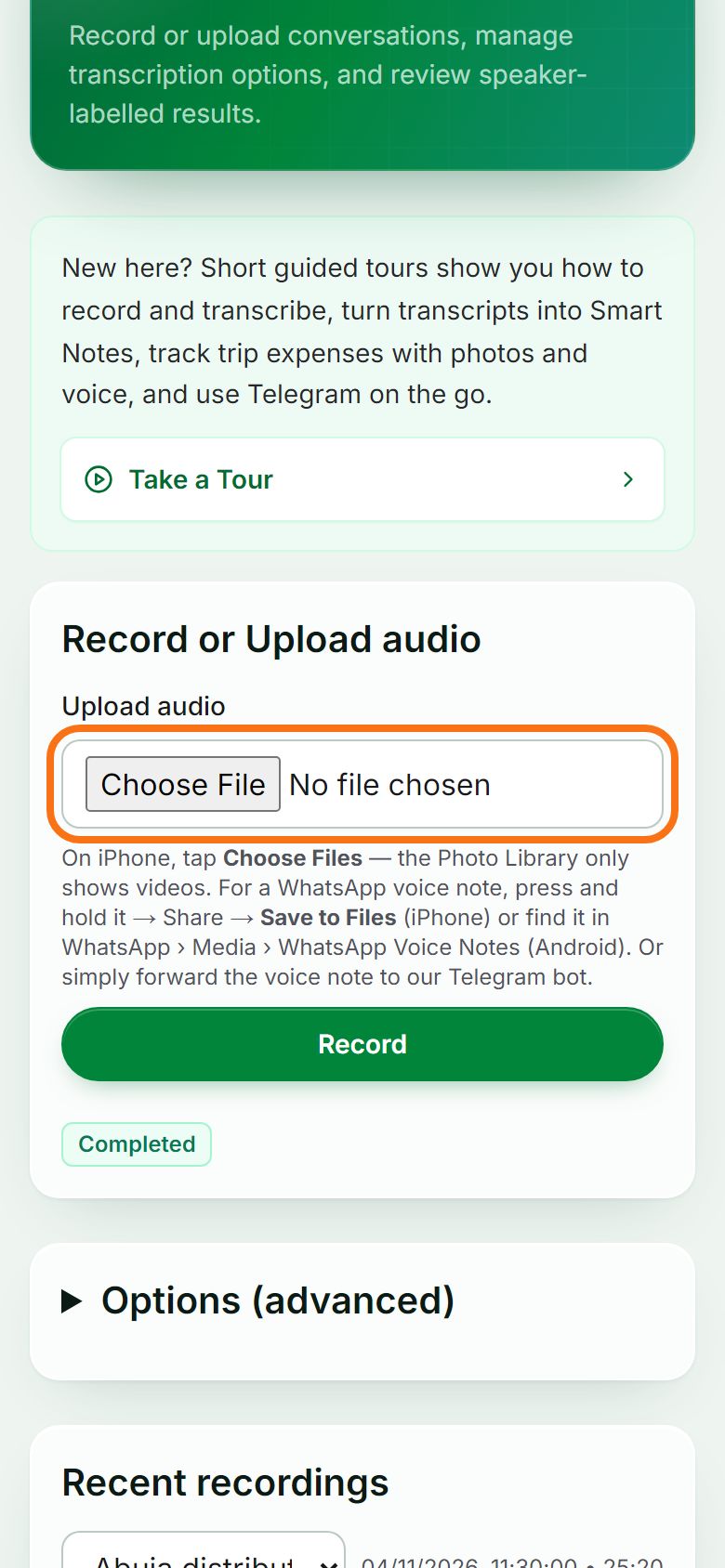
Step 4. Choose the language (optional)
Open Options (advanced) before you record or upload. Auto-detect language is on by default; untick it to pick one language, or turn on Enable code switching when two languages are mixed (for example Arabic and English). Speakers expected helps tell the voices apart.
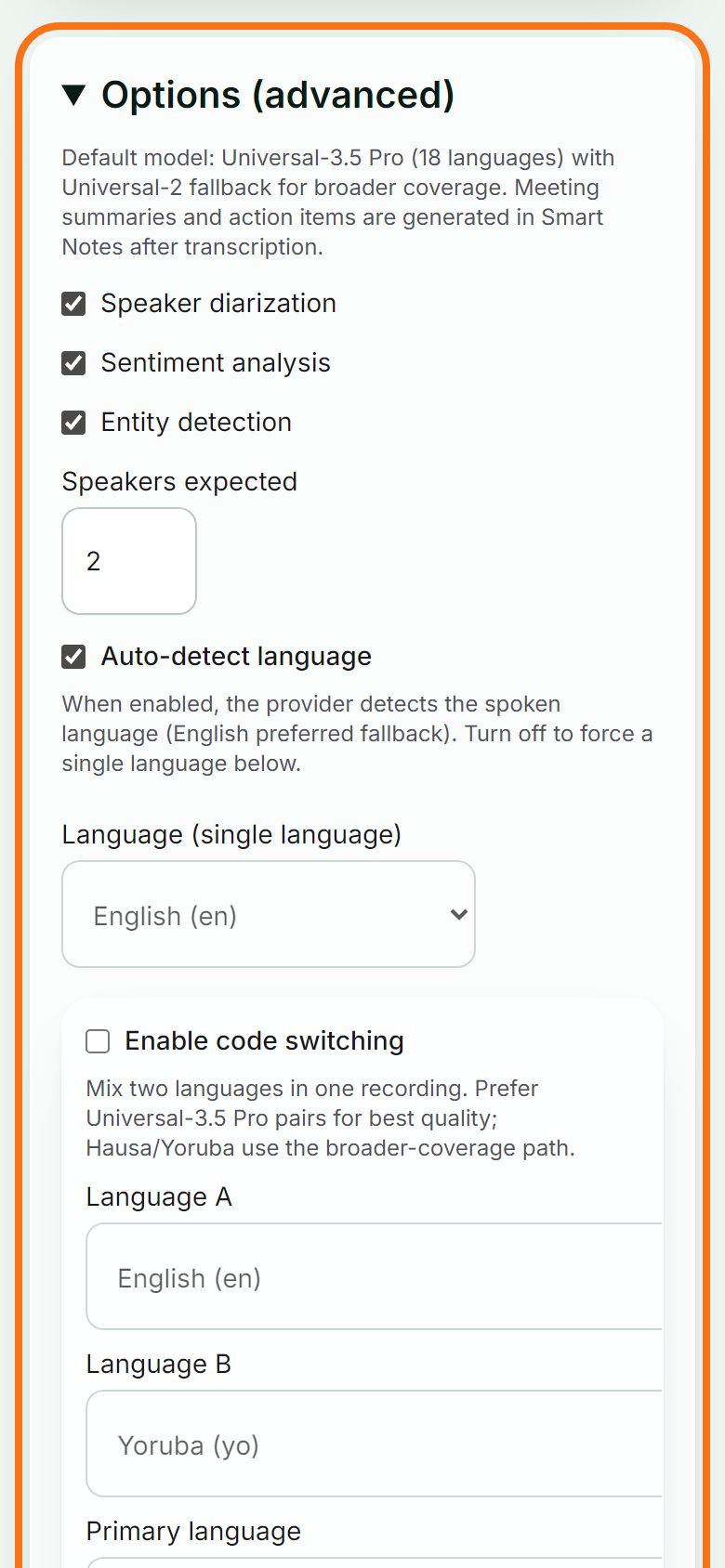
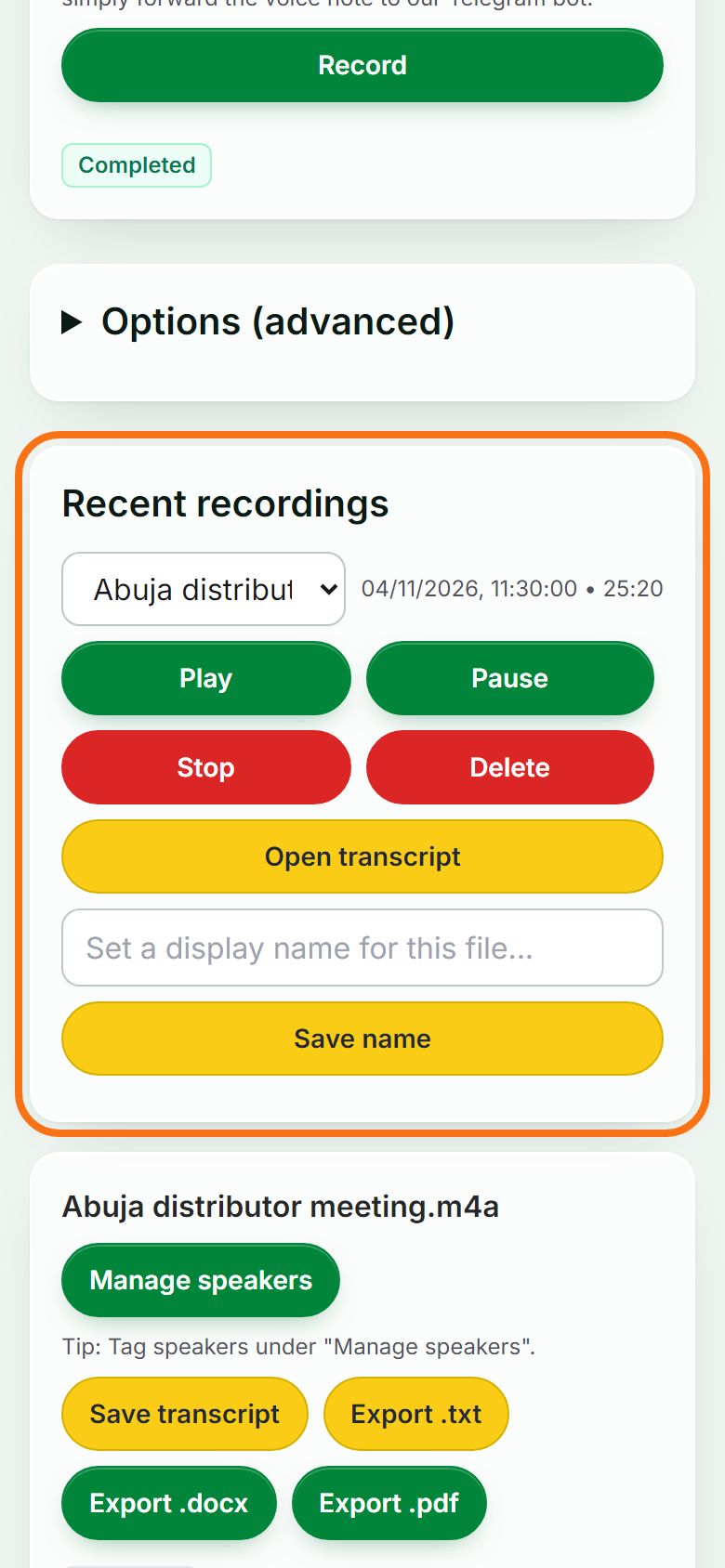
Step 5. Find it in Recent recordings
Every recording appears under Recent recordings with its date and length. Pick it in the list: Play to listen, Transcribe if it has no transcript yet, or Open transcript once it is ready.
Step 6. Open the transcript
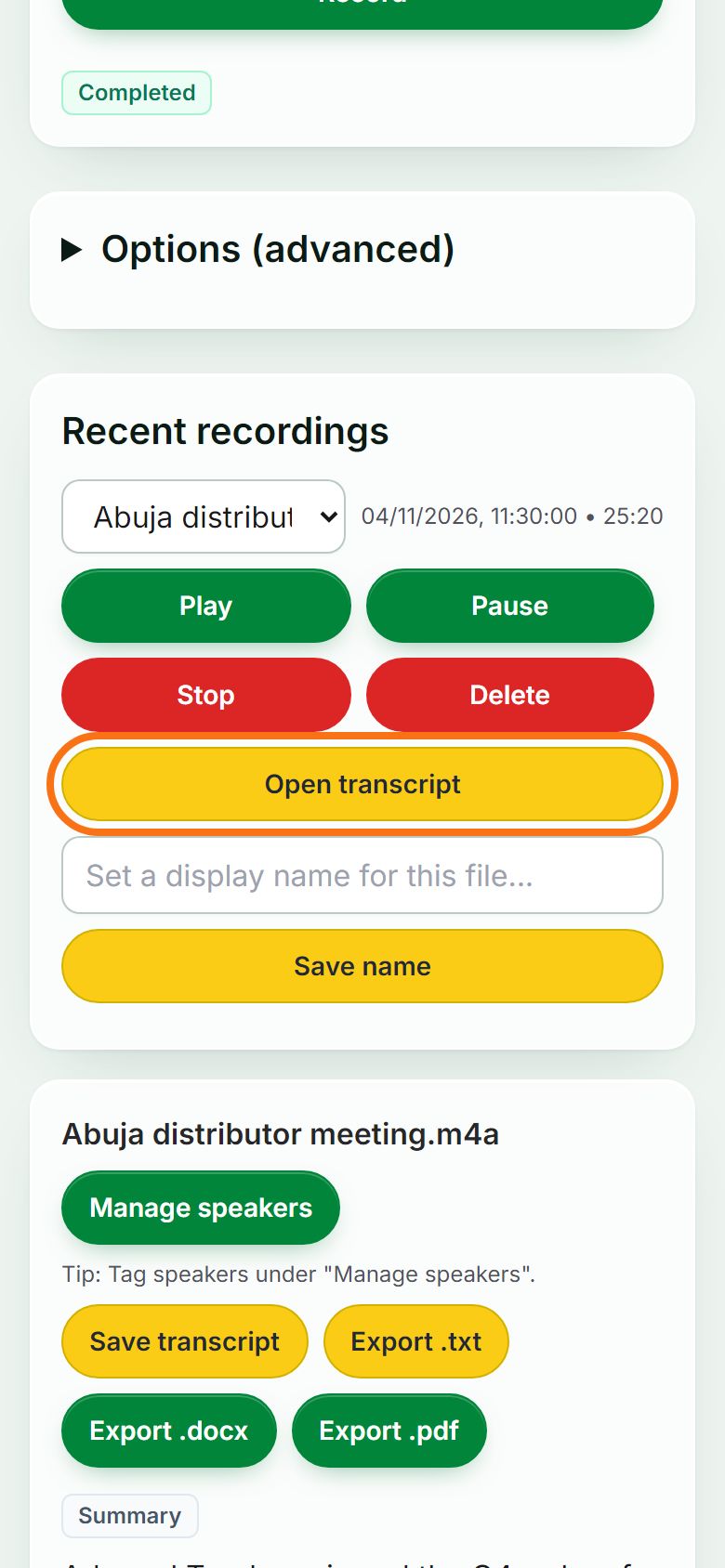
Press Open transcript. The transcript appears below the list, split by speaker.
Step 7. Speakers start as A, B, C…
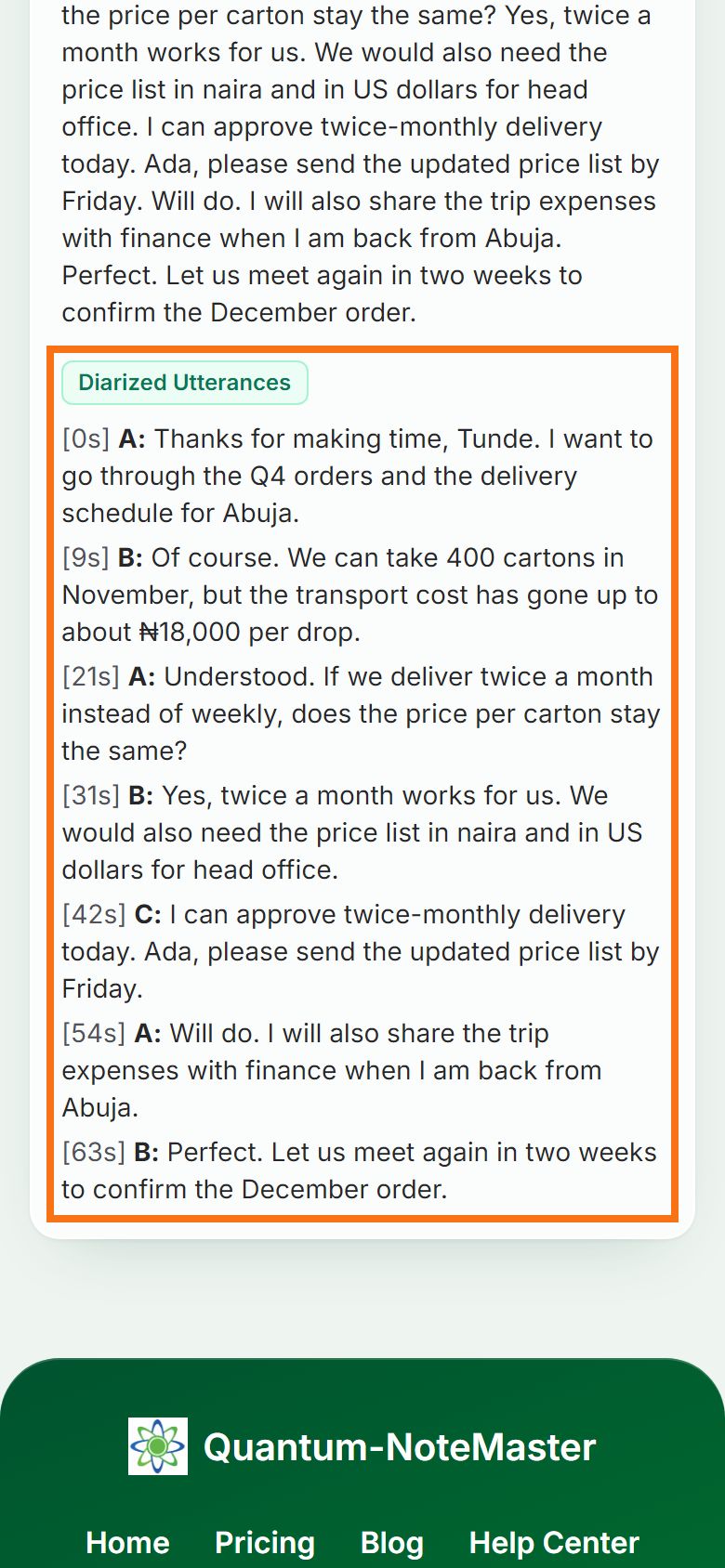
Under Diarized Utterances, each voice gets a letter: A, B, C and so on. The app tells the voices apart but does not know who they are, so names are never filled in automatically. Give each letter a name in the next step.
Step 8. Name each speaker
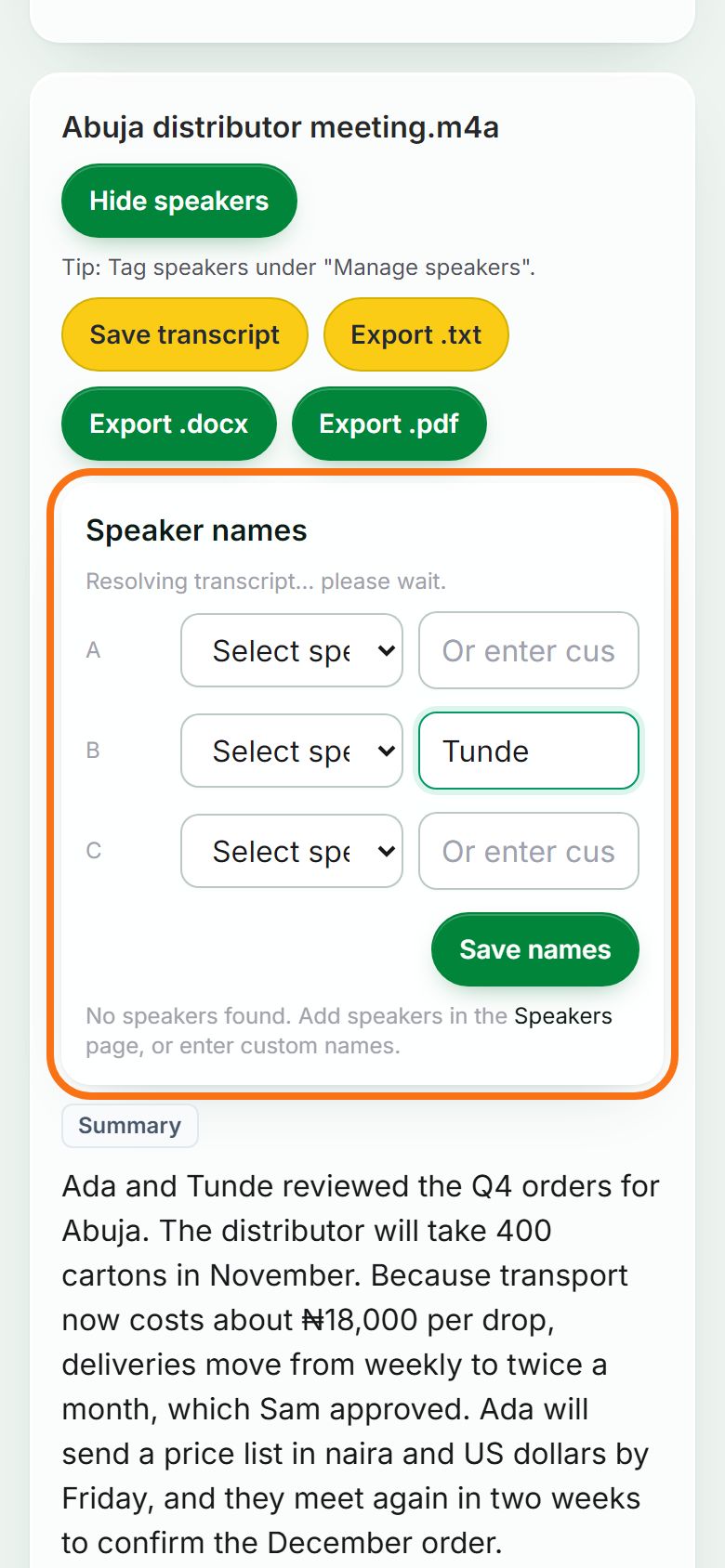
Press Manage speakers. Read a few lines to tell who is who, then next to each letter choose the person from the “Select speaker…” list or type the name under “Or enter custom name”. For example, if Tunde is Speaker B, type Tunde next to B. Press Save names, and the letters in the transcript are replaced by the names.
Step 9. Keep a list of people you record often
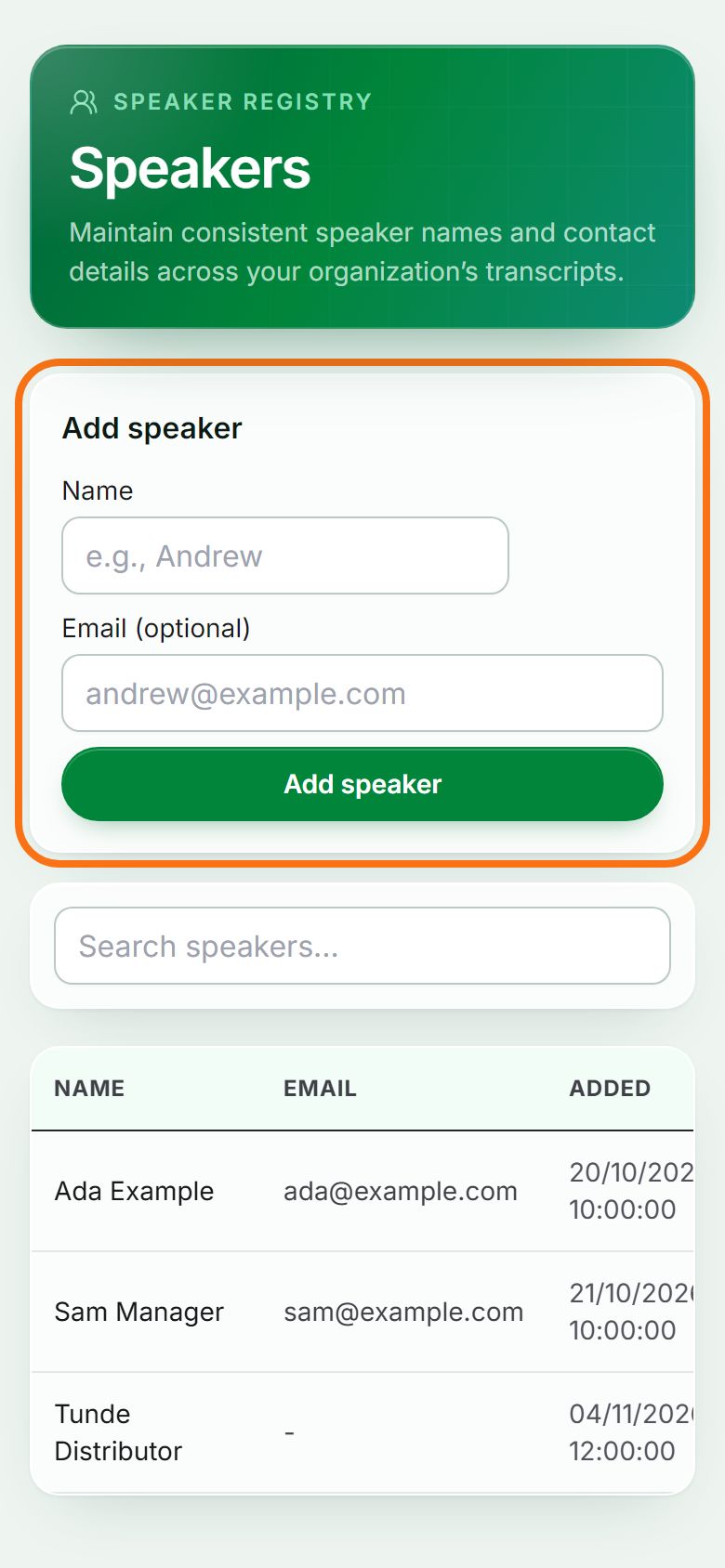
Open Speakers in the menu, type a name (and an email if you like) under Add speaker, and press Add speaker. Everyone on this list appears in the “Select speaker…” list, so naming the next meeting takes a tap.


Still stuck? Ask the chat at the bottom of the page, or email support@quantum-notemaster.com.
Next guide: Read, download and share a transcript