
Add expenses from receipts or by voice
Photograph a receipt or upload a photo or PDF and it is read for you, or say the expense out loud.
Pictures come from the sample workspace; the orange frame shows where to look or press.
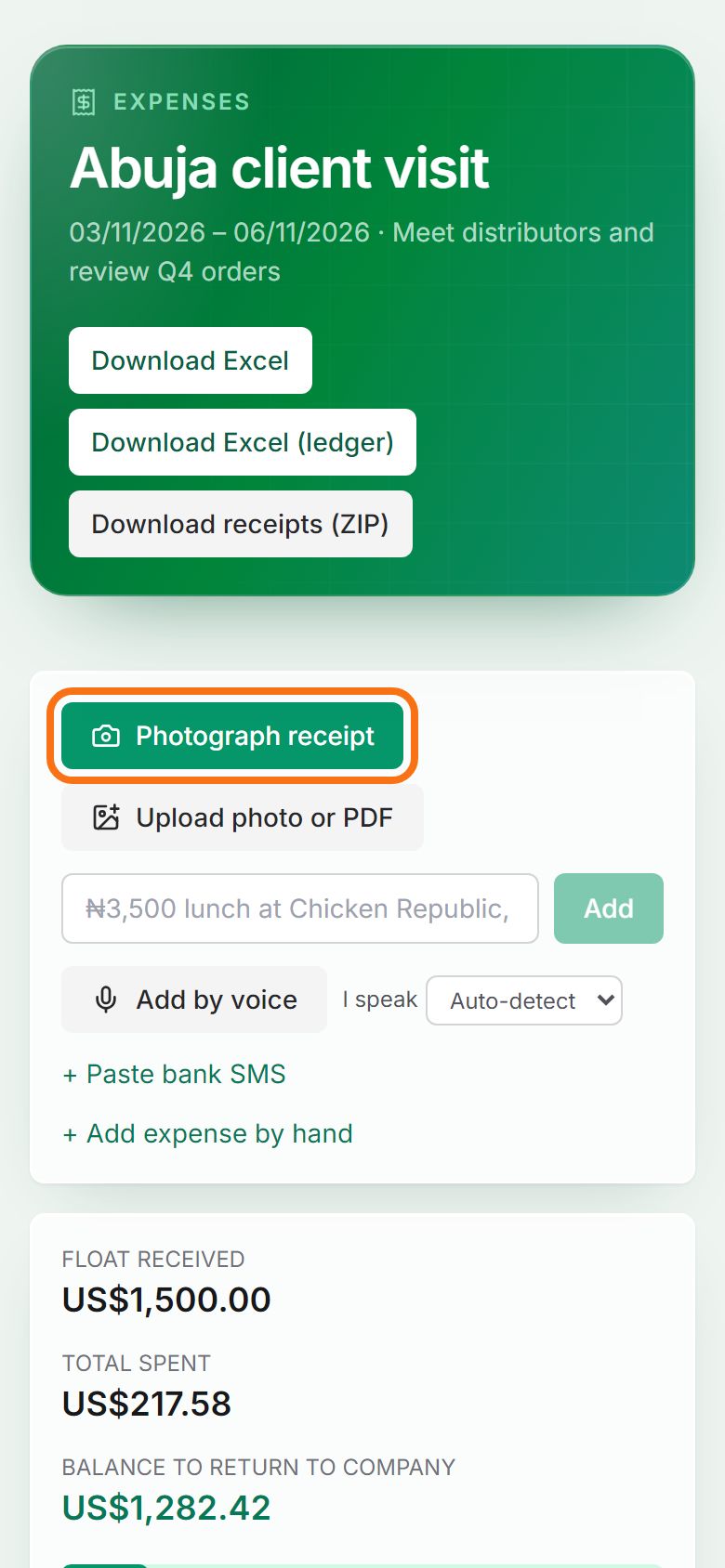
Step 1. Photograph or upload the receipt
On the trip page, press Photograph receipt to use your phone’s camera, or Upload photo or PDF for a receipt you already have. The receipt is read for you: amount, currency, date, place and category are filled in (part of your plan’s monthly receipt readings).
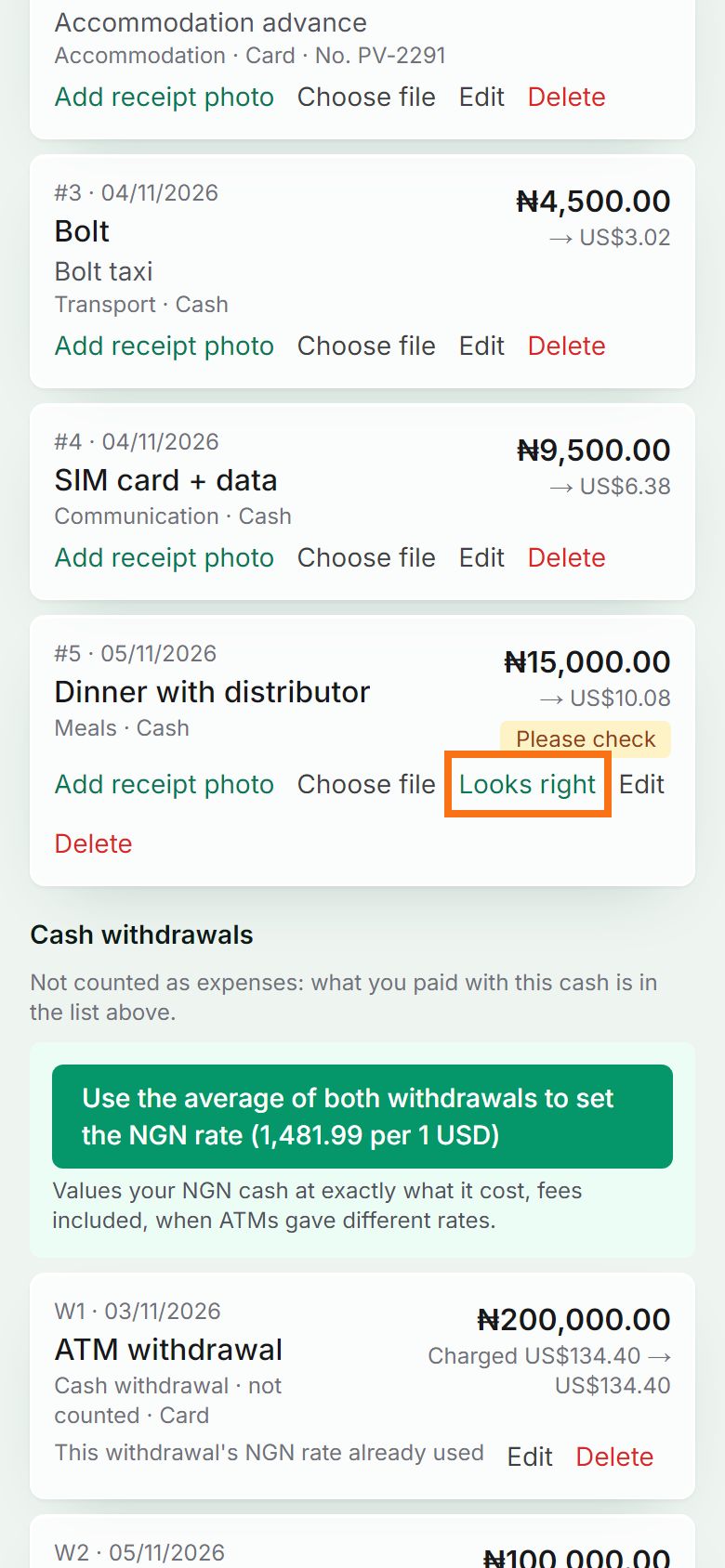
Step 2. Check anything marked “Please check”
When part of a receipt or voice note was unclear, the expense is marked “Please check”. Look it over, press Edit to correct it, or press Looks right if it is fine.
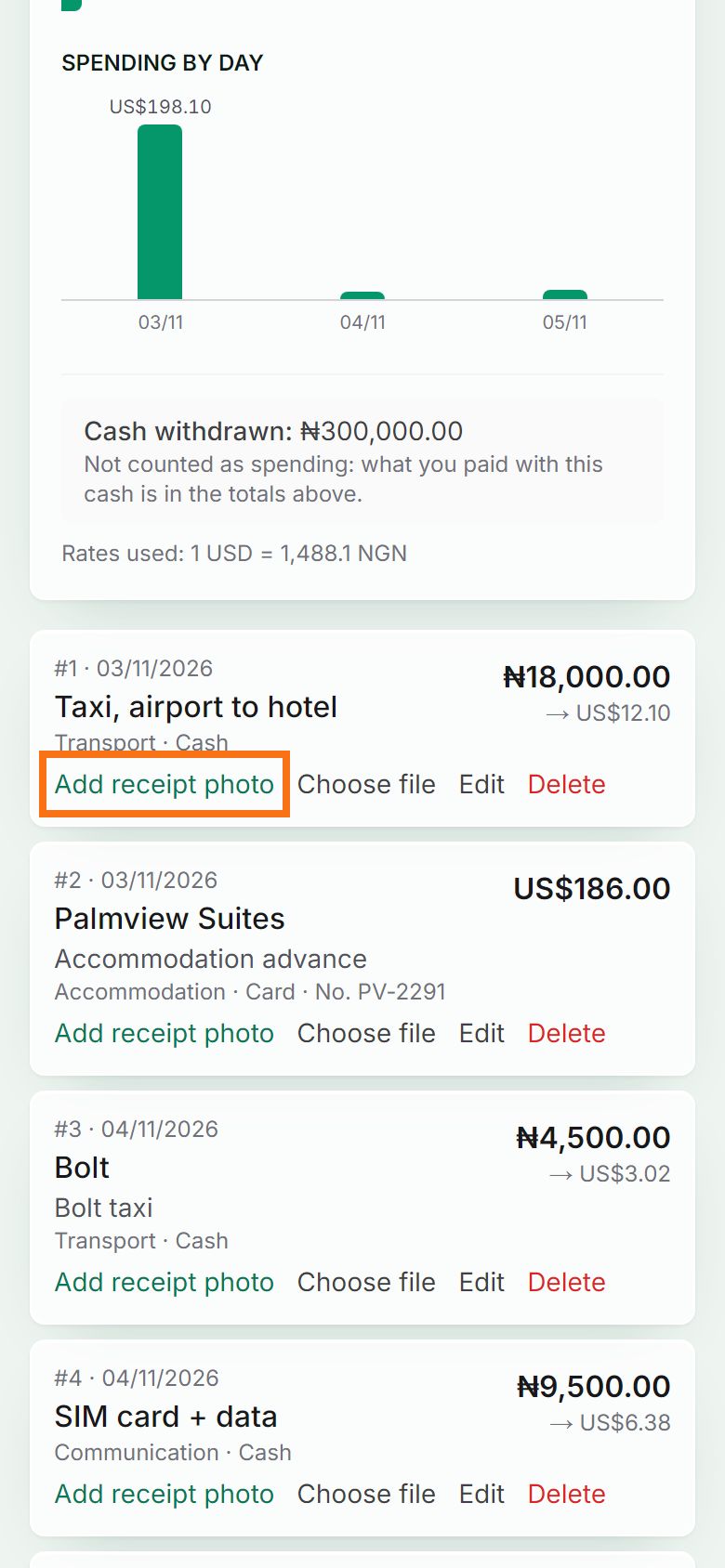
Step 3. Attach a photo to any expense
Typed or spoken an expense first? Press Add receipt photo on it to keep the receipt with it. The photos go into your Excel reports and the receipts ZIP.
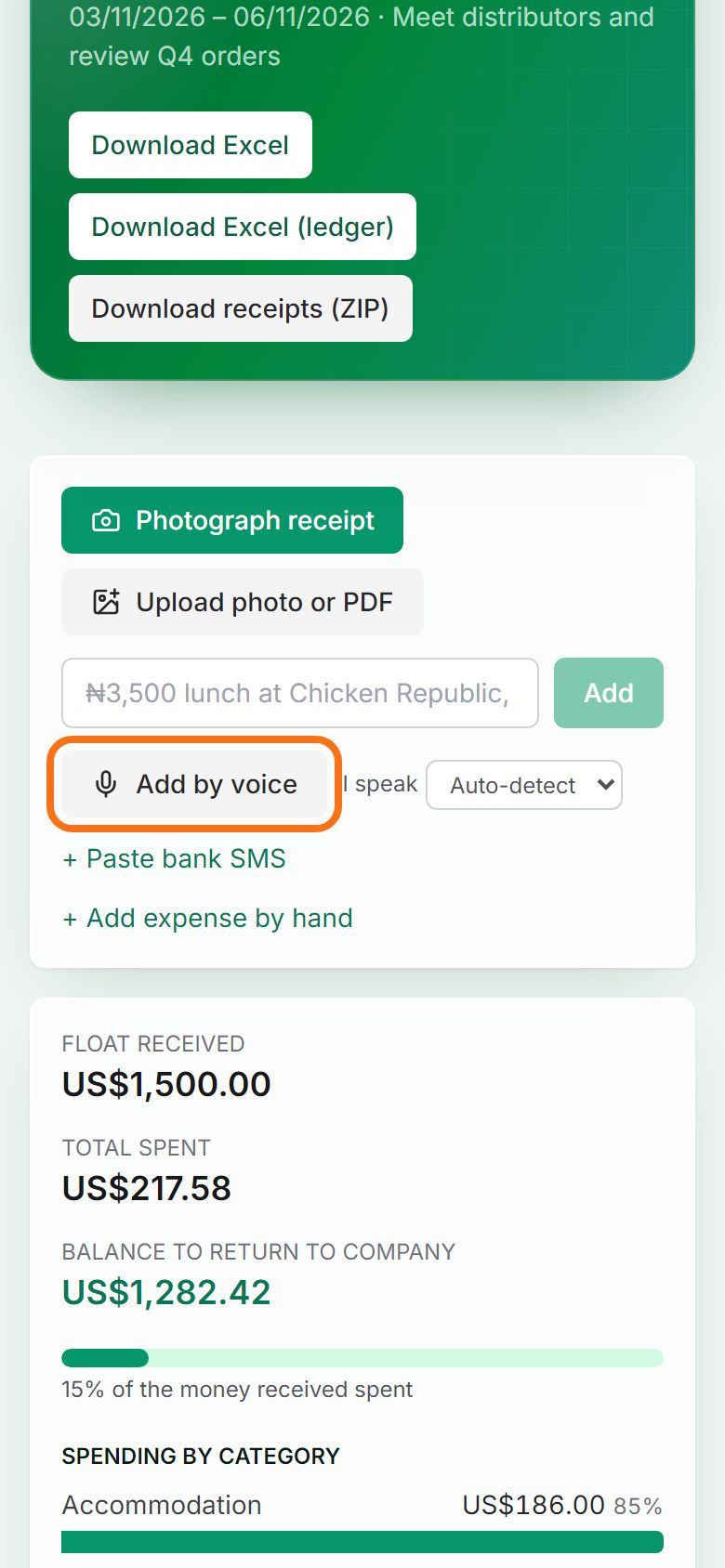
Step 4. Or say it
Set “I speak” to the language you will use (Auto-detect works too), press Add by voice and say it, for example “Taxi to the airport, 18,000 naira, cash”. It is added a moment later.


Still stuck? Ask the chat at the bottom of the page, or email support@quantum-notemaster.com.
Next guide: Add expenses from your bank’s SMS alerts