
Invite your team and manage roles
Admins on Pro and Business invite members, choose who is an admin, and switch access off when someone leaves.
Pictures come from the sample workspace; the orange frame shows where to look or press.
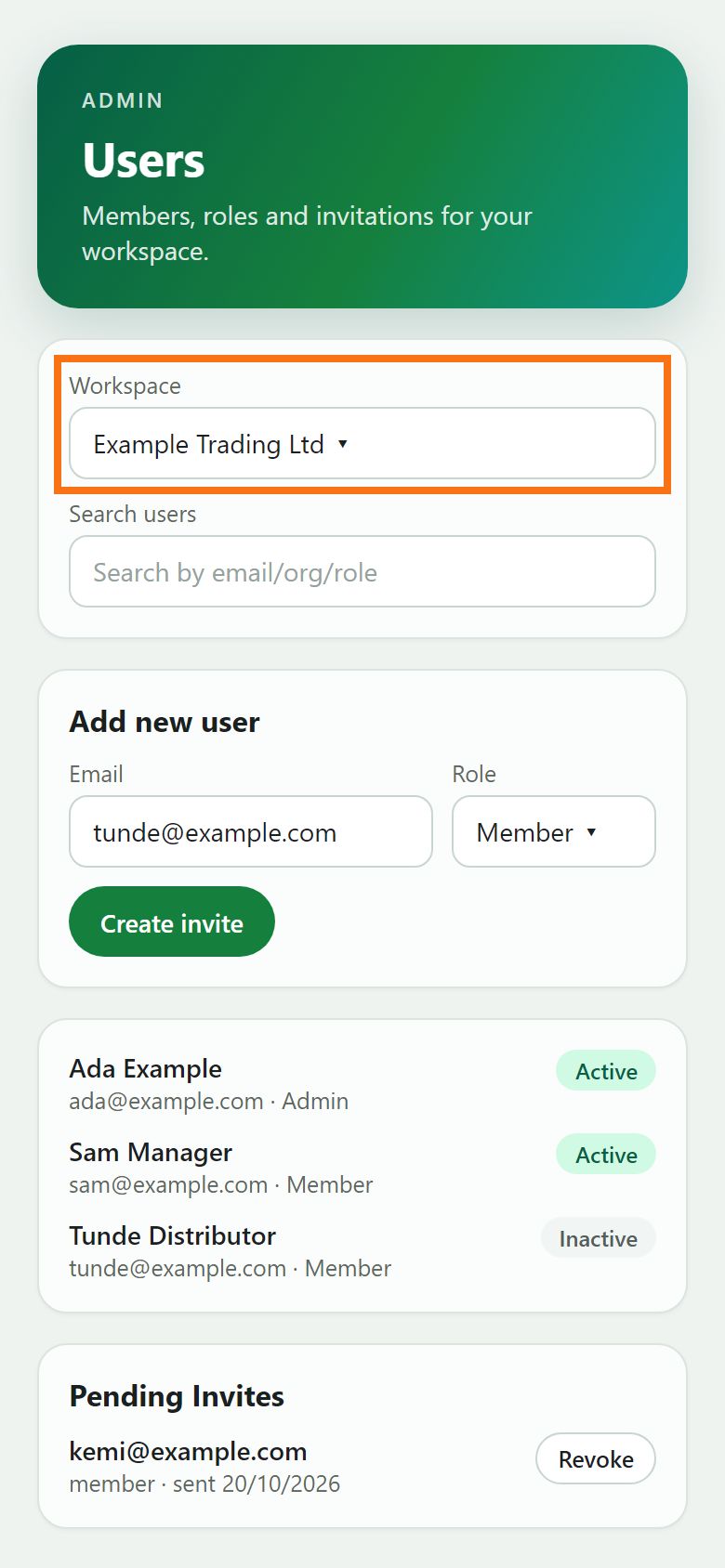
Step 1. Open Users
Admins see Users and Usage in the menu; open Users. Check the workspace at the top. Team members and roles need Pro (up to 10 people) or Business; on other plans the page offers an upgrade.
Illustration
Step 2. Invite someone
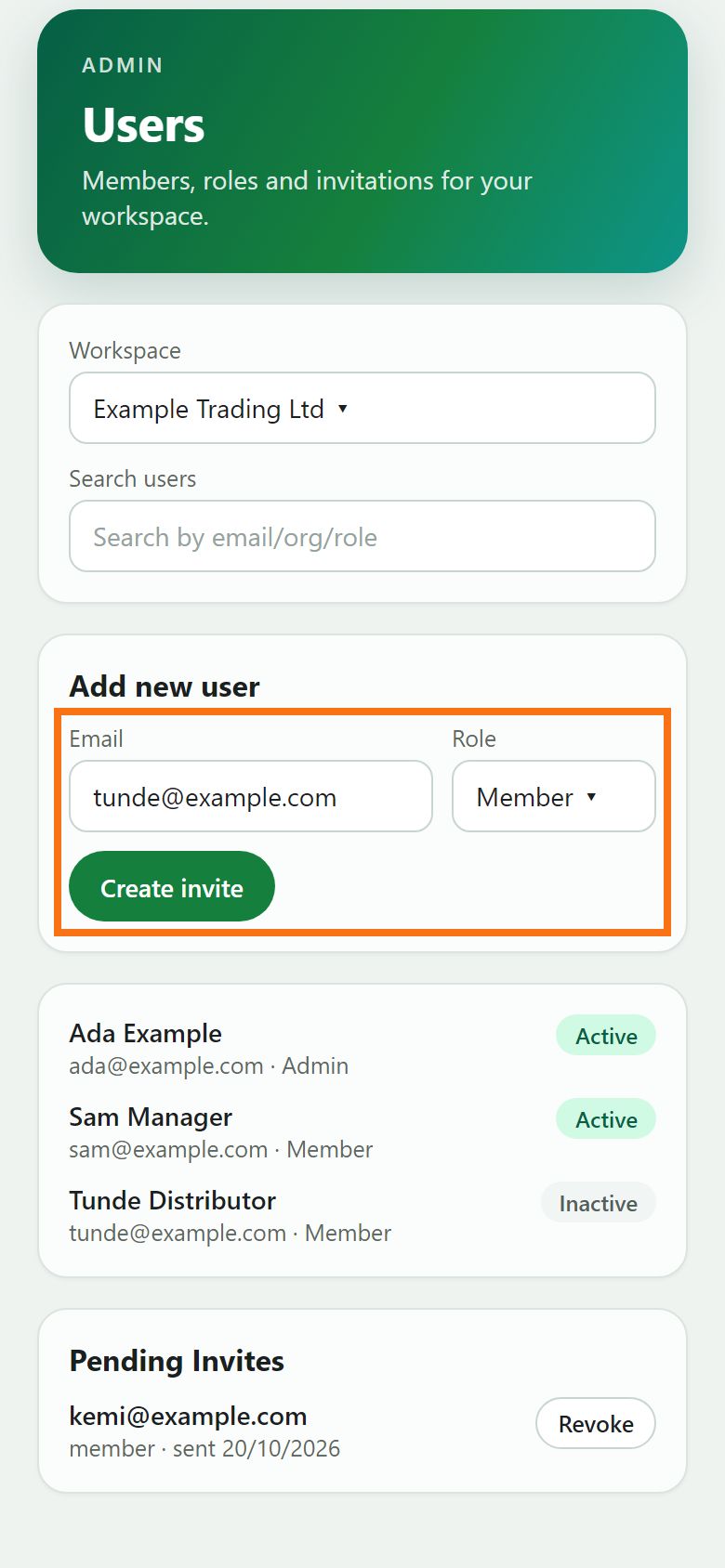
Under Add new user, type their email, choose Member or Admin, and press Create invite. They get an email with a link to join; the link is also shown so you can send it yourself, for example on WhatsApp.
Illustration
Step 3. Follow pending invites
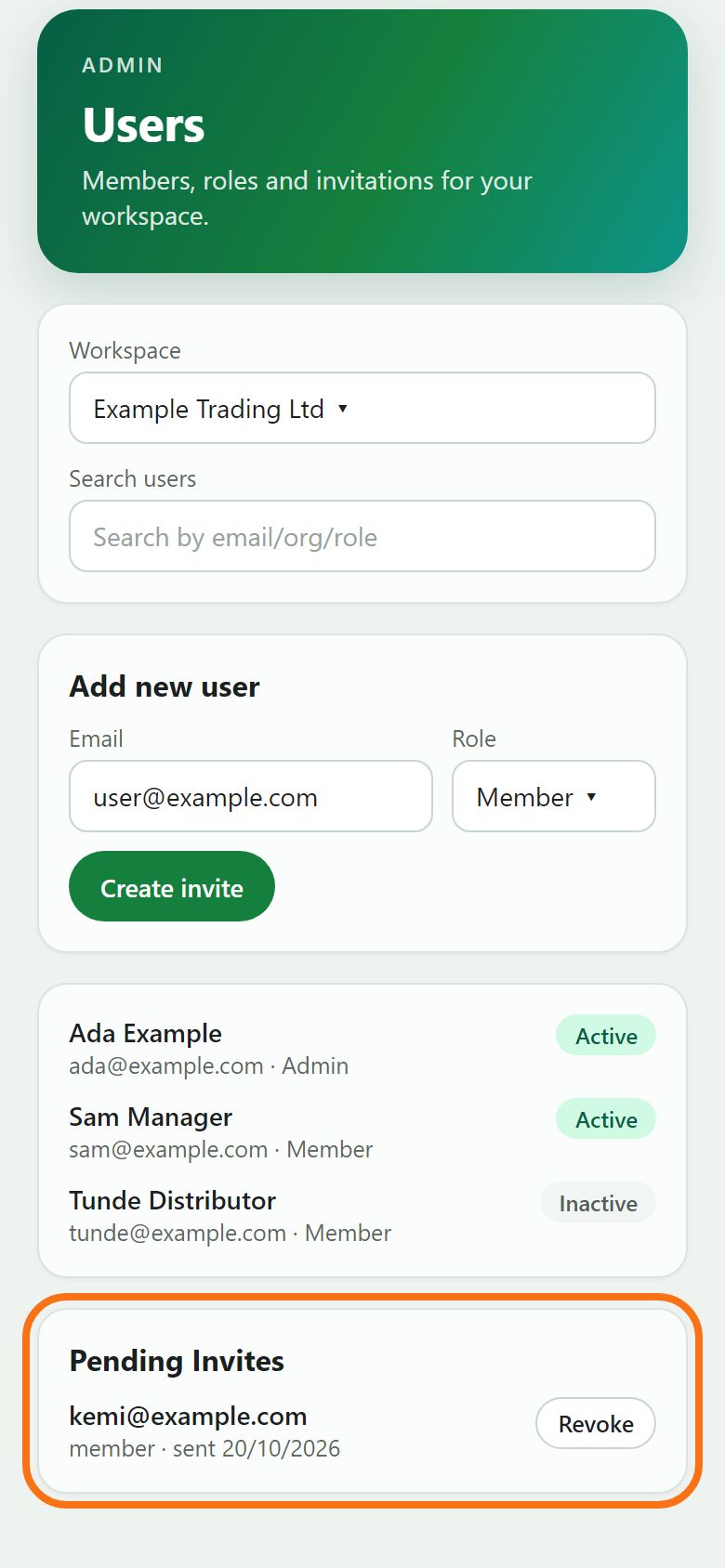
Pending Invites lists invitations not yet accepted. Press Revoke to cancel one, for example if it went to the wrong address.
Illustration
Step 4. Change a role
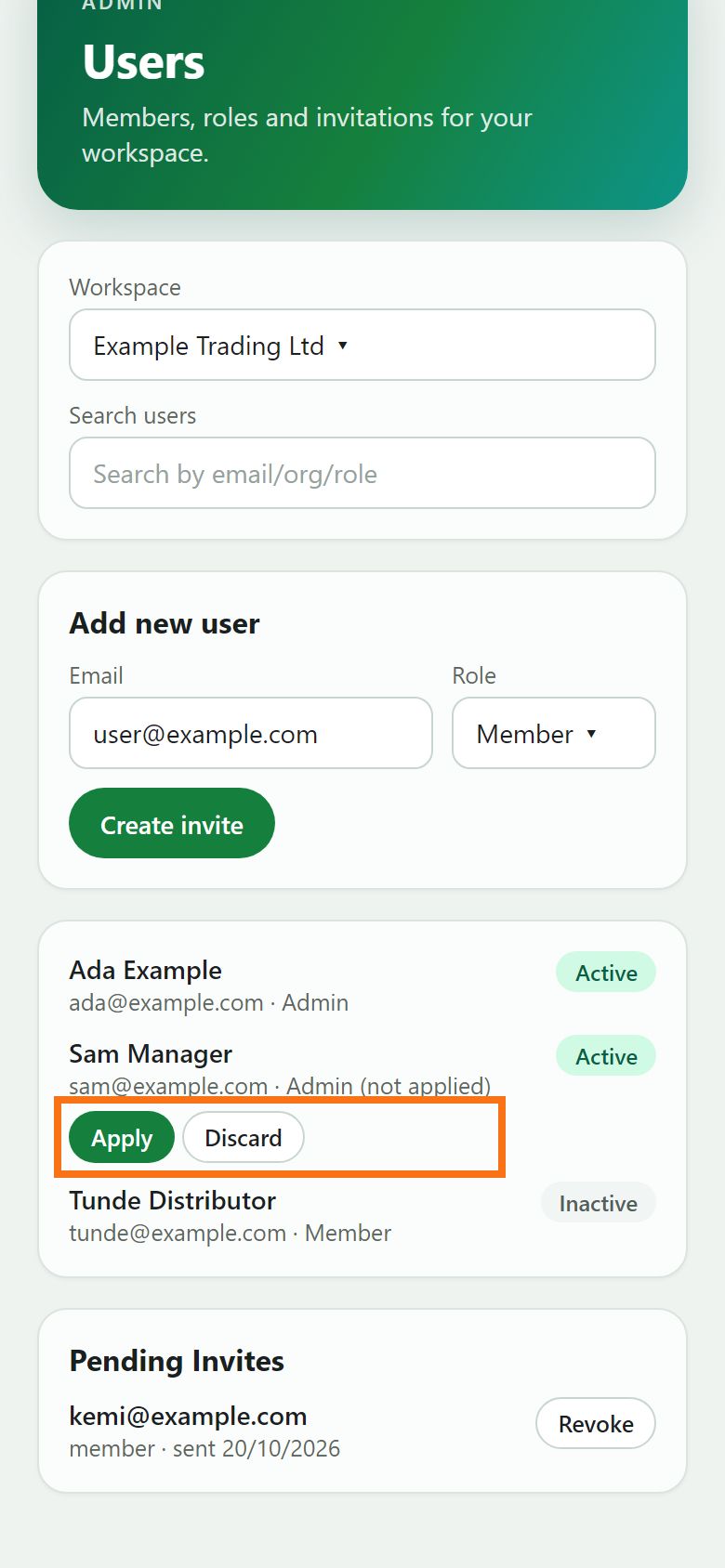
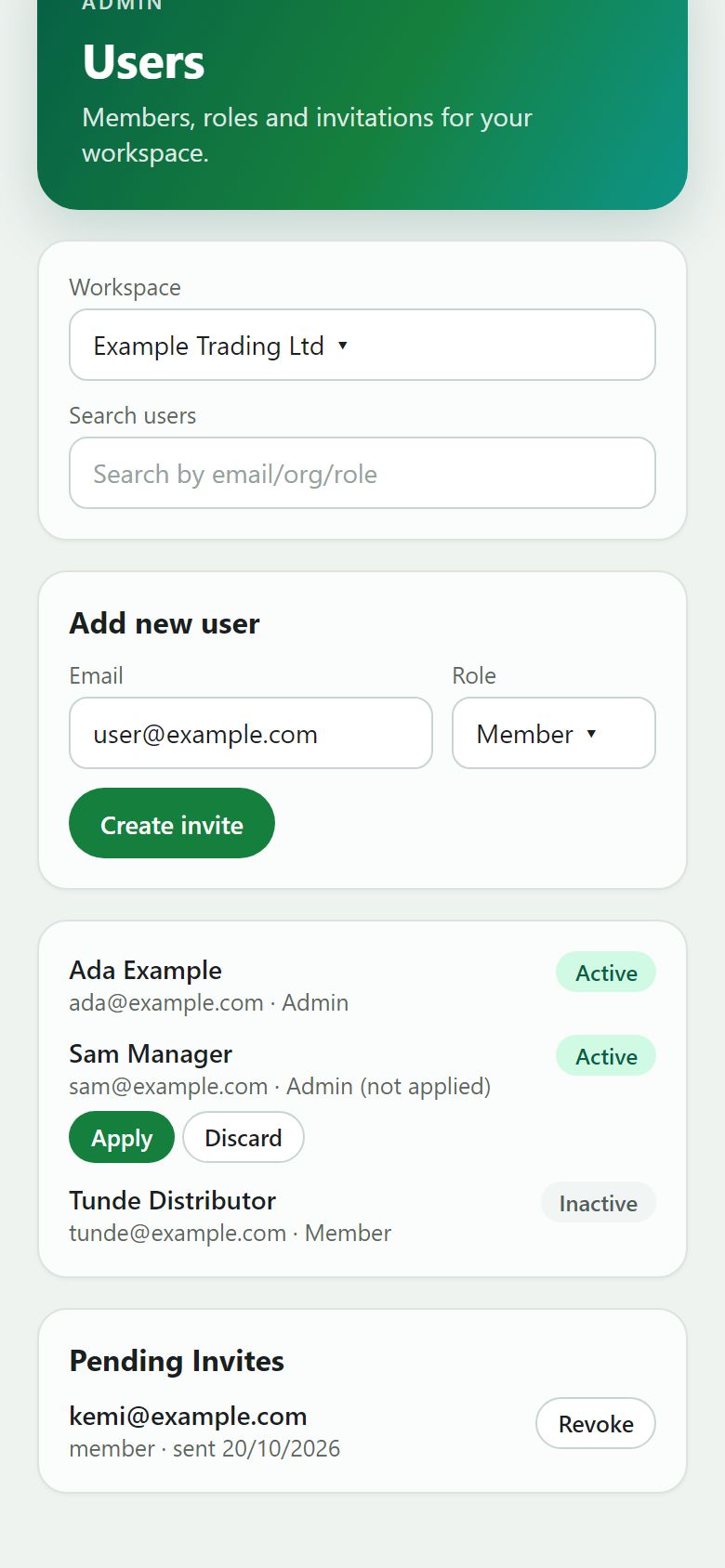
In the members list, pick a new role for the person, then press Apply (or Discard to leave it). Admins can invite people, change roles and see Usage.
Illustration
Step 5. Switch access off, or remove someone
Untick Enabled and press Apply to switch someone’s access off; tick it again later to bring them back. Remove takes them out of the workspace (the workspace owner cannot be removed).
Illustration


Still stuck? Ask the chat at the bottom of the page, or email support@quantum-notemaster.com.
Next guide: See your workspace’s usage