
Install the app on your phone or computer
Put NoteMaster on your Home Screen or desktop so it opens like an app, without typing the address.
Pictures come from the sample workspace; the orange frame shows where to look or press.
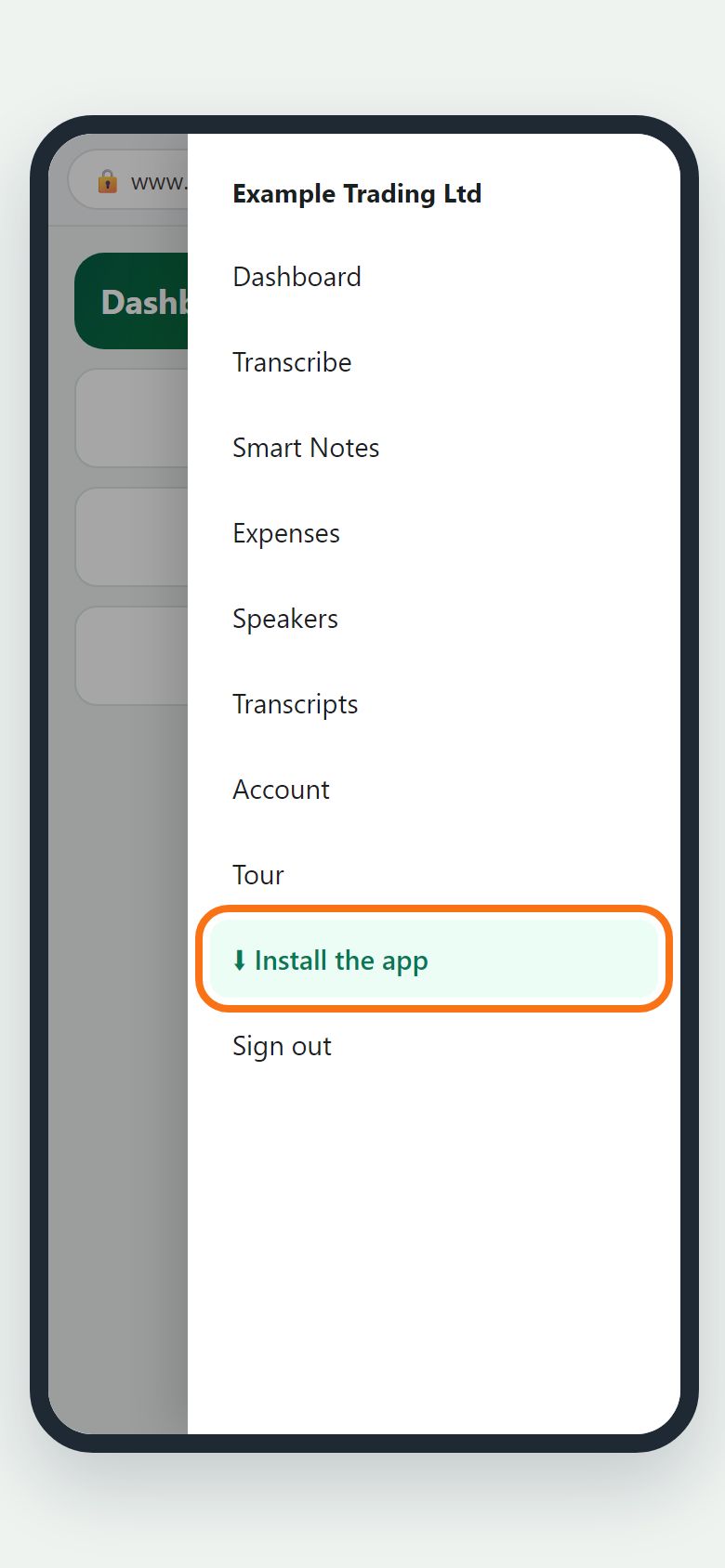
Step 1. Press Install the app
Signed in, open the menu (☰ on a phone, or the workspace menu at the top right on a computer) and press Install the app. What happens next depends on your device.
Illustration
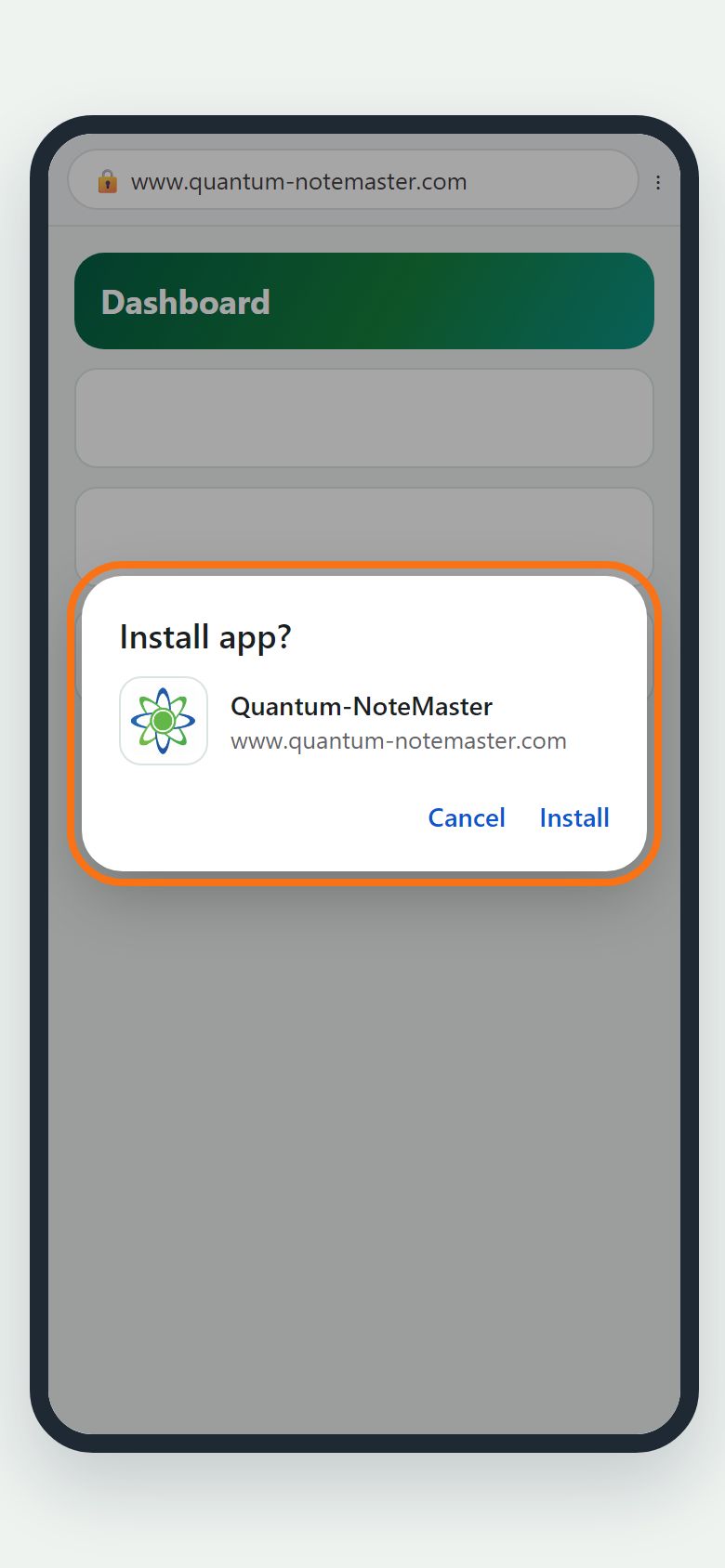
Step 2. Android: press Install
In Chrome, an “Install app?” box opens: press Install. No box? Tap the browser menu (⋮) at the top right, then “Install app” or “Add to Home screen”.
Illustration
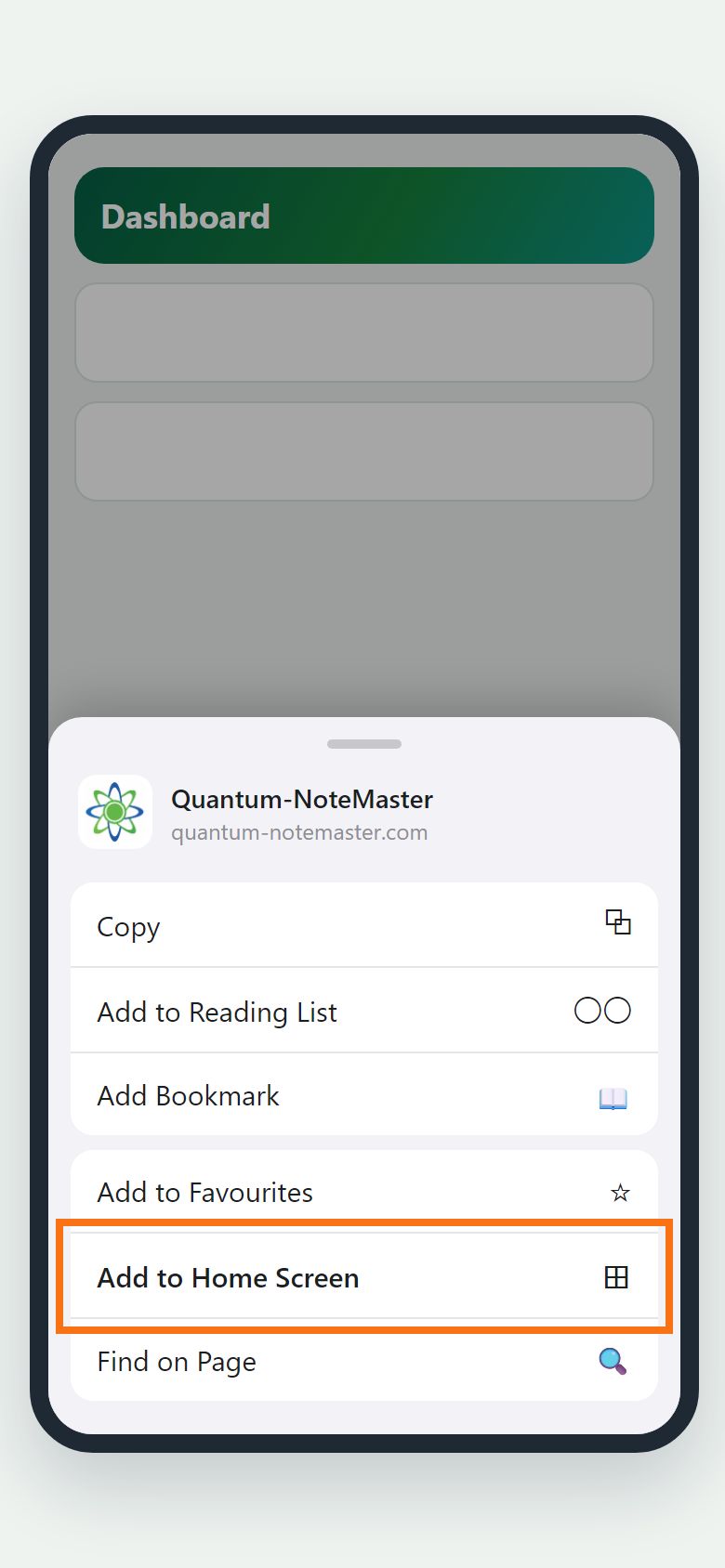
Step 3. iPhone and iPad: Add to Home Screen
Apple does not let websites show an install button, so in Safari tap the Share button (a square with an arrow pointing up; at the bottom on iPhone, at the top on iPad), scroll down, tap “Add to Home Screen”, then “Add”. Not there? Open the page in Safari.
Illustration
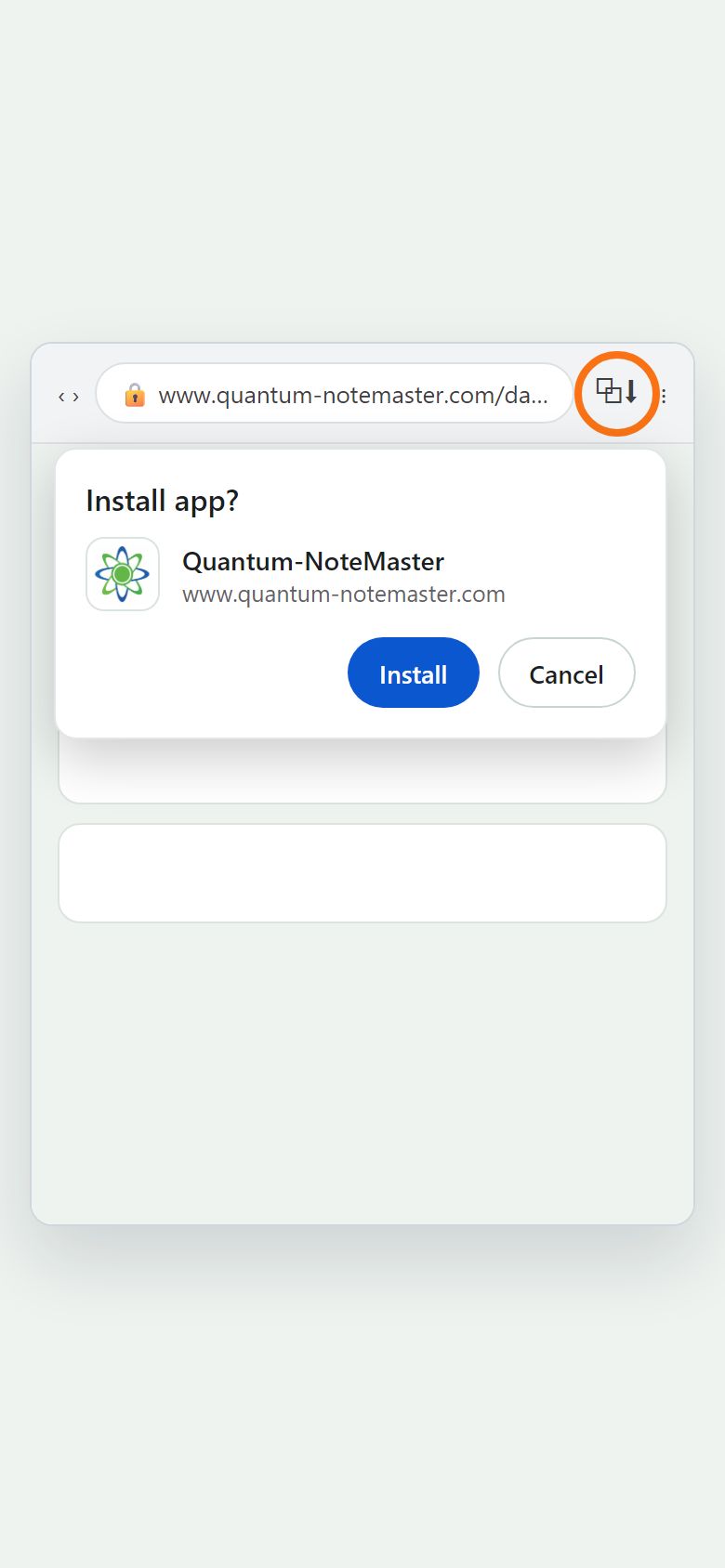
Step 4. Computer: the install icon
In Chrome or Edge, click the install icon at the right end of the address bar (a screen with a down arrow), then Install. Safari on Mac: File menu → Add to Dock. Firefox cannot install apps: bookmark the page instead.
Illustration
Step 5. Open it and sign in once
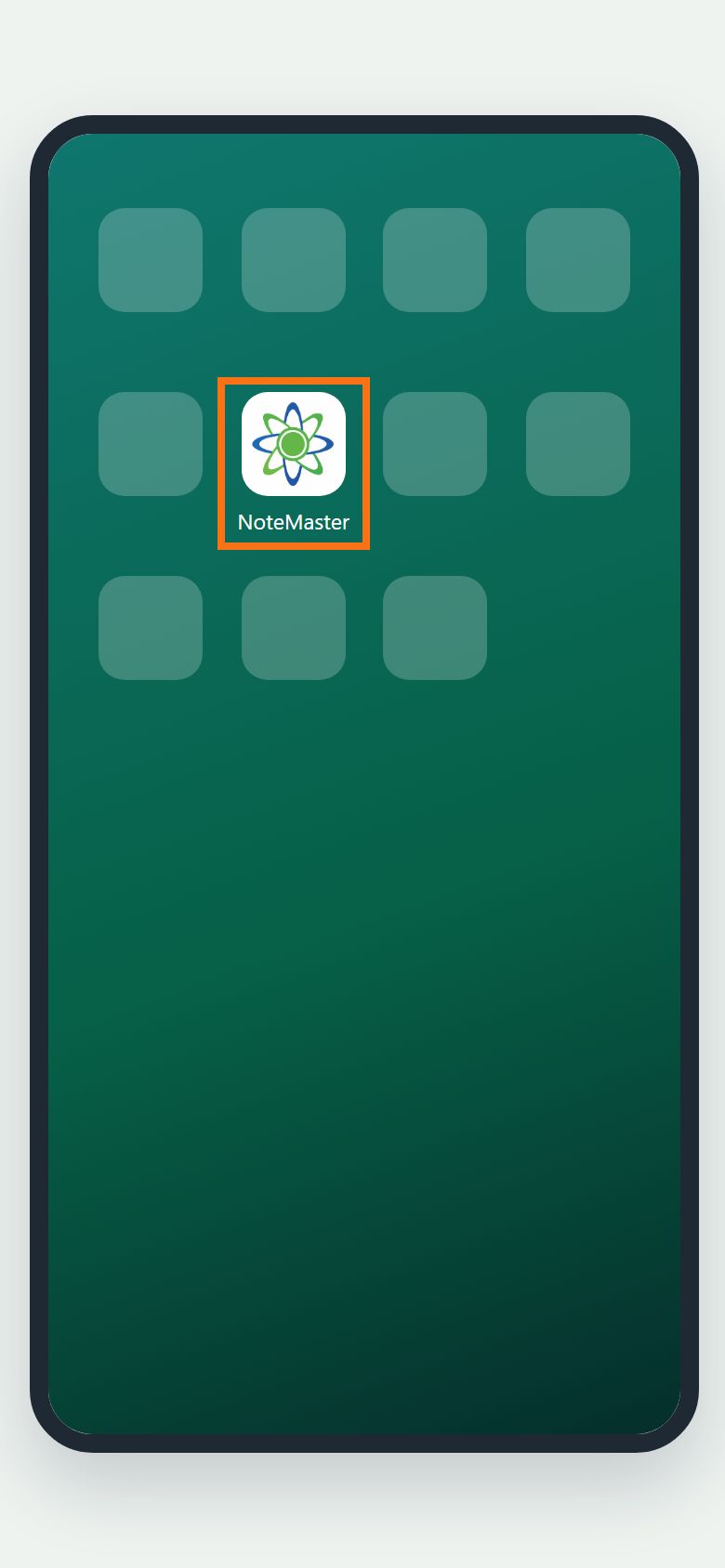
NoteMaster now opens from its icon in its own window, starting on the Dashboard. On iPhone the installed app keeps its own sign-in: sign in once inside it, with your password (a sign-in link from your email opens in Safari, not in the app).
Illustration


Still stuck? Ask the chat at the bottom of the page, or email support@quantum-notemaster.com.
Next guide: Record or upload audio and get a transcript