Use the Telegram bot for voice notes and expenses
Connect Telegram once, then forward voice notes to get transcripts back and send expenses, receipts and bank alerts from your phone.
Pictures come from the sample workspace; the orange frame shows where to look or press.
Step 1. Connect from the Transcribe page
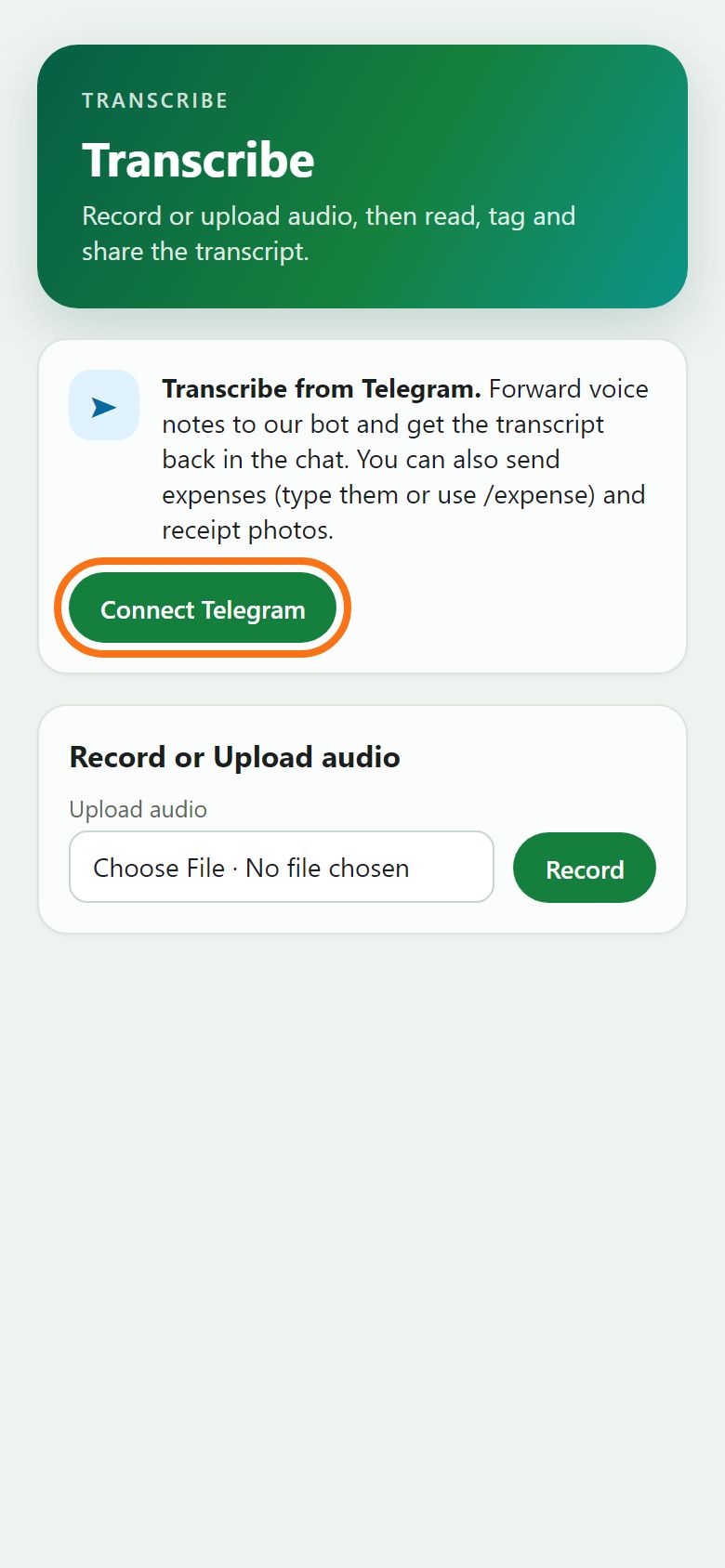
On the Transcribe page, press Connect Telegram. Telegram opens on your phone or computer with the Quantum-NoteMaster bot.
Illustration
Step 2. Press Start in Telegram
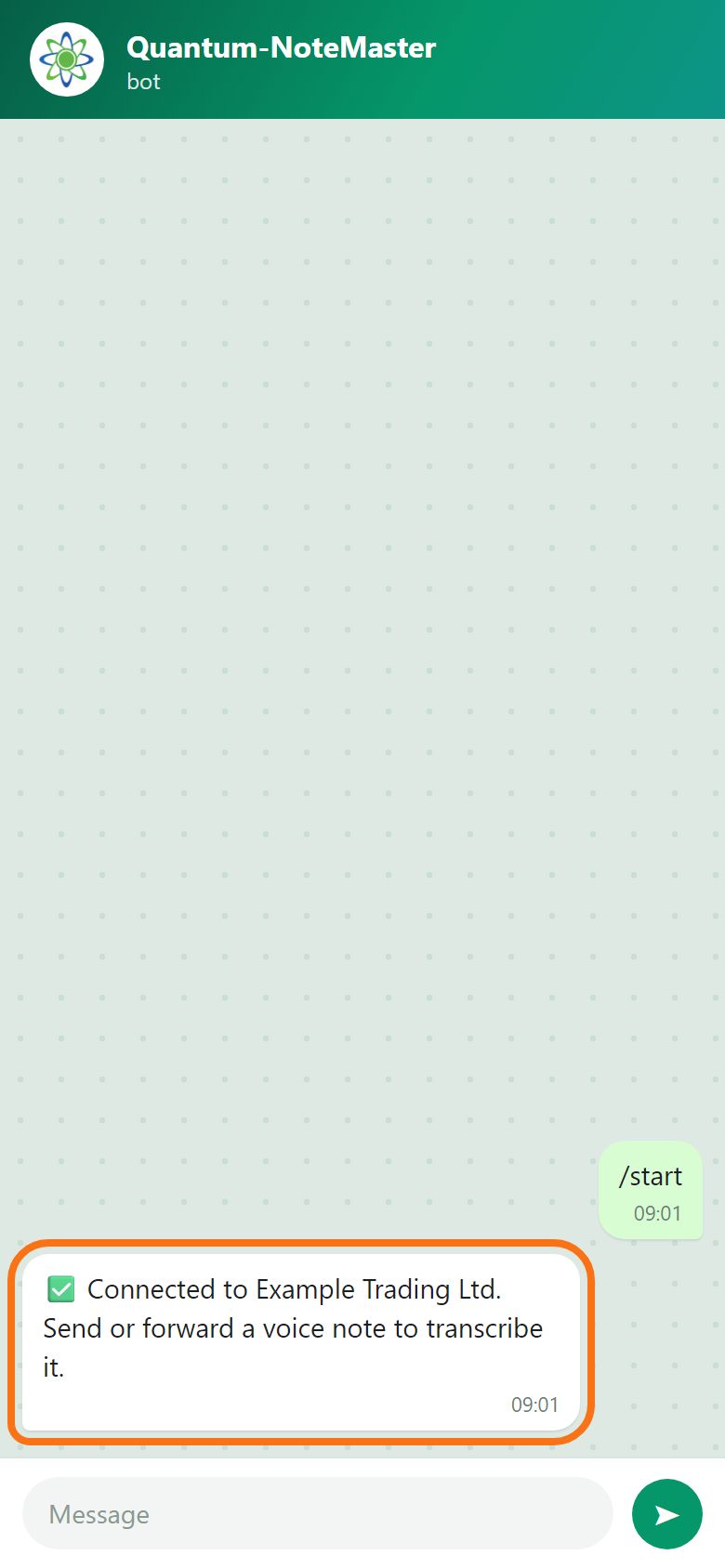
Press Start. The bot replies “Connected to …” with your workspace’s name. The chat is linked to the workspace you were in; to change it, press “Use this workspace instead” on the Transcribe page of the other workspace.
Illustration
Step 3. Forward a voice note
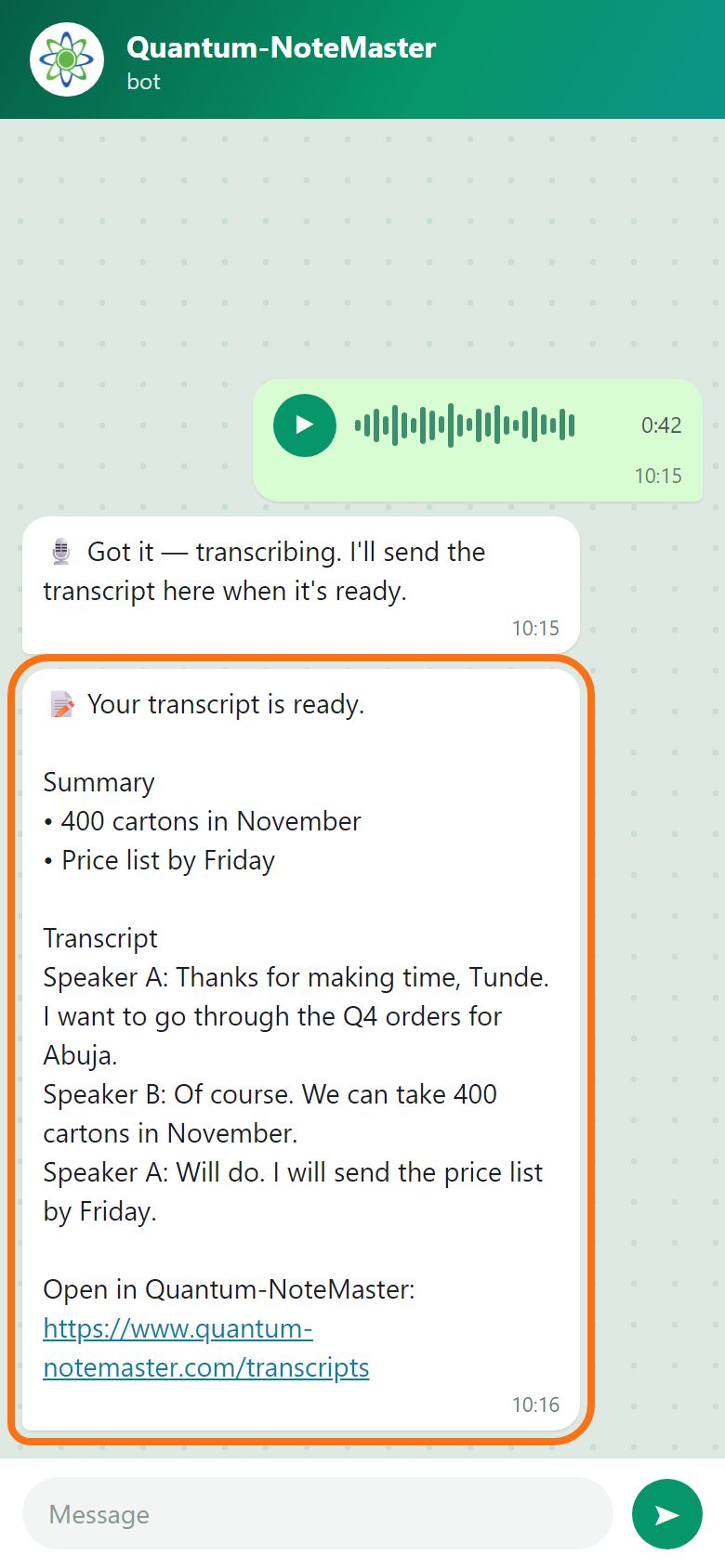
Forward a voice note from WhatsApp or record one in the chat (audio files up to 20 MB work too). The transcript comes back in the chat with Speaker A, B… and is saved in Transcripts, where you can name the speakers. Paid plans also get a summary.
Illustration
Step 4. Send an expense
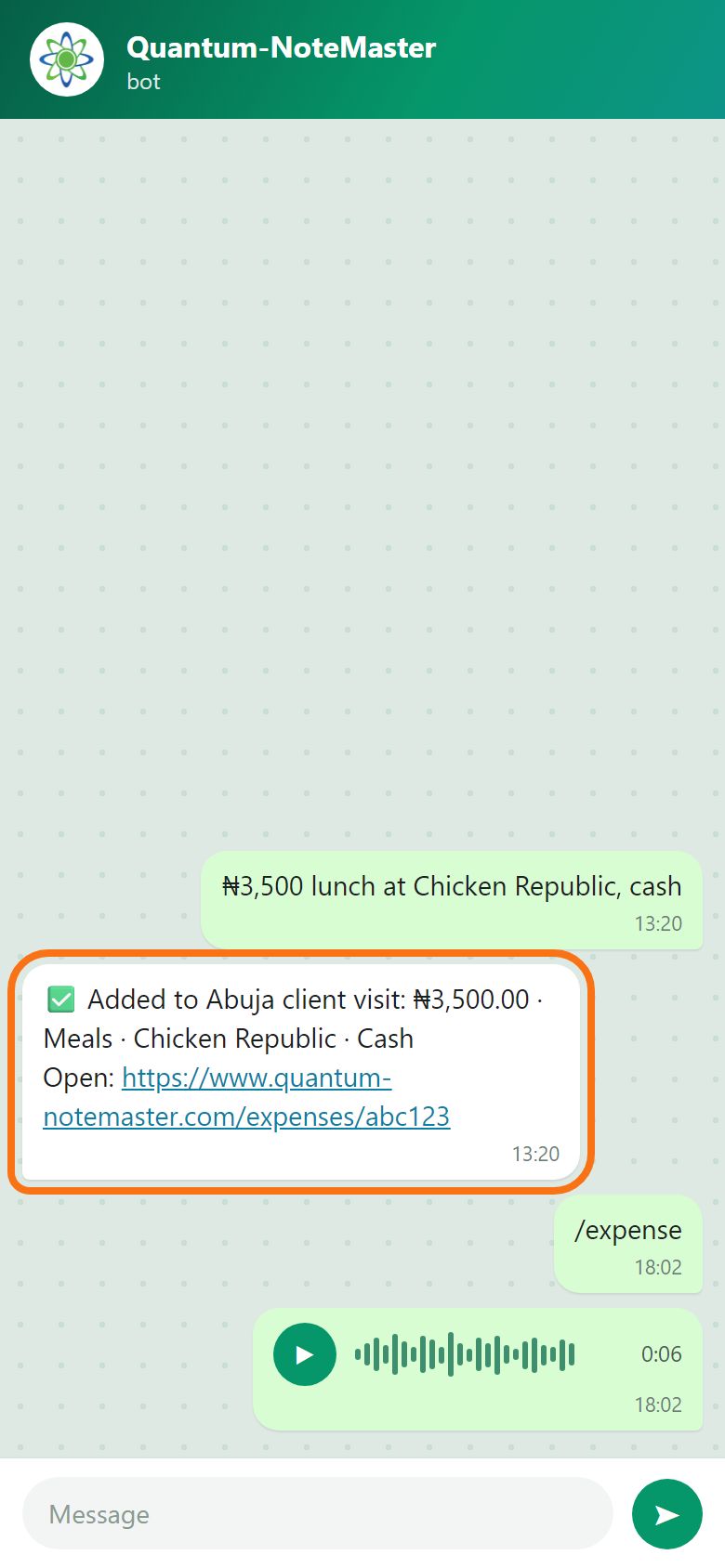
Type what you spent, for example “₦3,500 lunch at Chicken Republic, cash”, or send /expense and then a voice note saying it within 5 minutes. It is added to your latest open trip (a new trip is started if you have none), and the bot confirms with a link.
Illustration
Step 5. Send receipts and bank alerts
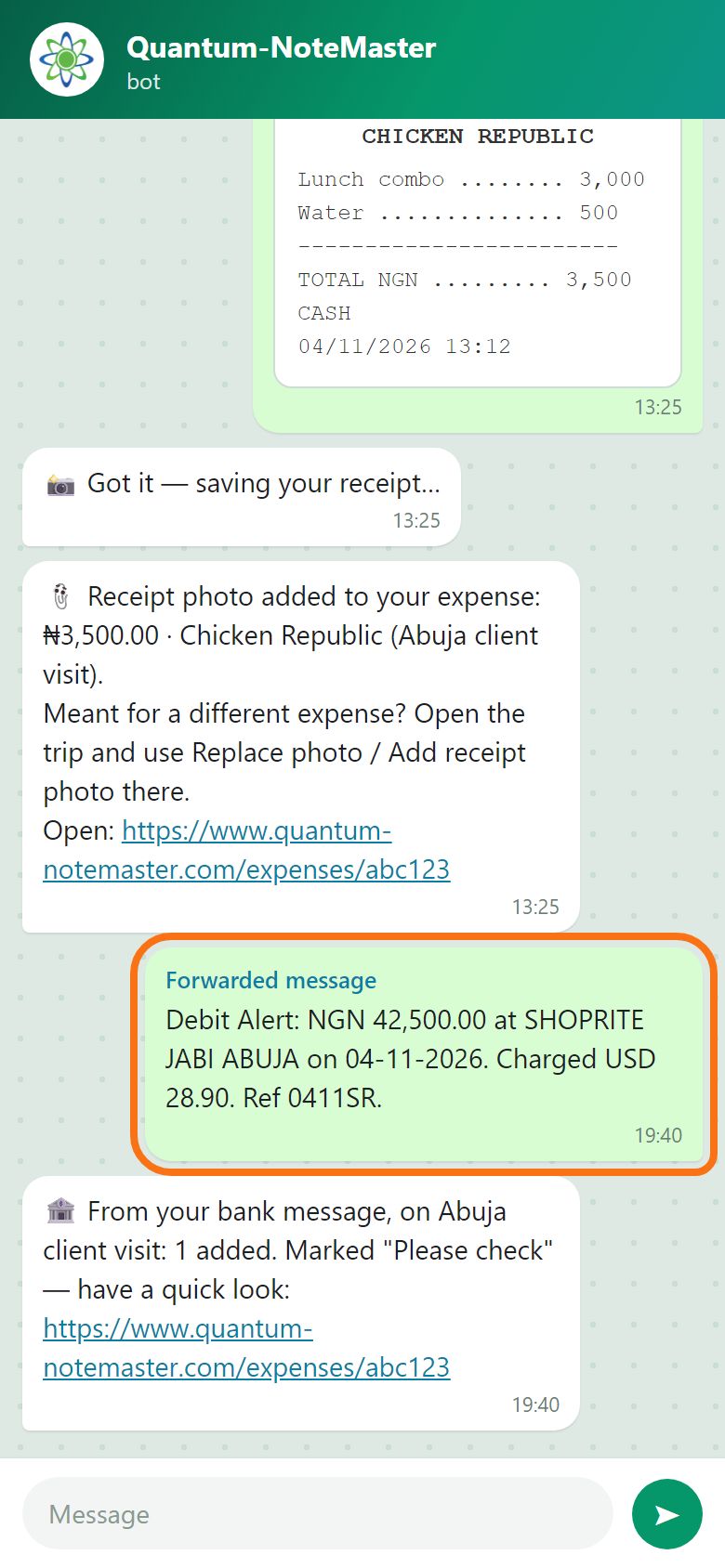
Send a receipt photo or PDF: it is saved to your latest trip, and a photo sent within 10 minutes of a voice expense is attached to it. Forward your bank’s debit alert and it is added, marked “Please check” so you can confirm it in the app.
Illustration
Step 6. Useful commands
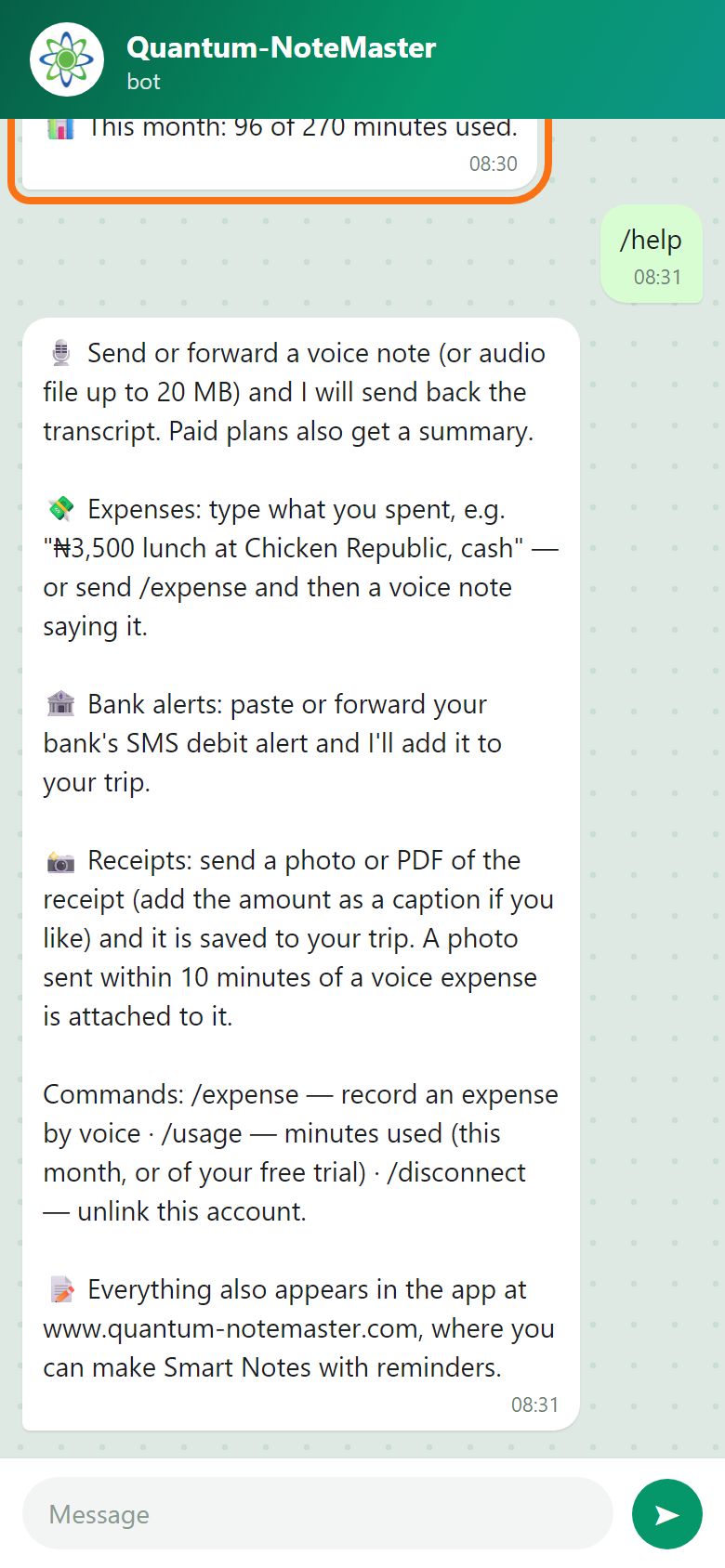
/usage shows the minutes used (this month, or of your free trial), /help lists what the bot can do, /expense starts a spoken expense, and /disconnect unlinks the chat. Your recordings stay in the app.
Illustration


Still stuck? Ask the chat at the bottom of the page, or email support@quantum-notemaster.com.
Next guide: Invite your team and manage roles