
Start a trip and its float
Set your home currency once, then create a trip with the float you received and the countries you will visit.
Pictures come from the sample workspace; the orange frame shows where to look or press.
Step 1. Set your home country and currency
Open Expenses in the menu. The first time, choose your home country; the base currency fills in (you can change it). Press Save. Later it shows as “Home: … · NGN” with a Change button.
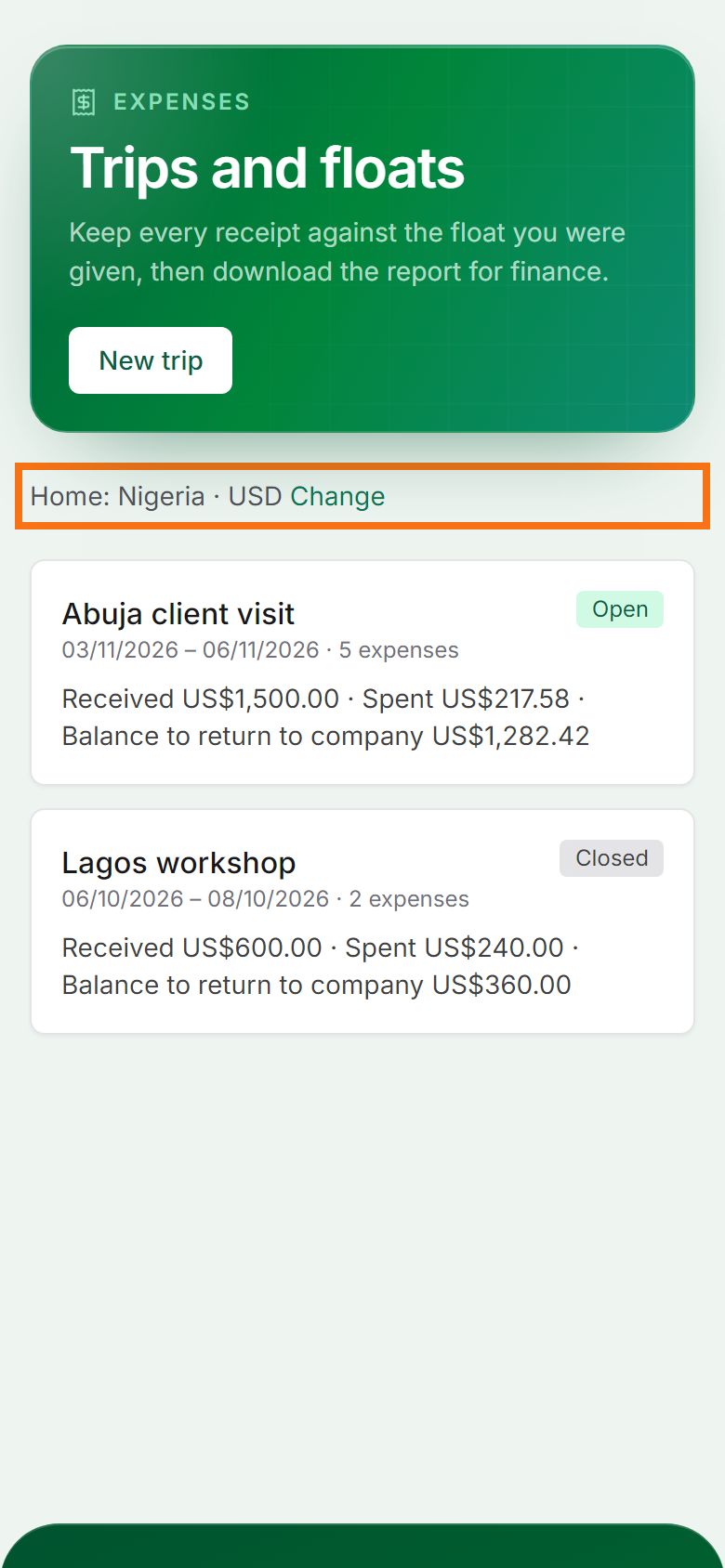
Step 2. Press New trip
Press New trip. Give it a title, the dates, and the float (the money you received) in the base currency.
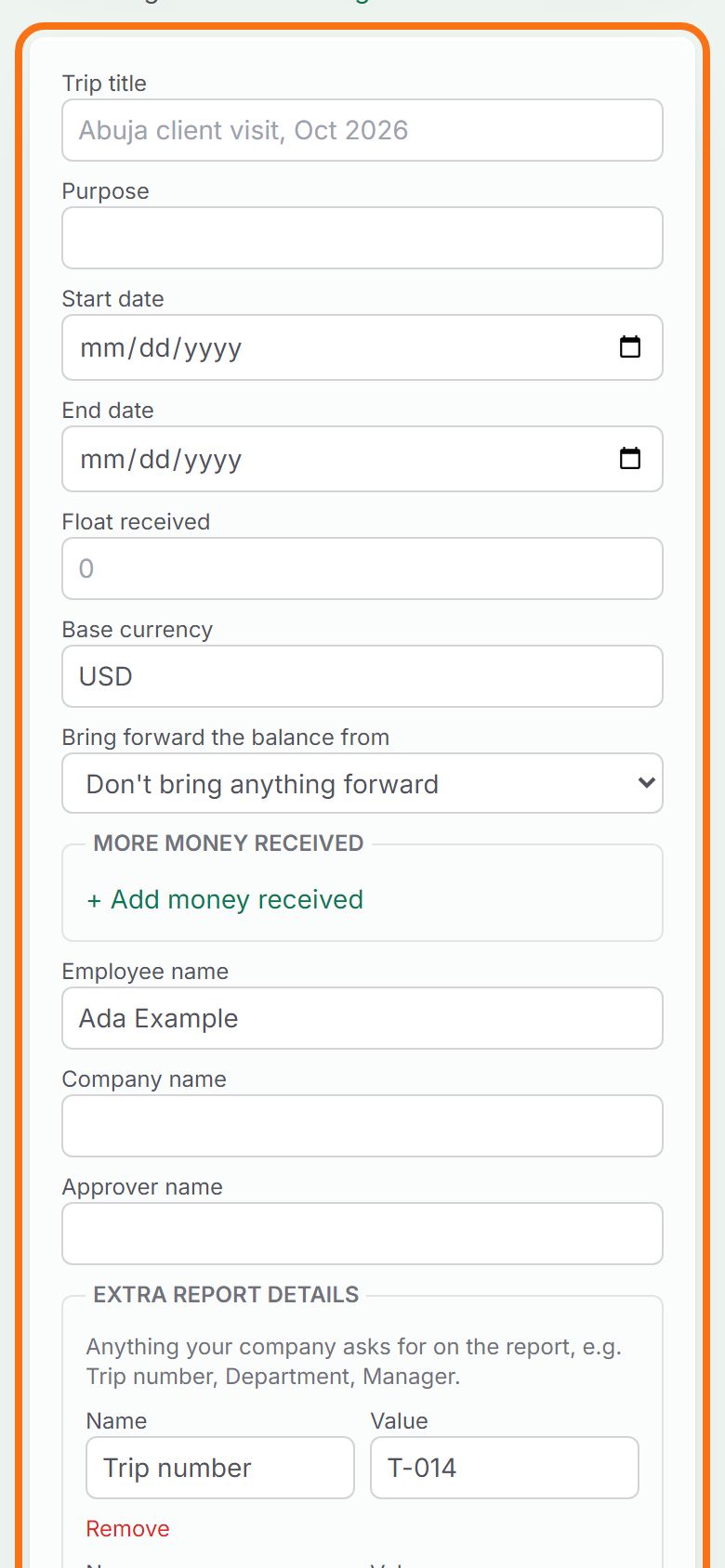
Step 3. Add the countries and their rates
Under Exchange rates, press + Add country for each country you will visit, with its dates and the rate you actually got (for example from an ATM withdrawal). Rates are per 1 US$. You can add or correct rates later.
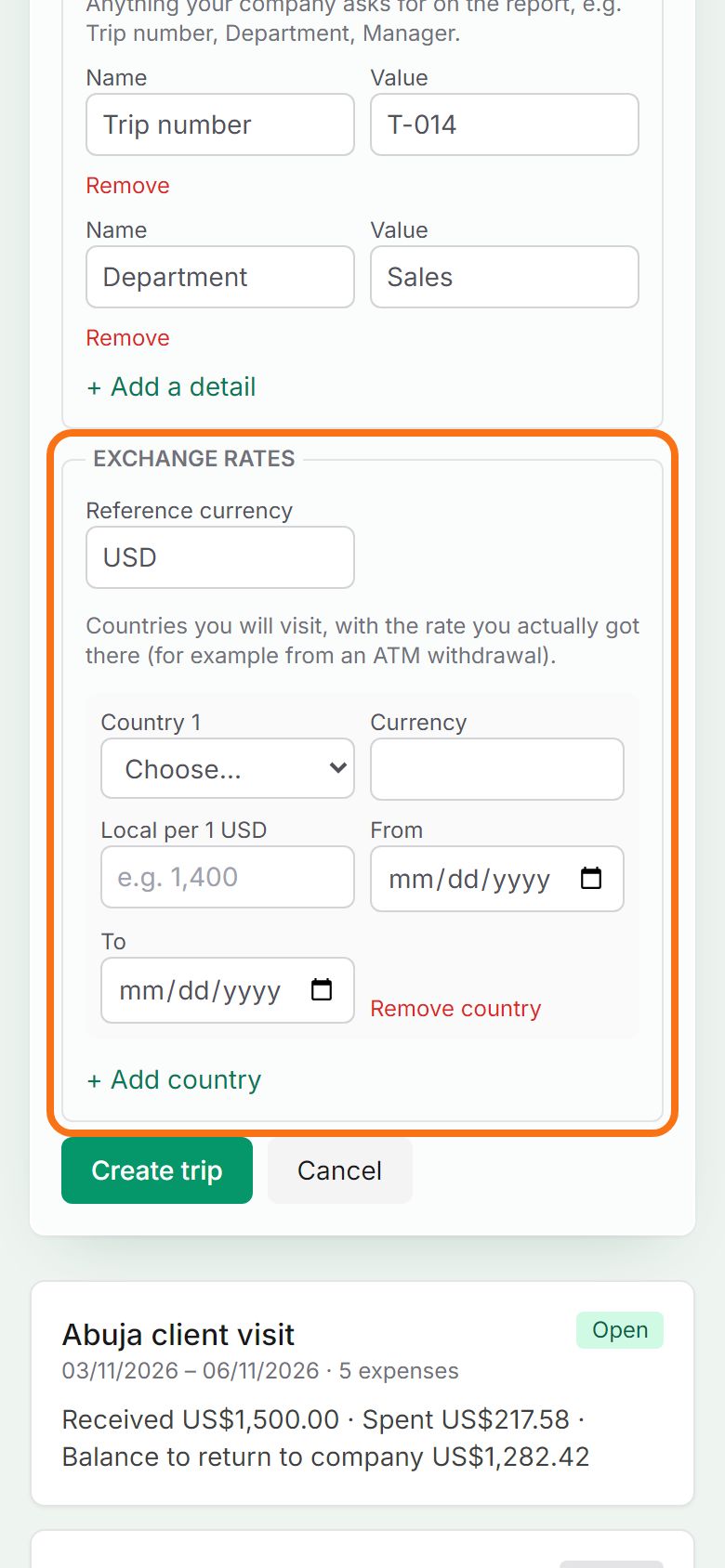
Step 4. Your trip page
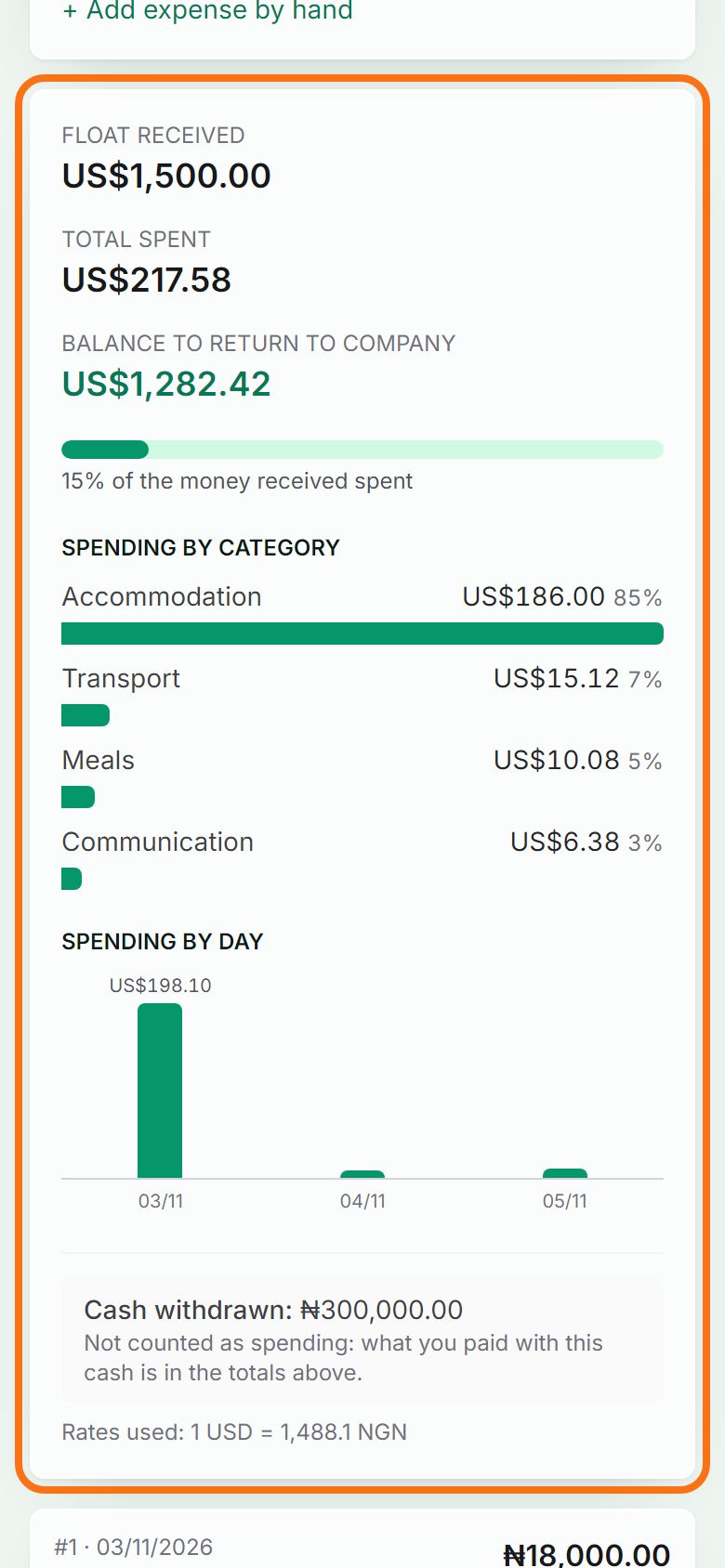
Press Create trip at the bottom of the form. The trip opens with what you received, what you spent and the balance; this is where you add expenses.


Still stuck? Ask the chat at the bottom of the page, or email support@quantum-notemaster.com.
Next guide: Add an expense