
Add an expense
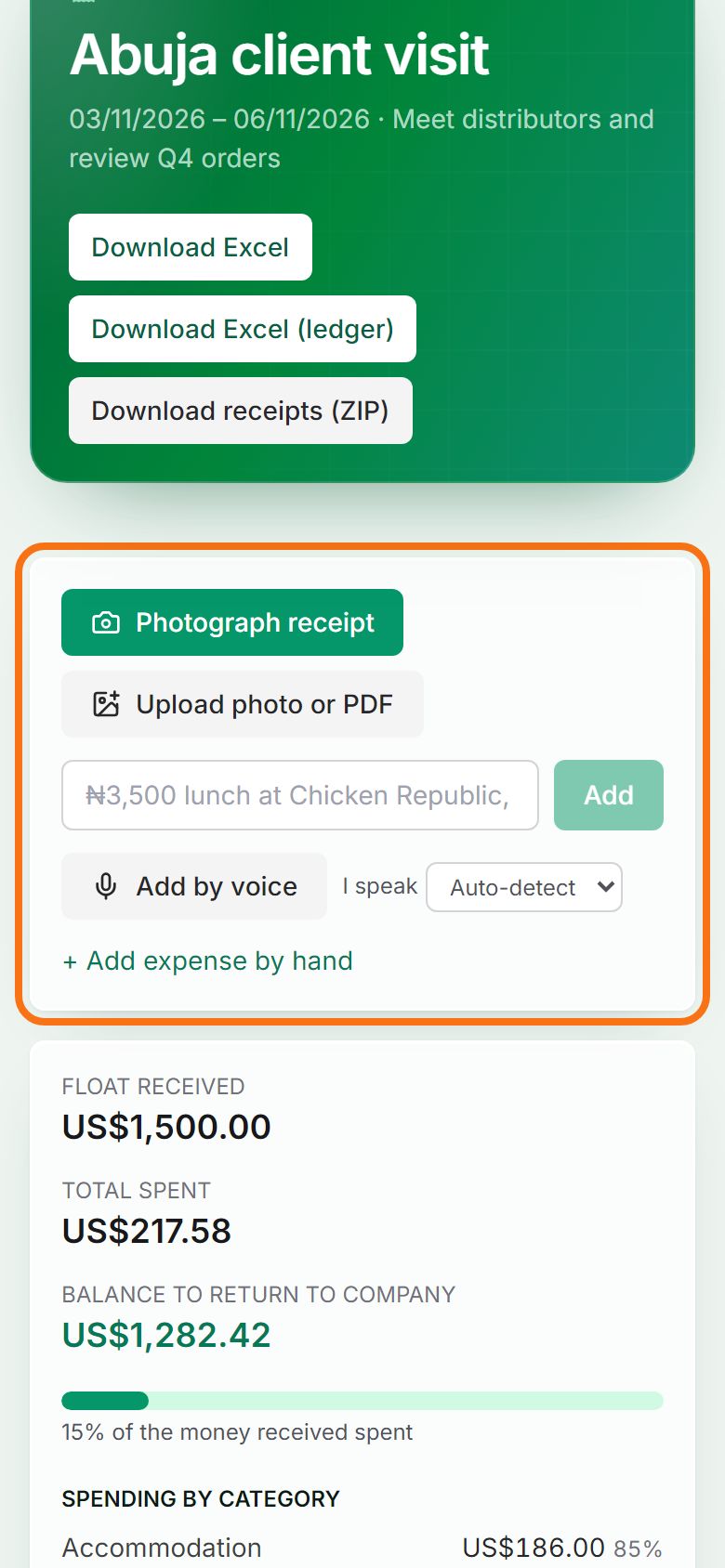
Add expenses by receipt photo or PDF, a typed line, your voice or a form, and fix one later with Edit.
Pictures come from the sample workspace; the orange frame shows where to look or press.
Step 1. Choose how to add it
On the trip page: Photograph receipt or Upload photo or PDF to have the receipt read for you, type a line, Add by voice, or + Add expense by hand.
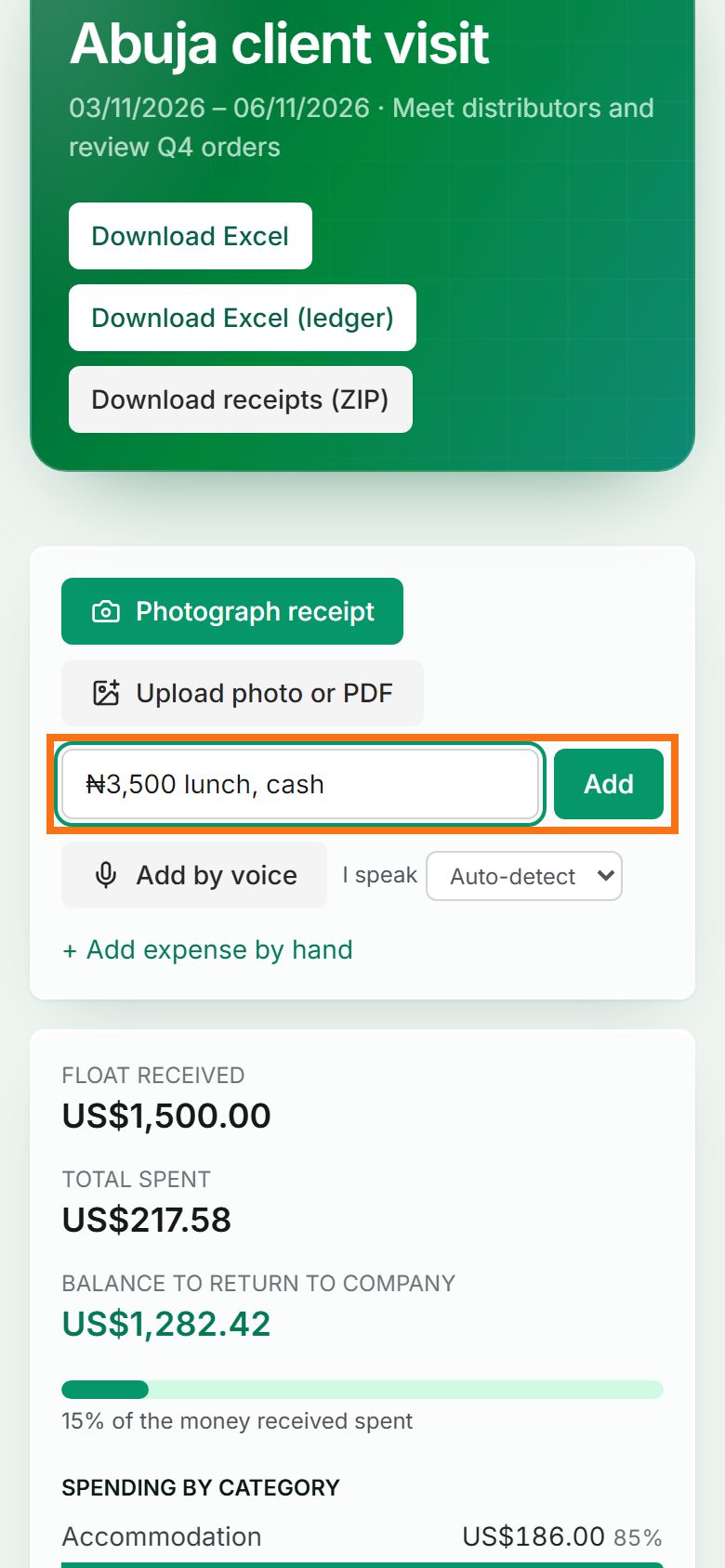
Step 2. Type it in one line
Type the amount, what it was and how you paid, for example “₦3,500 lunch, cash”, then press Add. The amount, category and currency are filled in for you.
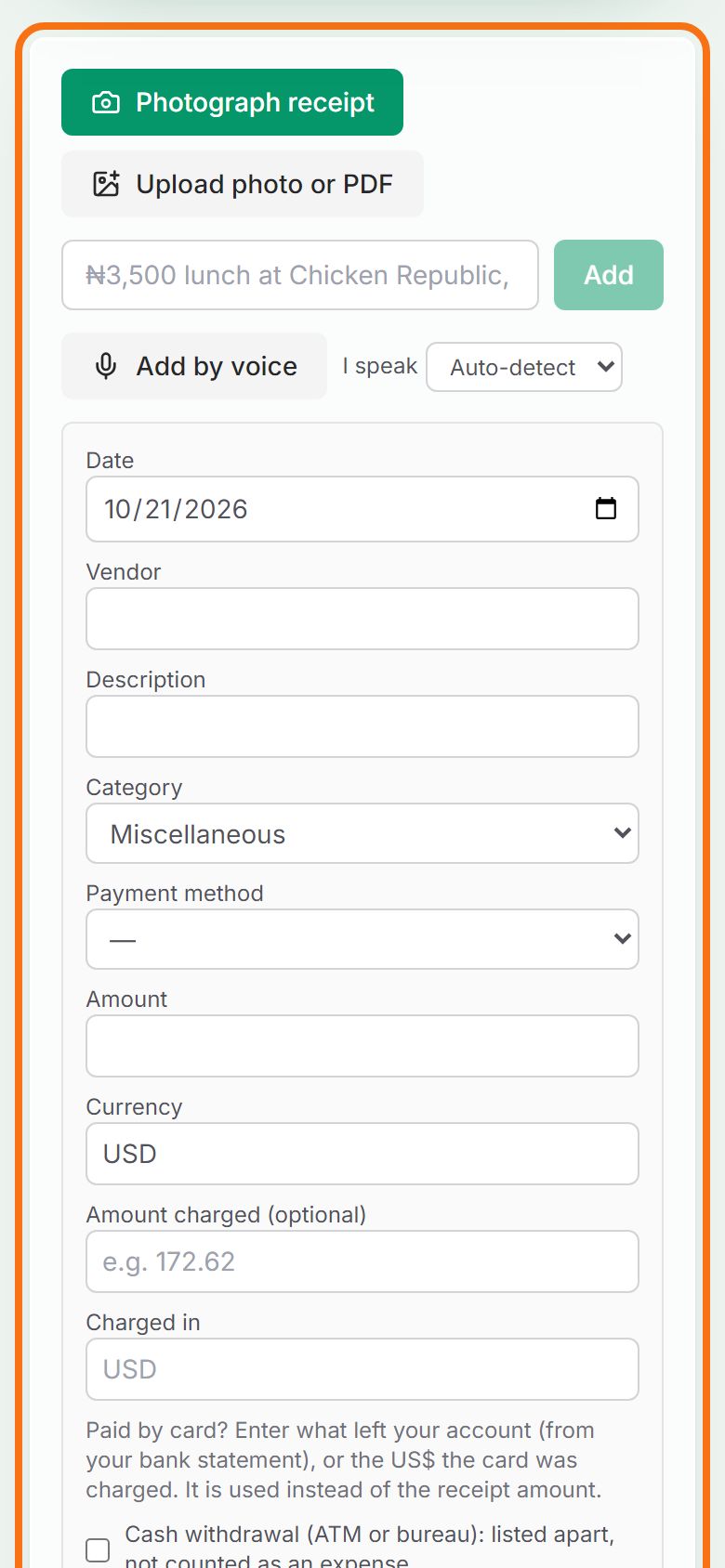
Step 3. Or fill in the form
Press + Add expense by hand to enter the date, amount, currency, category and description yourself. For a card payment, also enter the amount charged to see what it really cost.
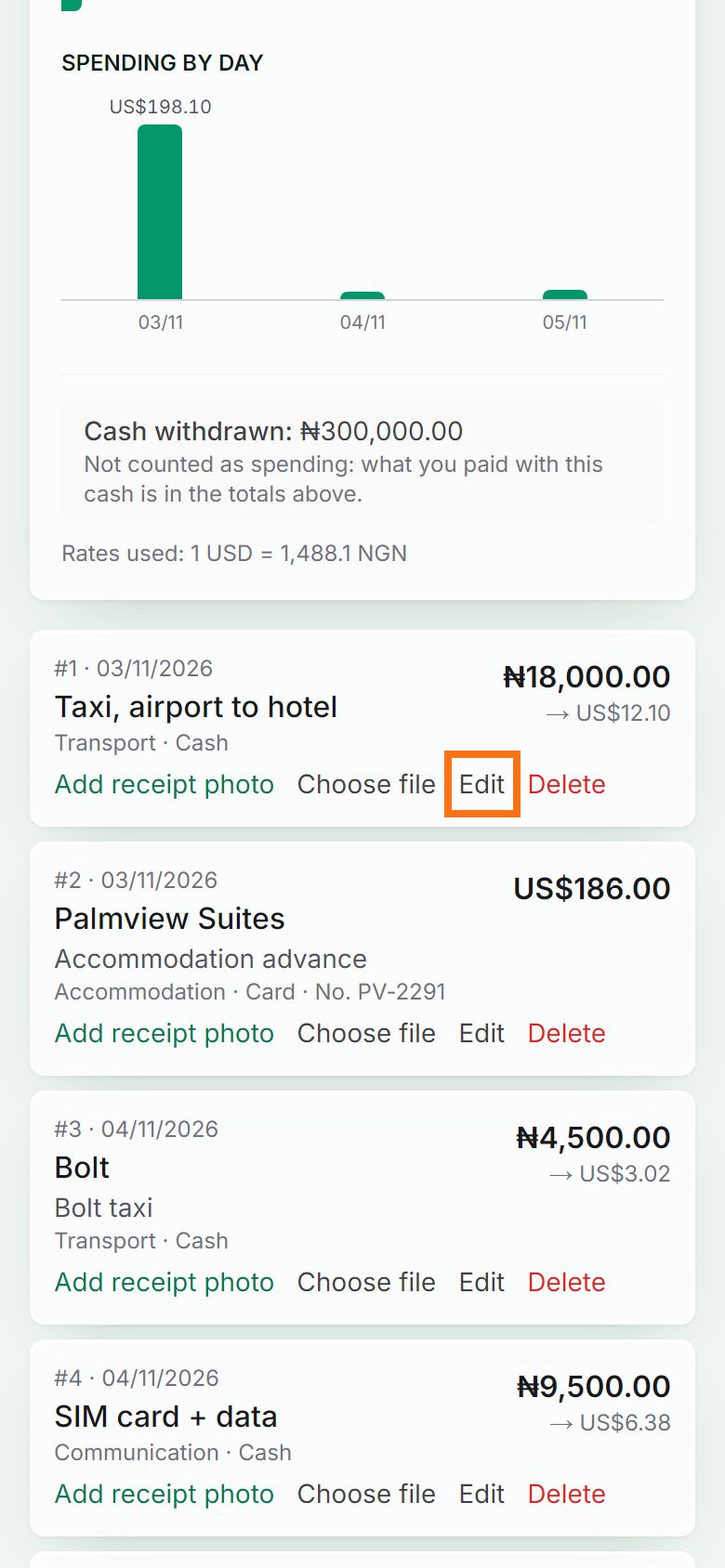
Step 4. Fix an expense later
In the list, press Edit on the expense, change what you need, then save. A receipt photo can be attached to any expense.


Still stuck? Ask the chat at the bottom of the page, or email support@quantum-notemaster.com.
Next guide: Change the currency