
Change the currency
Change your home currency, one trip’s currency, or a single expense’s currency.
Pictures come from the sample workspace; the orange frame shows where to look or press.
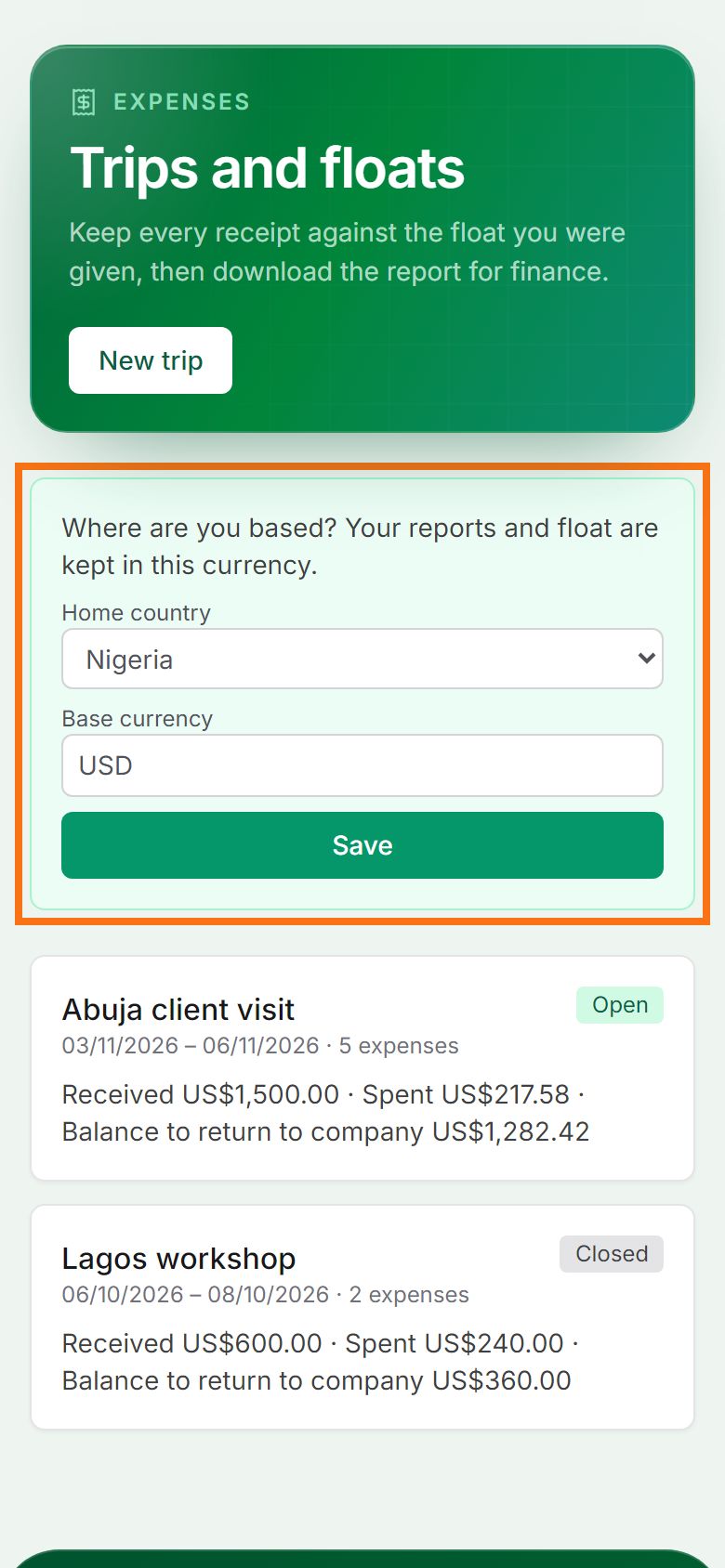
Step 1. Your home currency
This is the currency new trips start in. On Expenses, press Change next to “Home: … · NGN”, choose the country or type the currency code, and press Save. Existing trips keep their own currency.
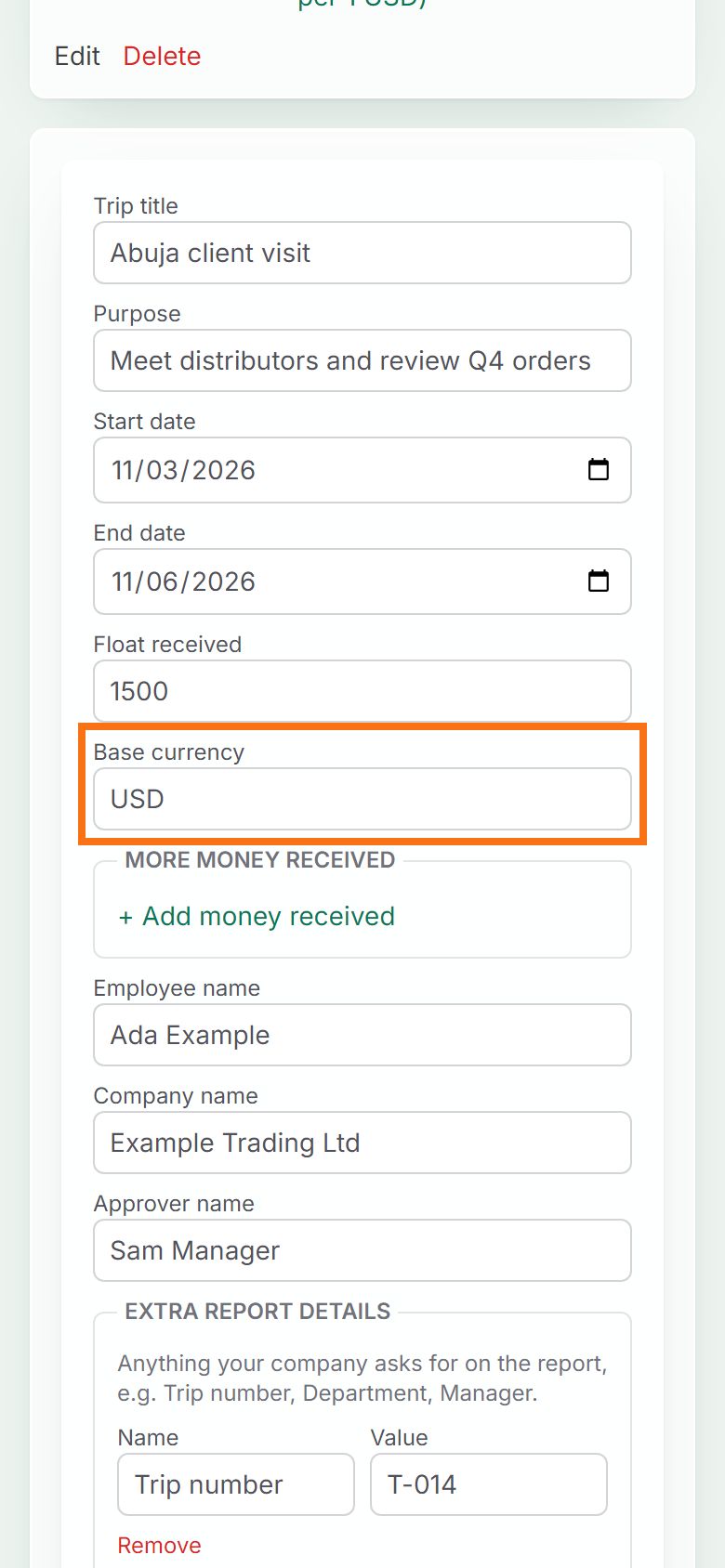
Step 2. One trip’s currency
Open the trip and press Edit trip details. Change Base currency, then under Exchange rates enter the rate for the new currency (“… per 1 US$”) and check the float. Save: every expense is converted again. An “amount charged” saved without a currency counts in the trip’s currency, so check those too.
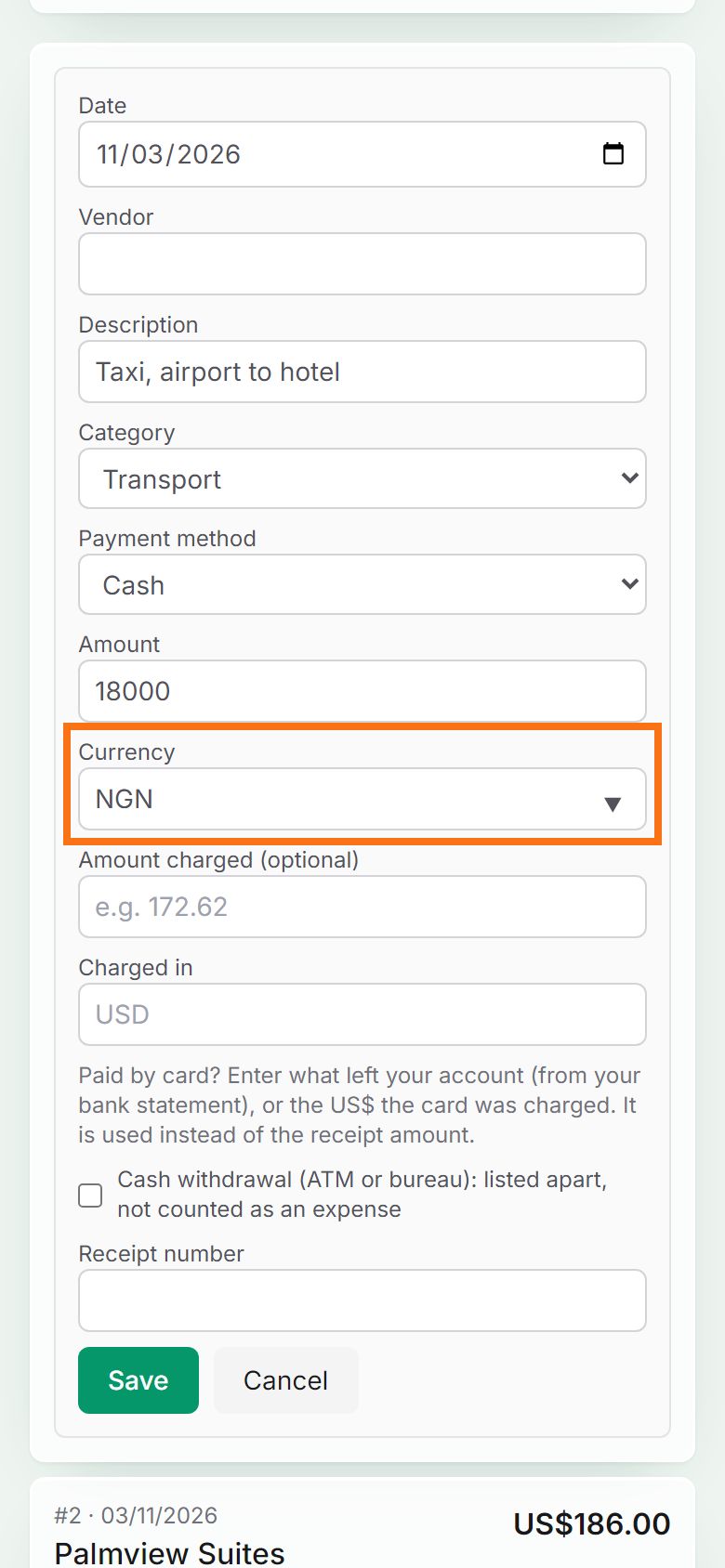
Step 3. One expense’s currency
Press Edit on the expense, change Currency, and save. If that currency has no rate yet, the expense shows “Add a rate”: press it and enter the rate.


Still stuck? Ask the chat at the bottom of the page, or email support@quantum-notemaster.com.
Next guide: Add expenses from receipts or by voice