
Create a Smart Note with tasks and reminders
Turn a transcript into a summary, decisions and action items with owners, due dates and email reminders.
Pictures come from the sample workspace; the orange frame shows where to look or press.
Step 1. Start from a transcript
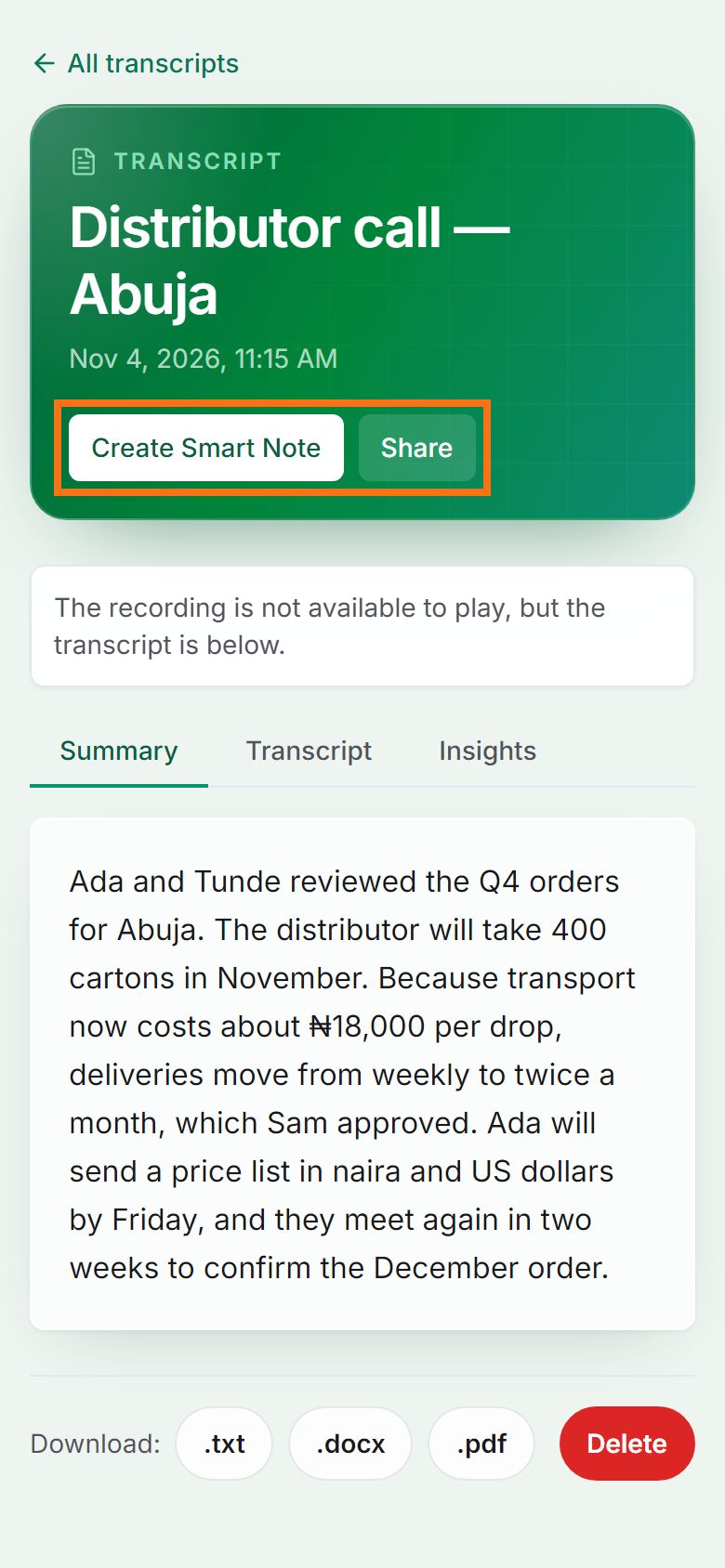
On a transcript’s page, press Create Smart Note.
Step 2. Or create it on Smart Notes
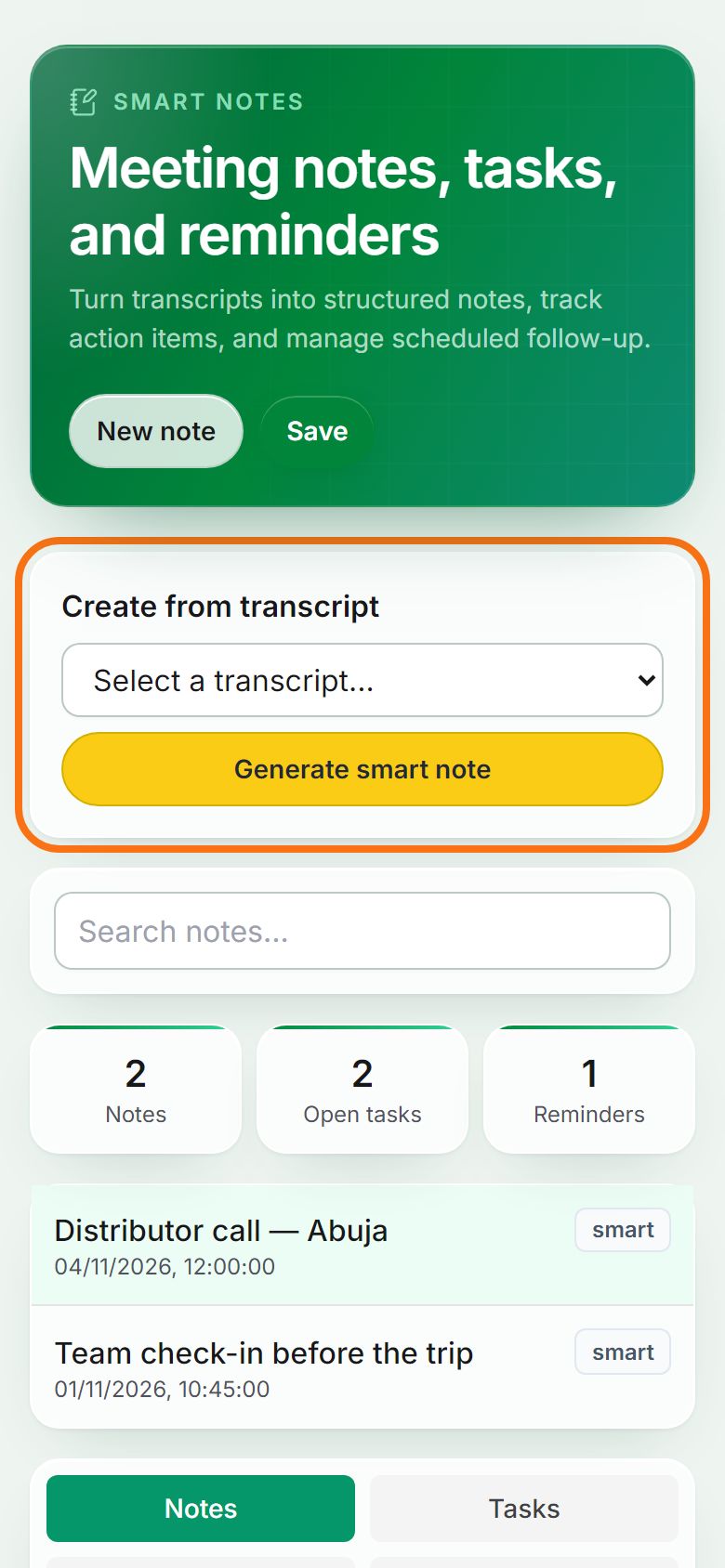
Open Smart Notes in the menu. Under Create from transcript, select the transcript, then press Generate smart note.
Step 3. Read the note
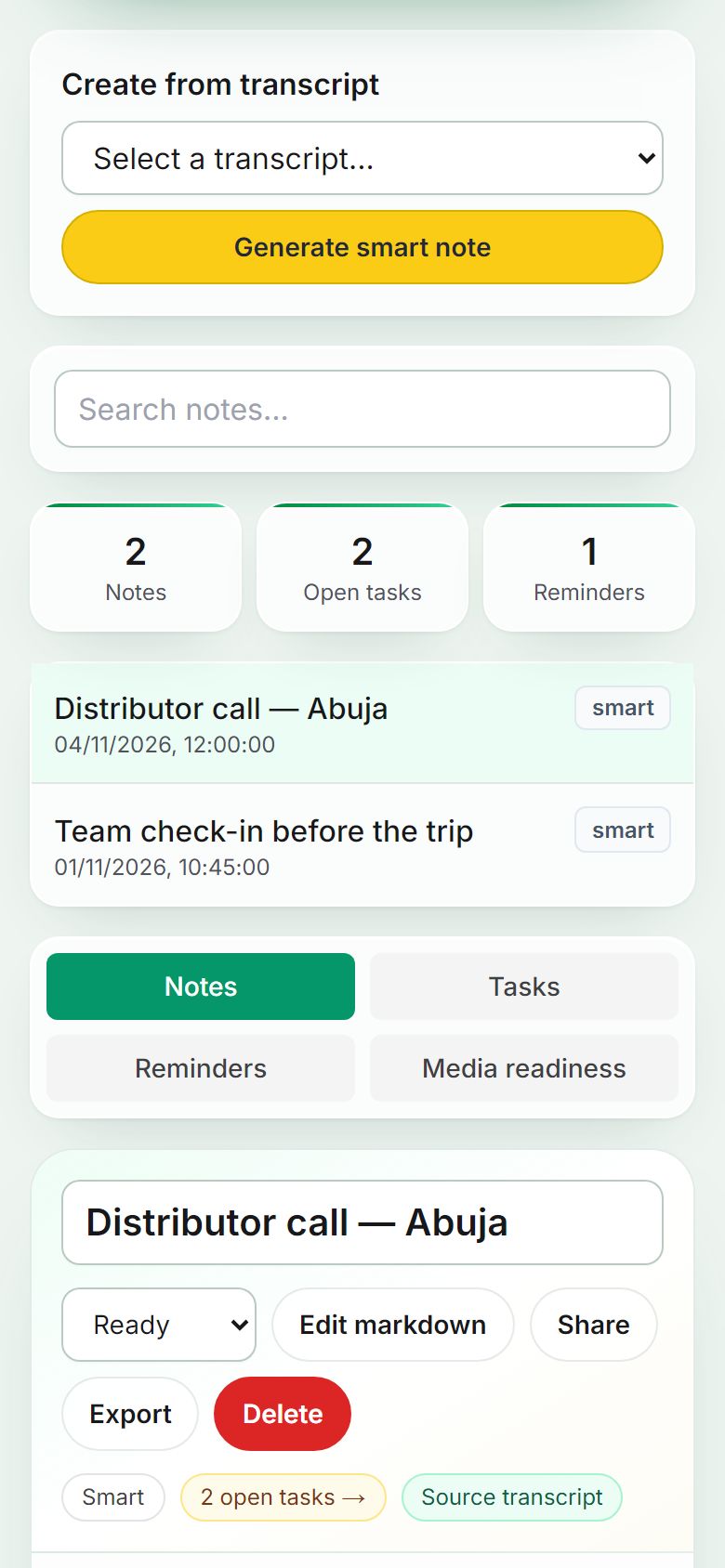
Your notes are listed on the left; the open note shows the summary, decisions and action items. Press Edit markdown to change the text, then Save.
Step 4. Give each task an owner and a date
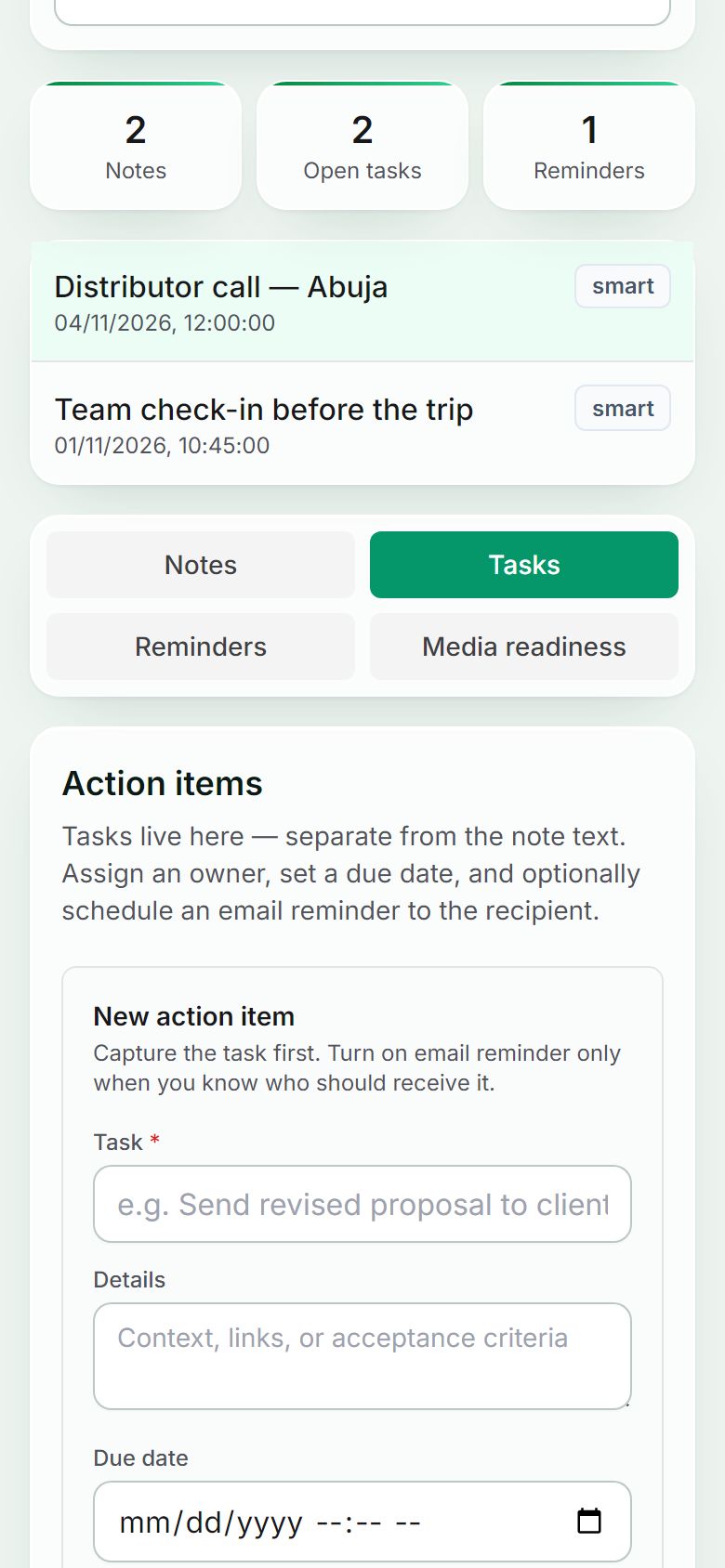
Open the Tasks tab. Each action item can have an owner’s email, a due date and details; the owner gets an email reminder when it is due.
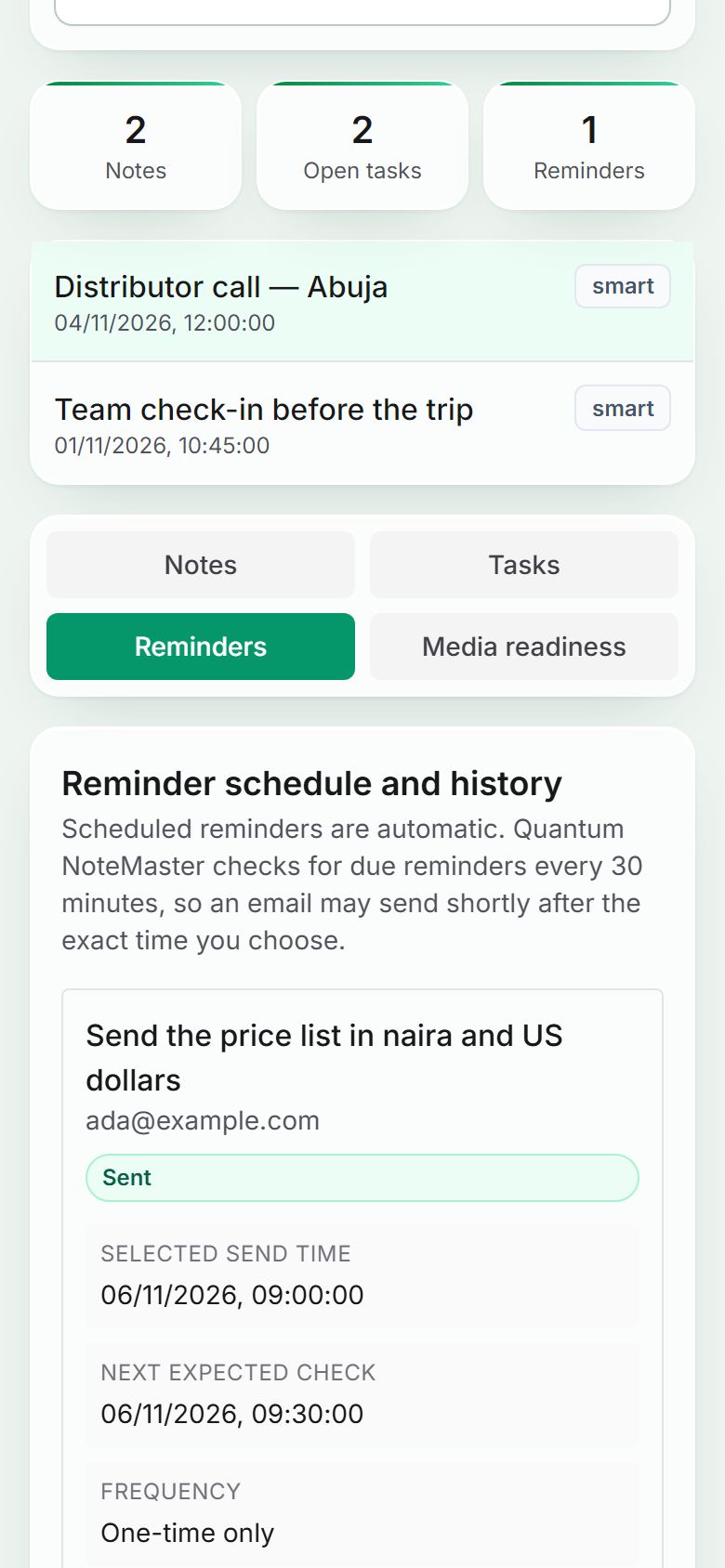
Step 5. Check the reminders
The Reminders tab shows which emails are scheduled and which were sent. Reminders go out automatically on every plan, including the free trial.


Still stuck? Ask the chat at the bottom of the page, or email support@quantum-notemaster.com.
Next guide: Start a trip and its float