
Your plan, account details and data
Change or cancel your plan, update your name and email, and download or delete your data.
Pictures come from the sample workspace; the orange frame shows where to look or press.
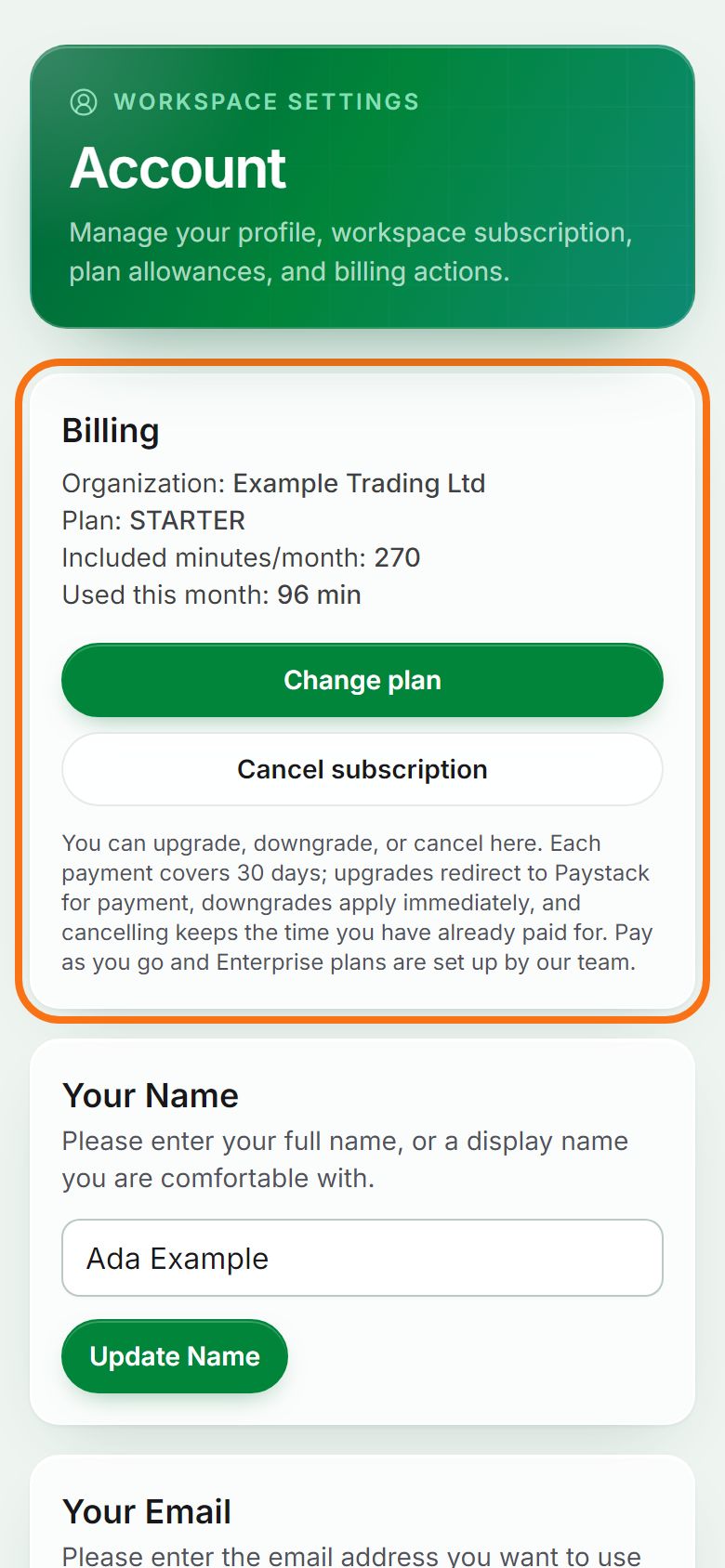
Step 1. Plan and billing
Open Account. Billing shows your plan, included minutes and what you used. Press Change plan to upgrade or downgrade (payment is by Paystack and covers 30 days), or Cancel subscription to keep access until the paid-until date. On a paid plan, admins can also top up extra minutes here.
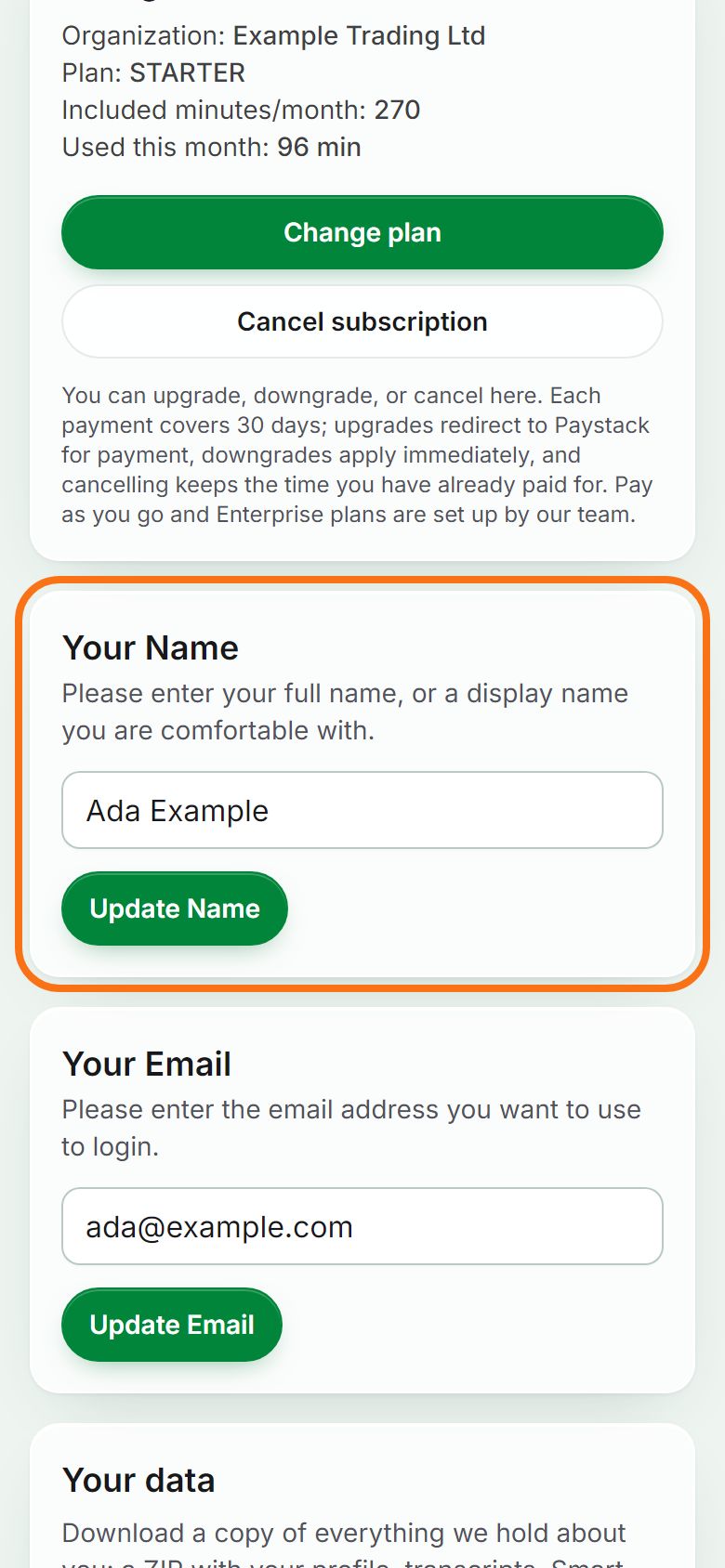
Step 2. Your name and email
Under Your Name, type the name you want shown and press Update Name. Under Your Email, change the address you sign in with and press Update Email, then confirm with the links sent to both your old and new addresses.
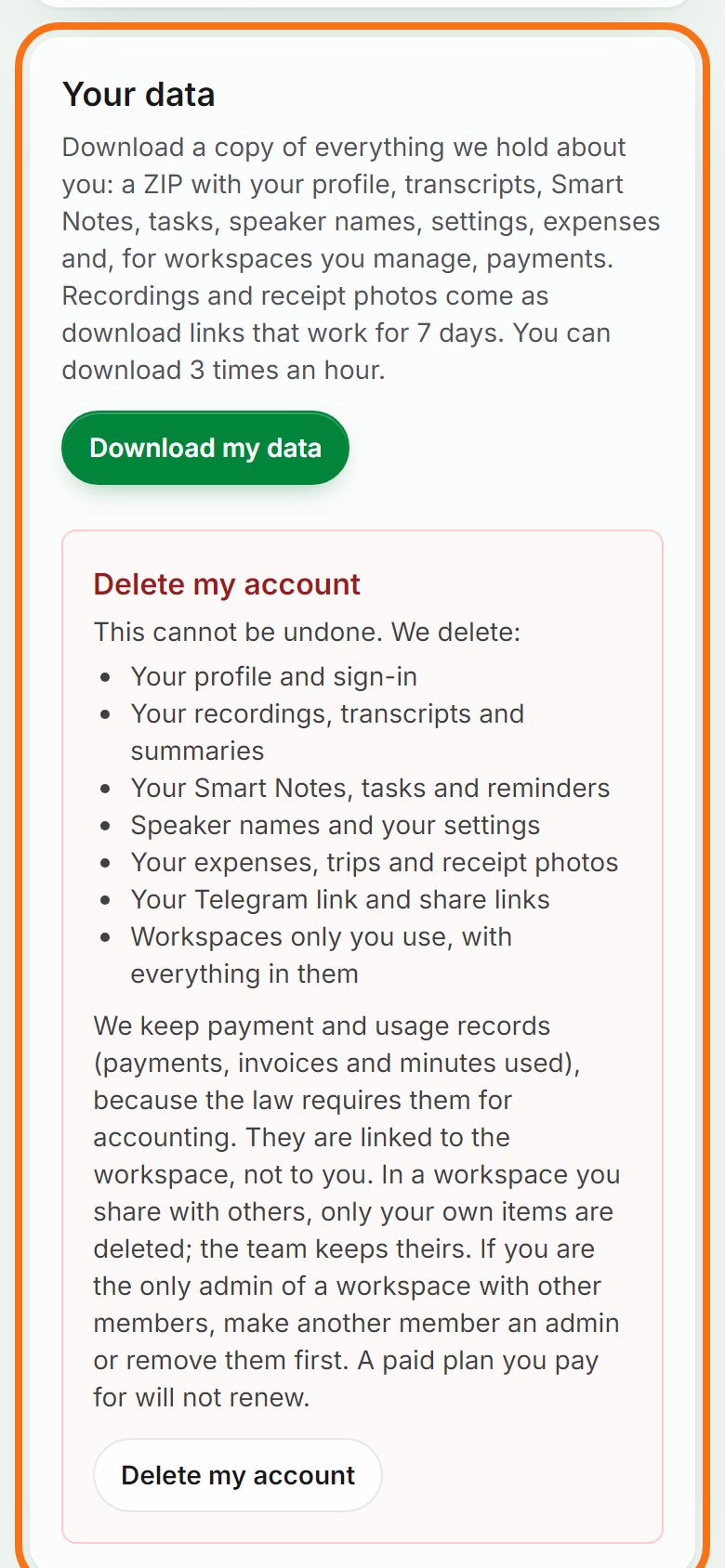
Step 3. Download or delete your data
Under Your data, Download my data gives a ZIP of everything you have (transcripts, notes, tasks, expenses, settings). Delete my account removes your account and content; payment records are kept because accounting law requires it.


Still stuck? Ask the chat at the bottom of the page, or email support@quantum-notemaster.com.
Next guide: Learn the app with tours and the demo