
Find your way around the Dashboard
Your minutes, latest transcripts and notes, usage and current trip on one page, with shortcuts to start.
Pictures come from the sample workspace; the orange frame shows where to look or press.
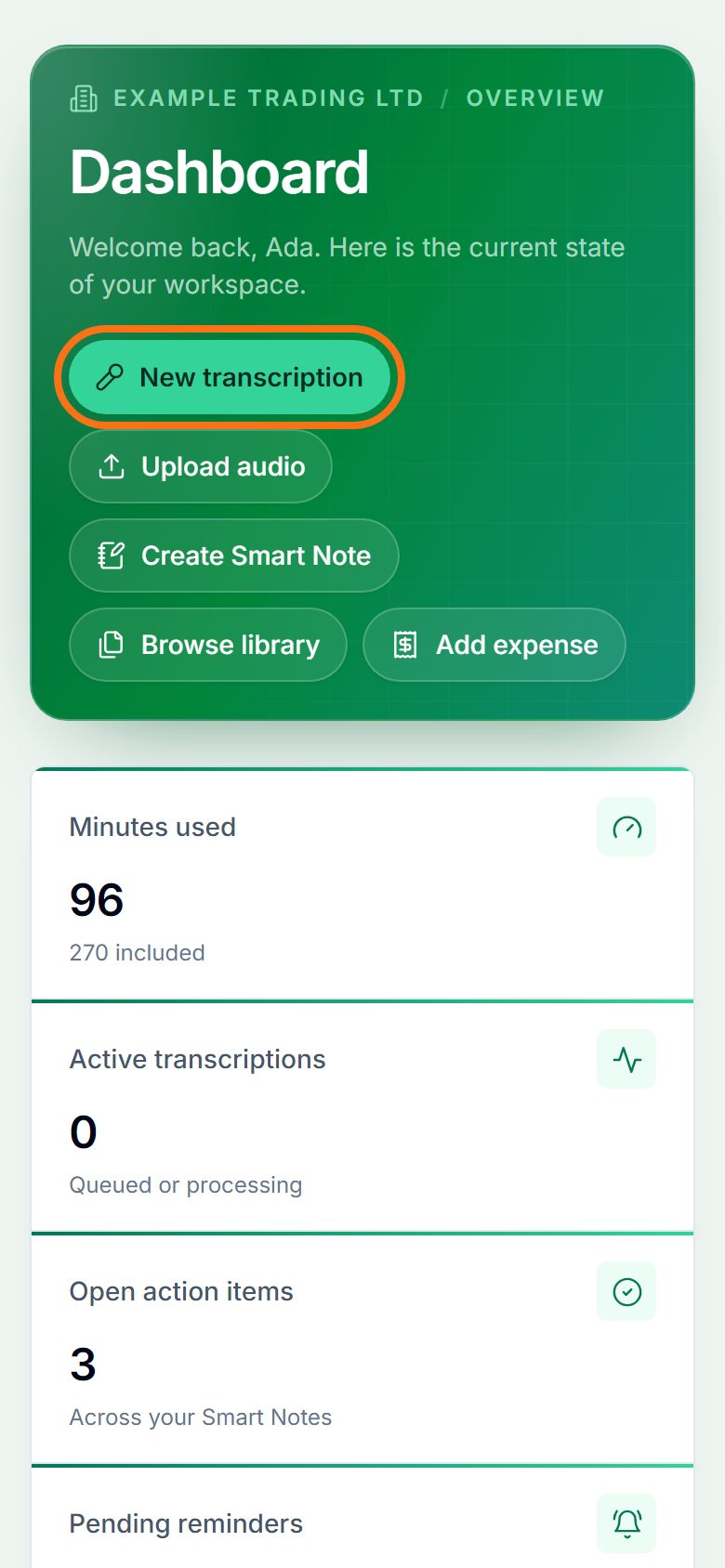
Step 1. Start something new
The buttons at the top start the common jobs: New transcription, Upload audio, Create Smart Note and Add expense. Browse library opens all your transcripts.
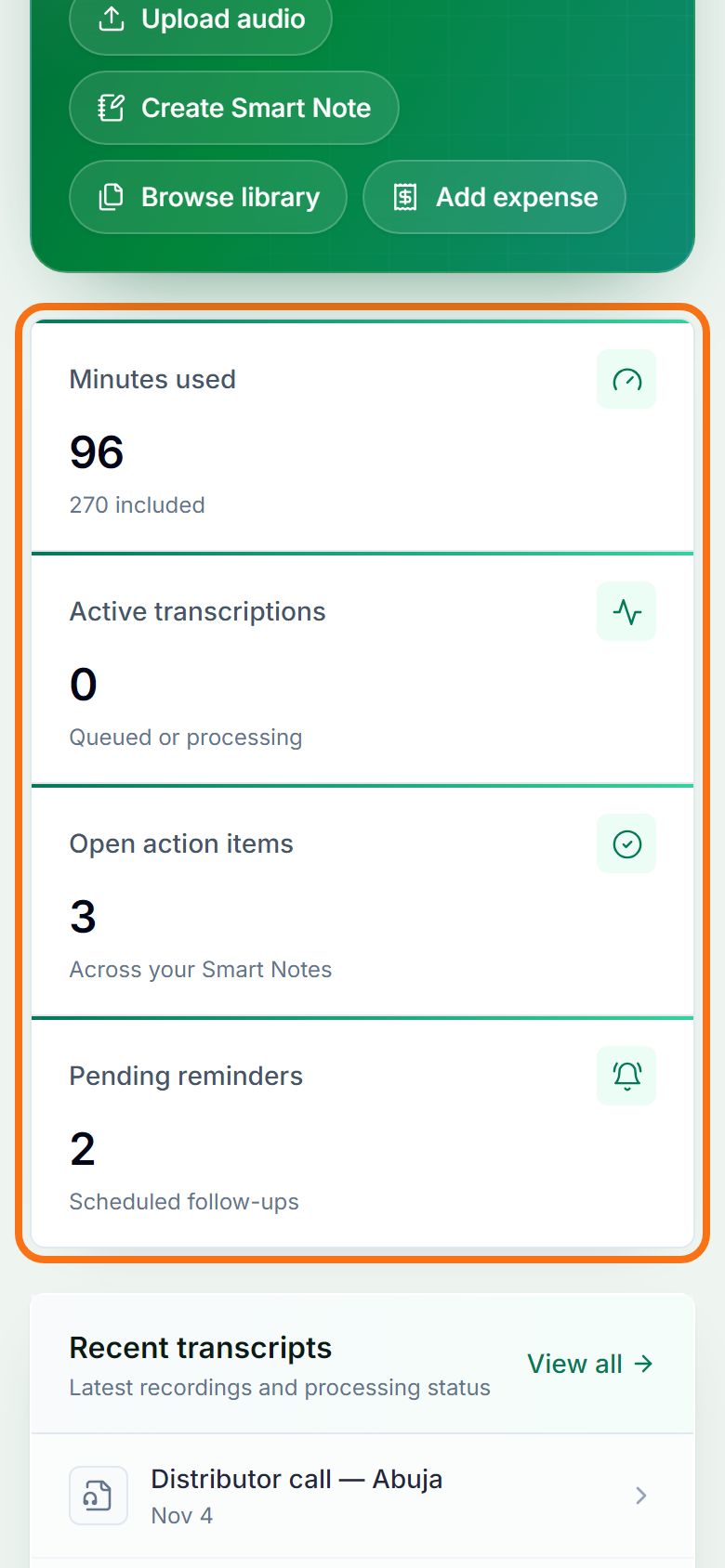
Step 2. Your numbers
Minutes used (this month, or of your free trial), transcripts and Smart Notes, and how much of your plan is left.
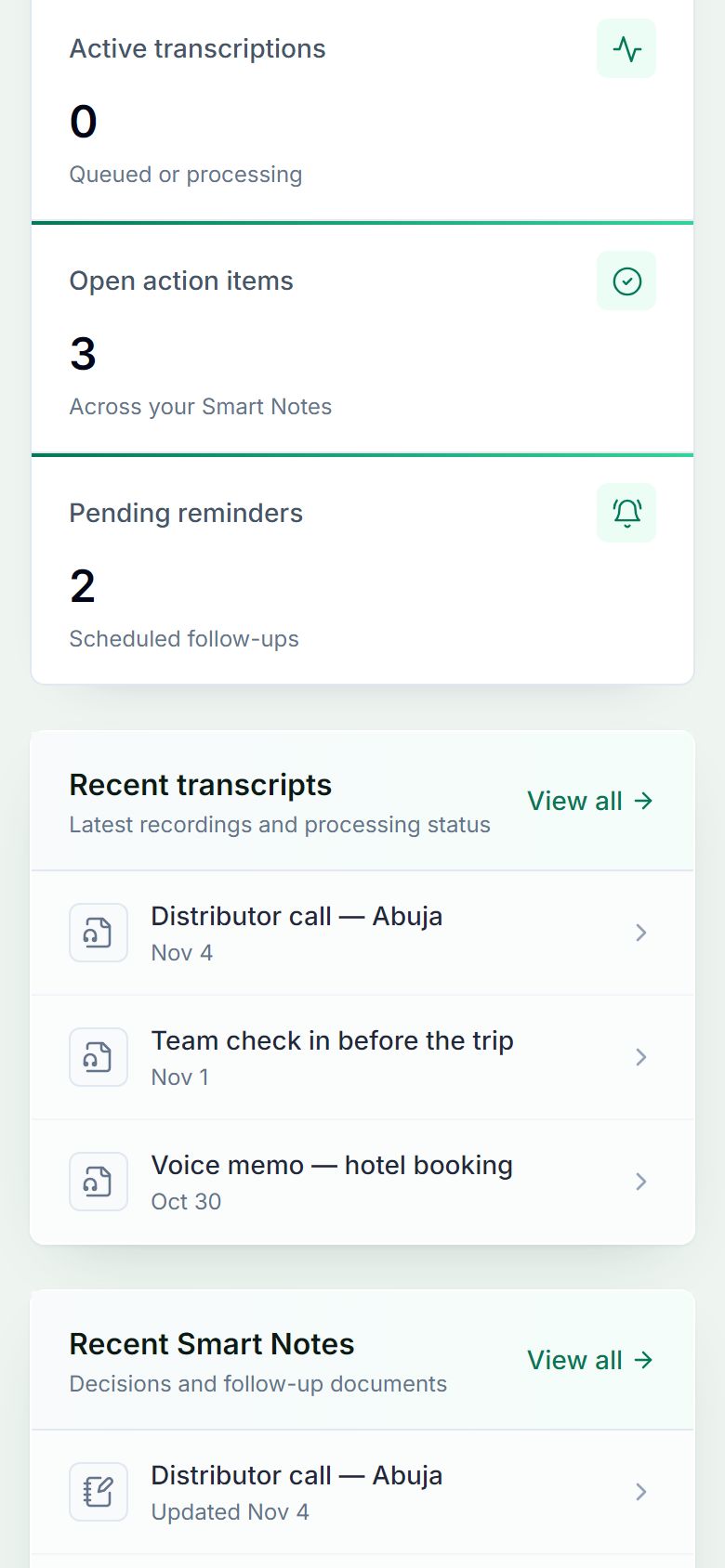
Step 3. Pick up where you left off
Your latest transcripts and Smart Notes. Click one to open it, or View all for the full list.
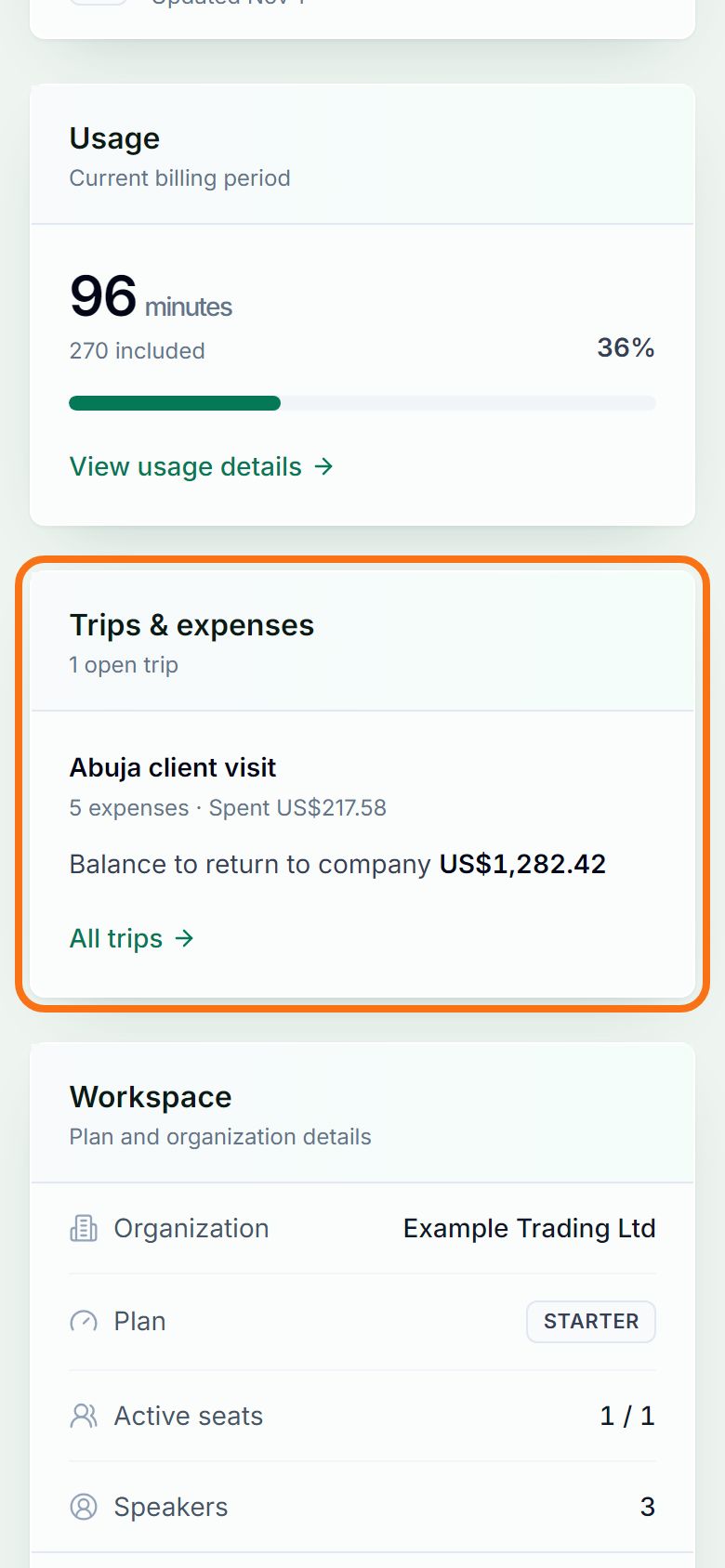
Step 4. Usage and your current trip
Usage tracks your minutes against your plan; when they run out on a paid plan, top up or upgrade from Account. Trips & expenses shows your latest trip and the balance to return.


Still stuck? Ask the chat at the bottom of the page, or email support@quantum-notemaster.com.
Next guide: Use the Telegram bot for voice notes and expenses