
Send the trip report to finance
Check the totals, download Excel or the ledger with the receipt photos, and close the trip.
Pictures come from the sample workspace; the orange frame shows where to look or press.
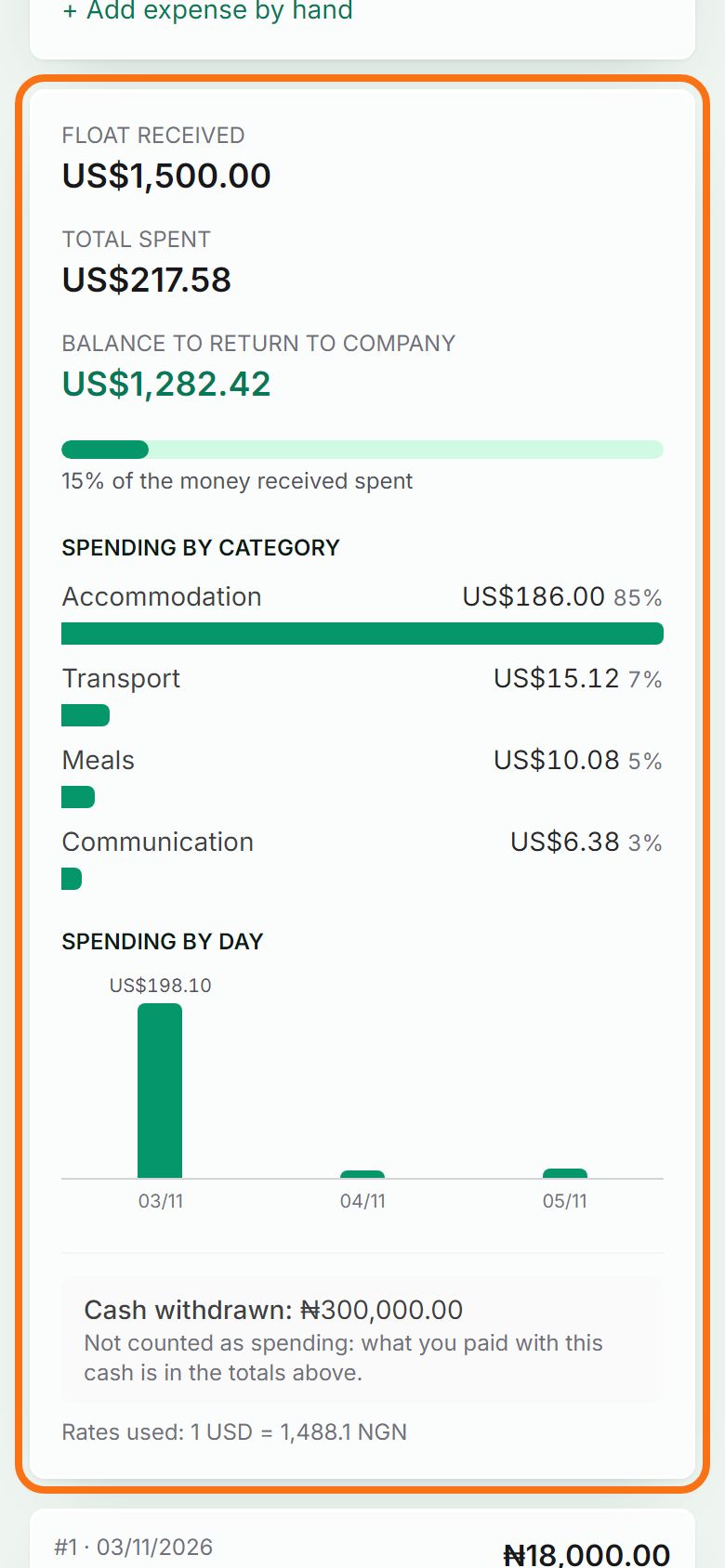
Step 1. Check the totals
At the top of the trip: what you received, what you spent, and the balance to return (or owed to you), with spending by category and by day.
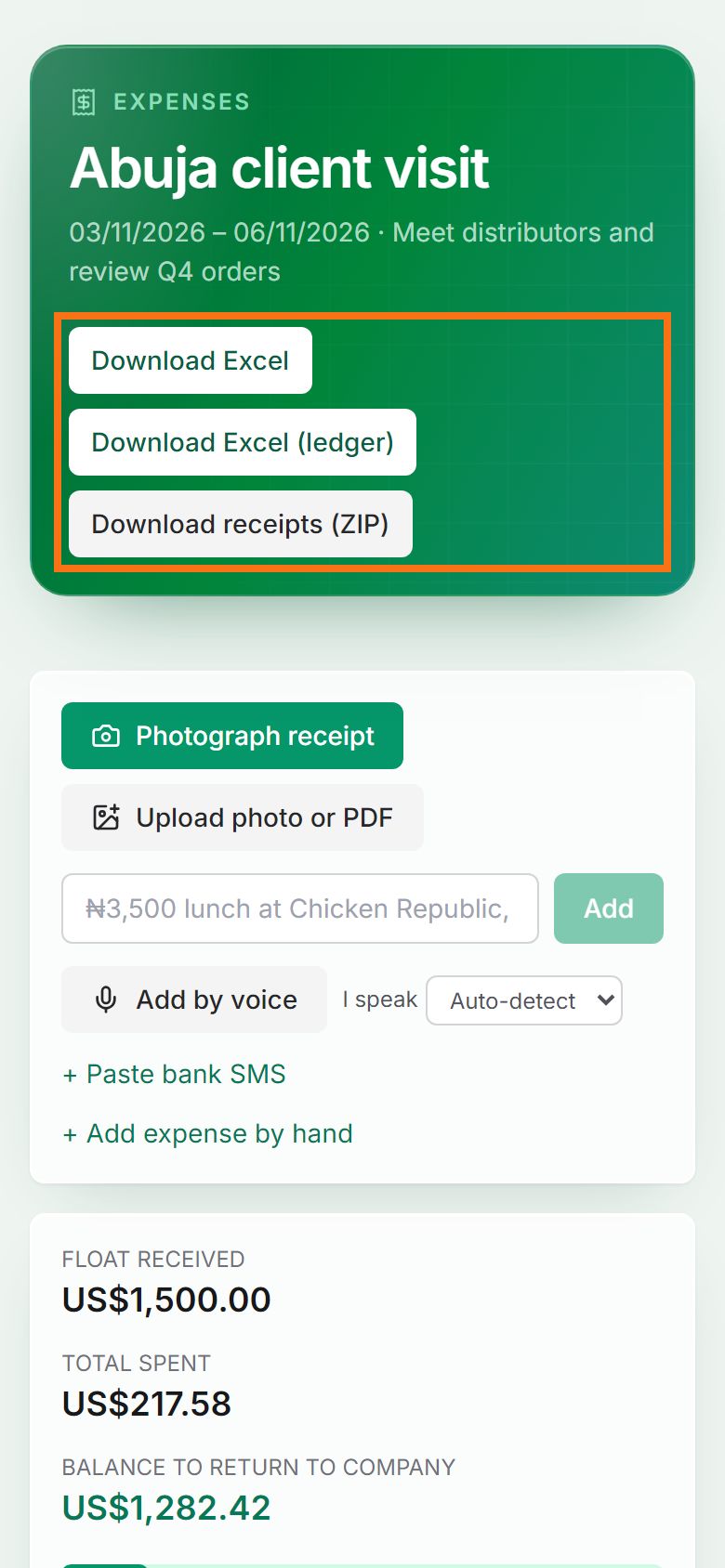
Step 2. Download the report
Download Excel gives one row per expense; Download Excel (ledger) shows money in and out with a running balance. Both have a Summary sheet with charts and include the receipt photos. Download receipts (ZIP) gives every receipt, PDFs included.
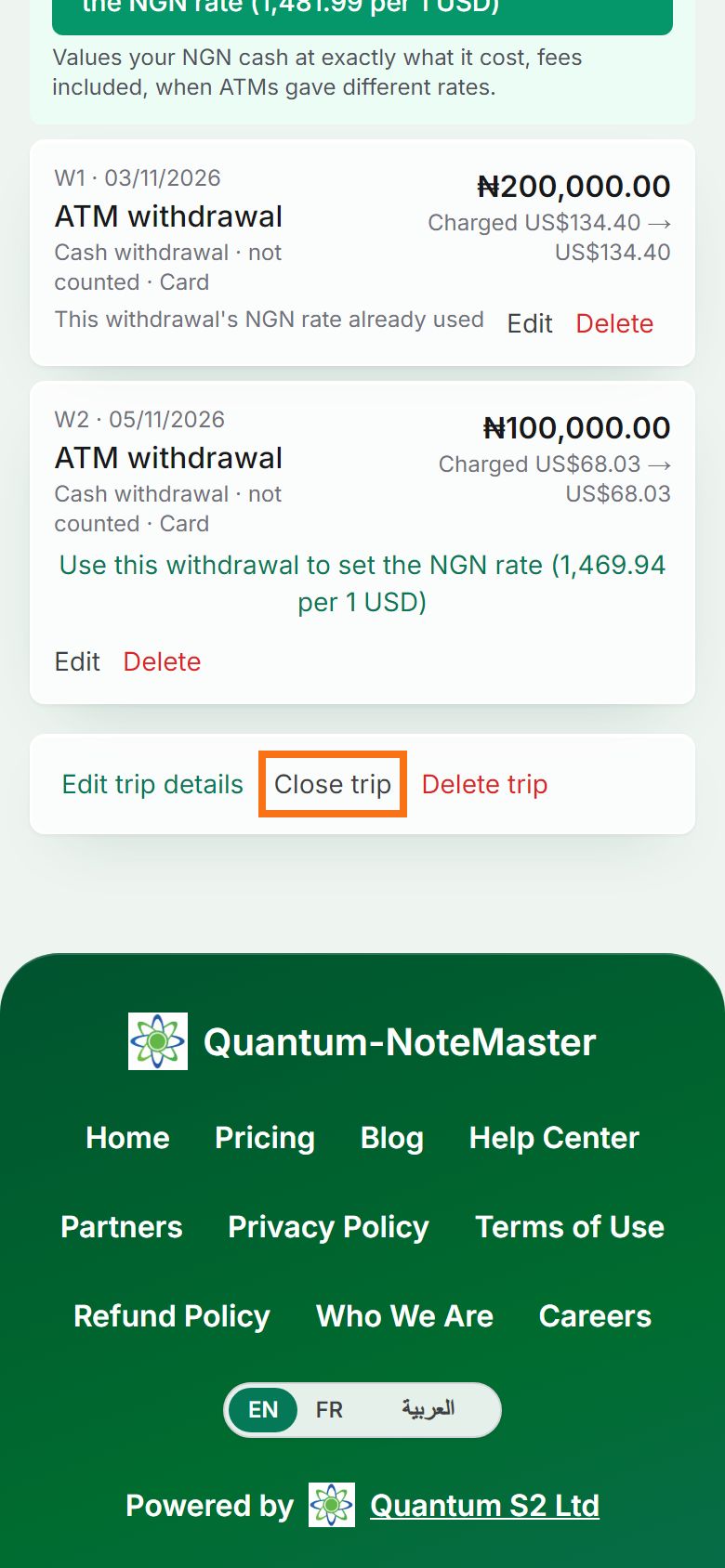
Step 3. Close the trip
When the report is sent, press Close trip at the bottom of the page. Its balance can be brought forward when you start the next trip.


Still stuck? Ask the chat at the bottom of the page, or email support@quantum-notemaster.com.
Next guide: Share a transcript or Smart Note on WhatsApp